Install and use the VPN
Your Seedbox VPN uses a personal OpenVPN profile in .ovpn format. Generate it in My Console, then import it into a VPN client on your computer. The profile already contains the authentication material: this guide does not require a separate username or password.
Keep your profile private
The .ovpn file contains a certificate and a private key. Do not share it or publish a screenshot of its contents. Treat it like a password.
Install a VPN client
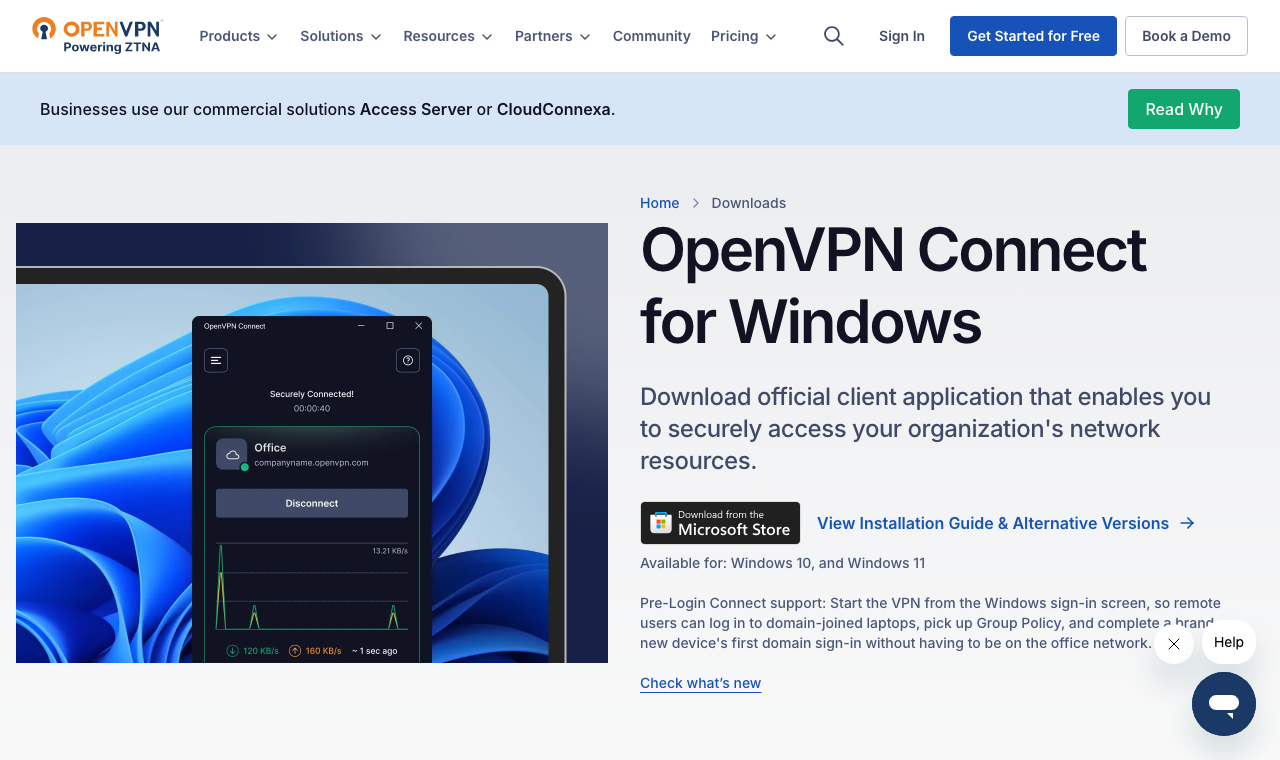
Install OpenVPN Connect for Windows, the client offered in My Console. The official page offers the Microsoft Store and an alternative .msi installer. Follow the instructions for your chosen method.
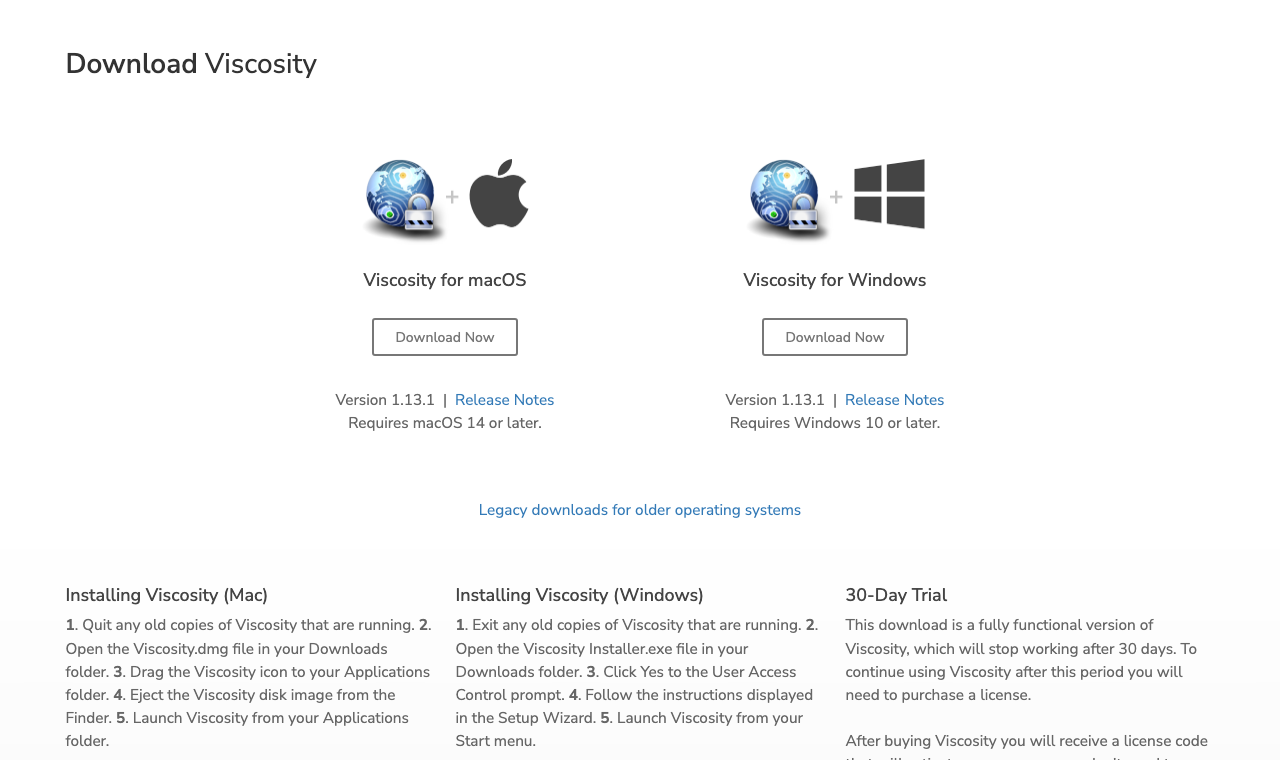
My Console offers Viscosity for macOS. Install and open it. Viscosity has a trial period and then requires a paid license. OpenVPN Connect for macOS can also import .ovpn profiles.
Generate the profile in My Console
- Sign in to Seedbox.fr and open My Console.
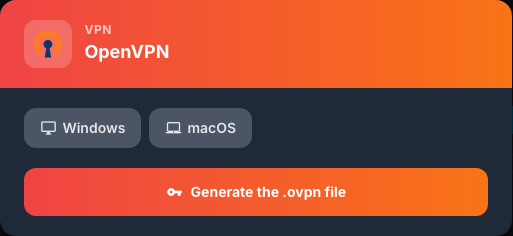
- Open Plugins and select OpenVPN in the VPN section.
- Click Generate .ovpn file.
Your browser may display the profile text instead of downloading a file. If so, do not save the page as HTML or WebArchive: those are not OpenVPN profiles. Save only the plain text as a file ending in .ovpn, or contact support if your browser cannot do this. Never send the profile text to support.
Import the profile and connect
- Open OpenVPN Connect.
- In My Profiles, click +, then Upload File.
- Select your
.ovpnfile and confirm the import. - Toggle on the profile and allow the VPN connection if Windows asks.
- Open Viscosity from the menu bar, then Preferences/Settings.
- Under Connections, choose + > Import Connection > From File.
- Select the
.ovpnfile. - Choose the imported connection from the Viscosity menu. Allow macOS network permissions if prompted.
If you chose OpenVPN Connect, use My Profiles > + > Upload File, select the .ovpn file, then enable the profile.
Wait until your client shows Connected before using the VPN. To disconnect, toggle off the profile in OpenVPN Connect or choose Disconnect in Viscosity.
Troubleshooting
- If import fails, check that the file is plain text ending in
.ovpn, not an HTML page. - If connection fails, confirm your Seedbox service is active and your Internet connection works. Then generate a fresh profile in My Console and import it again.
- Do not enter your Seedbox account password into an unexpected prompt, and never share your profile when asking for help.
For more client details, see the official OpenVPN Connect and Viscosity guides.