Install and use Kavita
Kavita is a web reader for organizing and reading comics, manga, books and ebooks. It lets you create libraries, track reading progress and access your collection from a browser.
Install Kavita from My Console
- Log in to Seedbox.fr, then open My Console.
- Locate the card Kavita, marked Not installed.
- Click Install, then confirm the installation.
Deployment takes approximately five minutes. You will receive an email when Kavita is available. The card then displays Active and an Access button.
Log in to Kavita
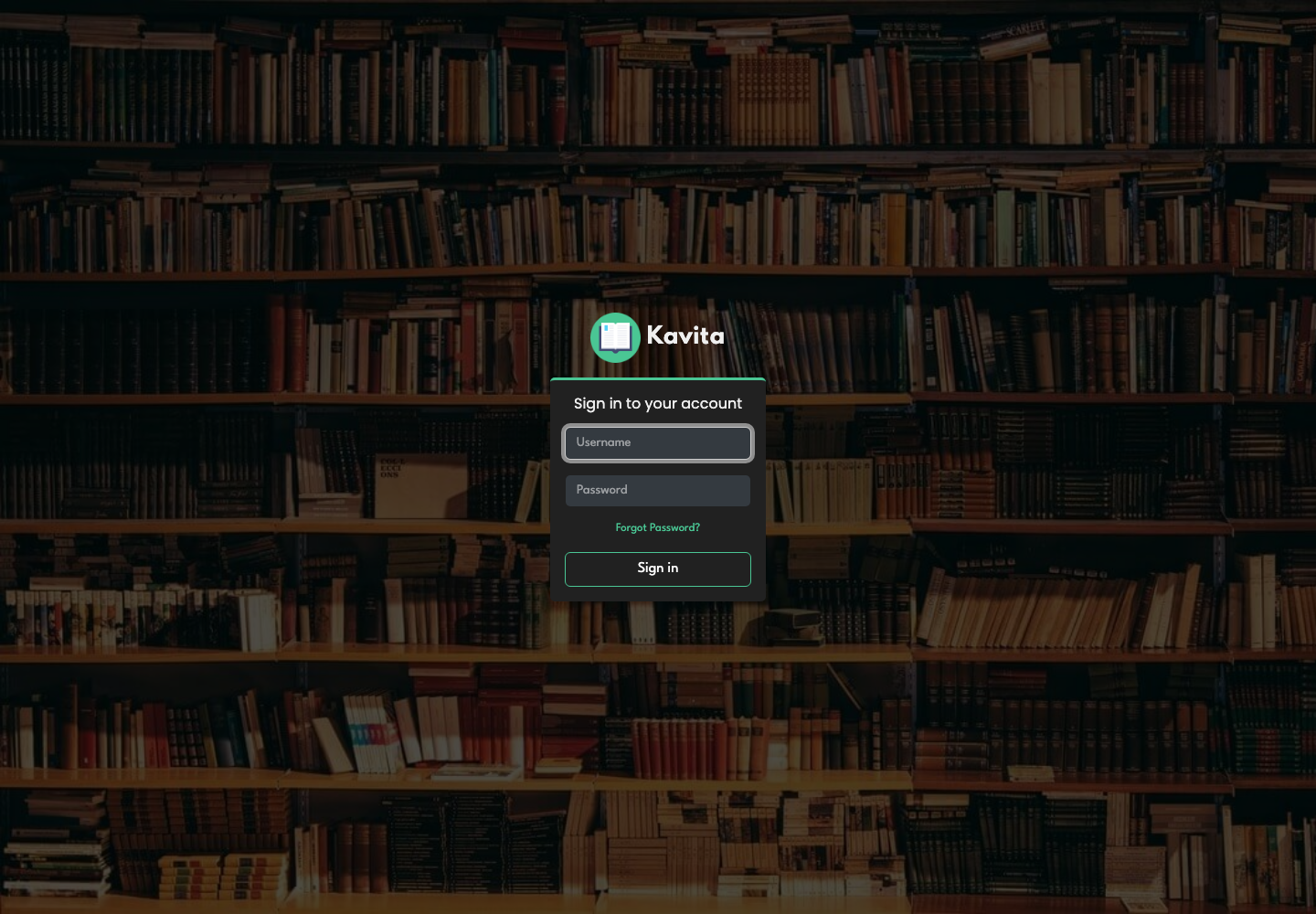
Click Access, then enter:
- your Seedbox services username;
- your Seedbox services password.
Kavita does not use your customer-area email address or password for this sign-in.
Discover the interface
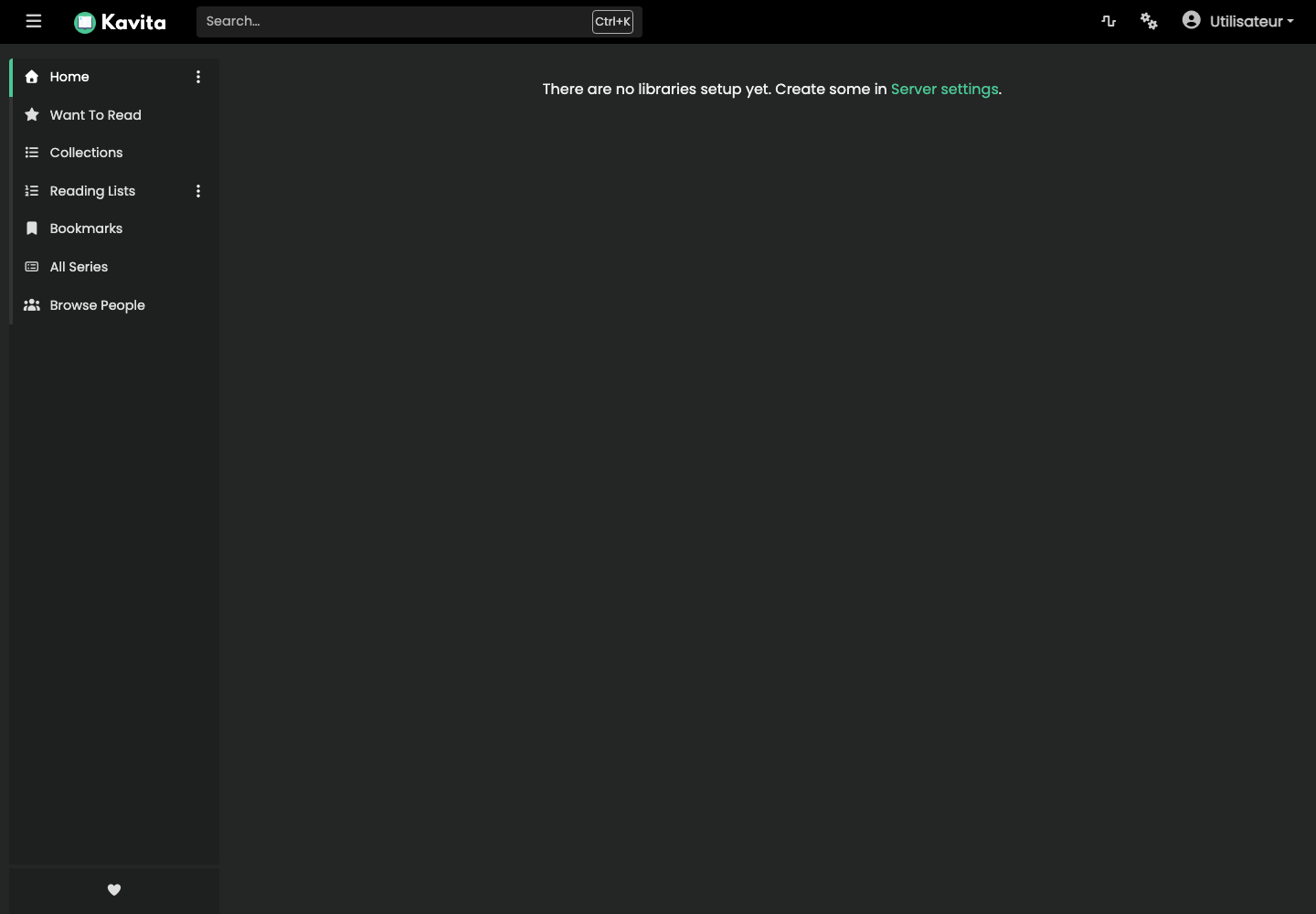
The main menu provides access to the following sections:
- Home shows your libraries and current reading;
- Want To Read contains the books added to your list;
- Collections and Reading Lists help organize content;
- Bookmarks keeps saved pages;
- All series displays the entire catalog;
- the top bar allows you to quickly search for a series.
No libraries are configured when you first sign in. Open Settings > Server > Libraries to create one, choose its type and select the folder containing your books.
Prepare ebook files
Only download works that you have the right to use. In this example, we use Le Tour du monde en quatre-vingts jours by Jules Verne, available in EPUB3 format on Project Gutenberg and marked as being in the public domain.
In the download client already installed, keep the default path /downloads/complete/, then add:
ebooks/romans/Jules Verne
The complete path therefore becomes:
/downloads/complete/ebooks/romans/Jules Verne
Then arrange the file like this:
ebooks/
└── romans/
    └── Jules Verne/
        └── Le Tour du monde en quatre-vingts jours.epub
Kavita has strict file organization requirements:
- do not place any ebook directly at the root of the library;
- keep each series in a single folder, without dividing it between two neighboring folders;
- use a separate subfolder for each series or standalone work;
- check the internal metadata of EPUBs, as they take precedence over the names of folders and files;
- for a collection in several volumes, correctly enter the name of the series and the volume number in the metadata.
Create a novel library
- In Kavita, open Settings > Server > Libraries.
- Click Add Library.
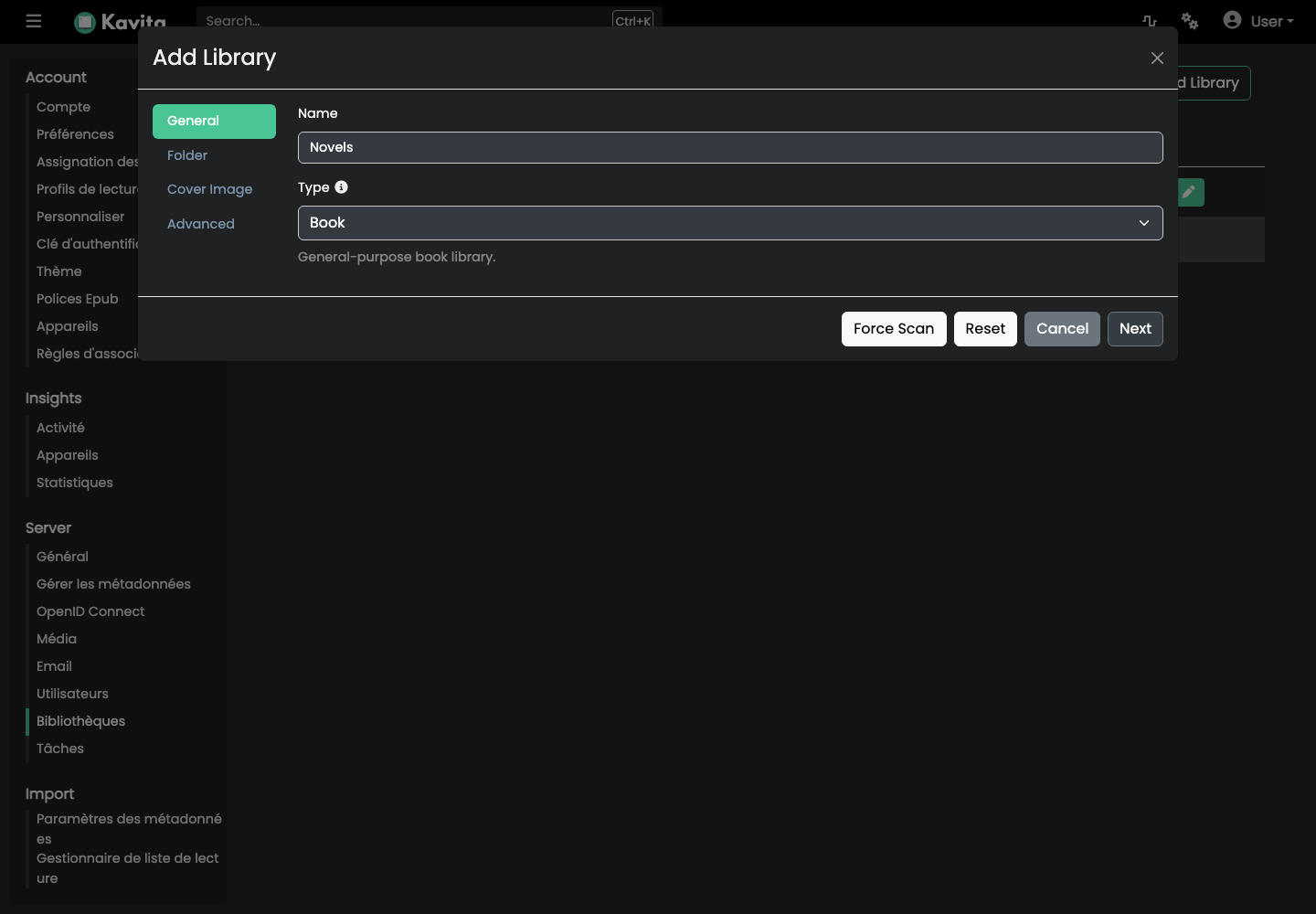
- Enter a meaningful name for the library.
- Choose Book as type, then click Next.
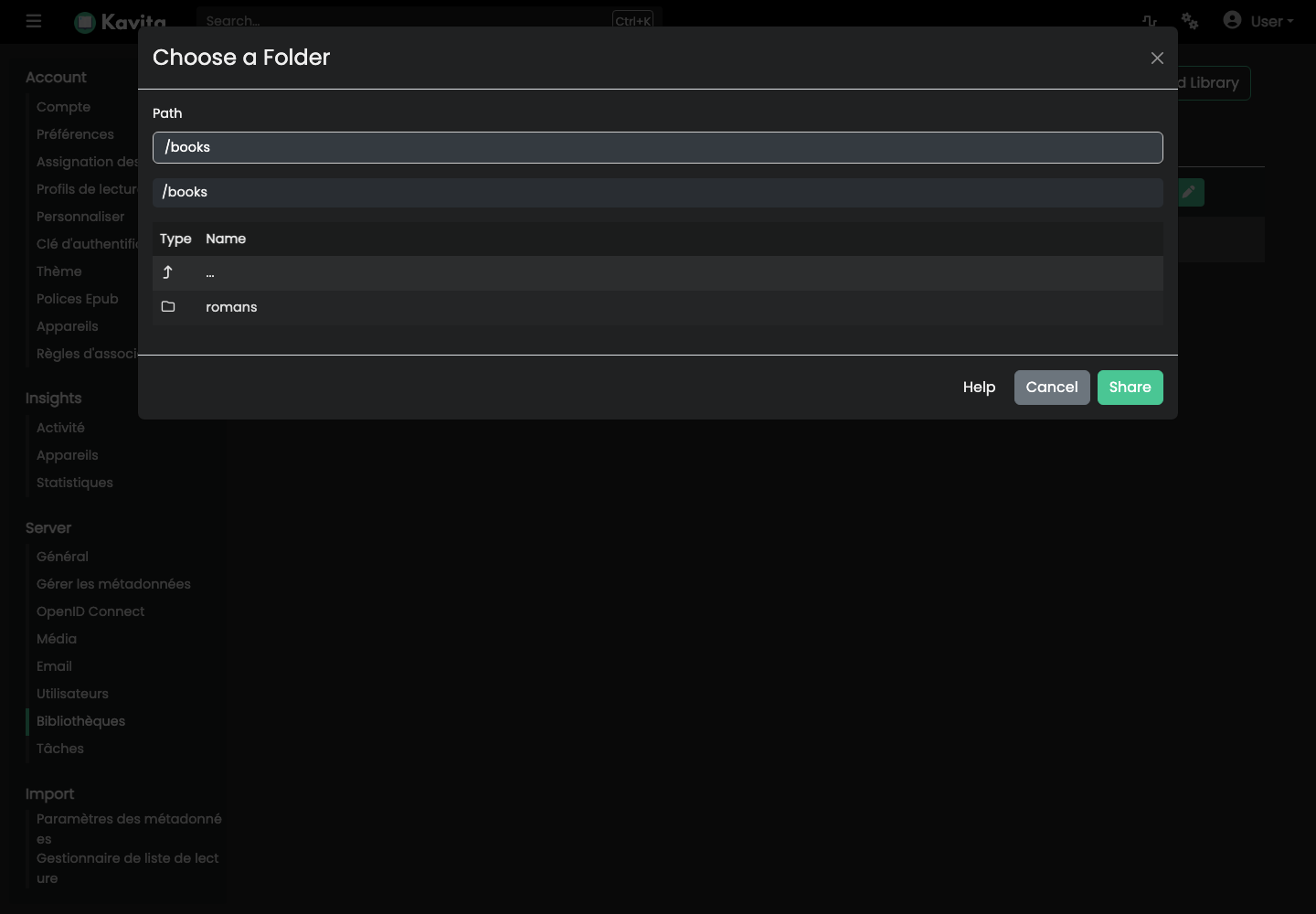
In the Folder step, click Search for media folders. The path /downloads/complete/ebooks used by the download client appears as /books in Kavita.
- Open
/books. - Verify that the folder corresponding to the category is visible.
- Do not go down to the author folder:
/booksmust remain the common root of the library. - Click Share to select this folder.
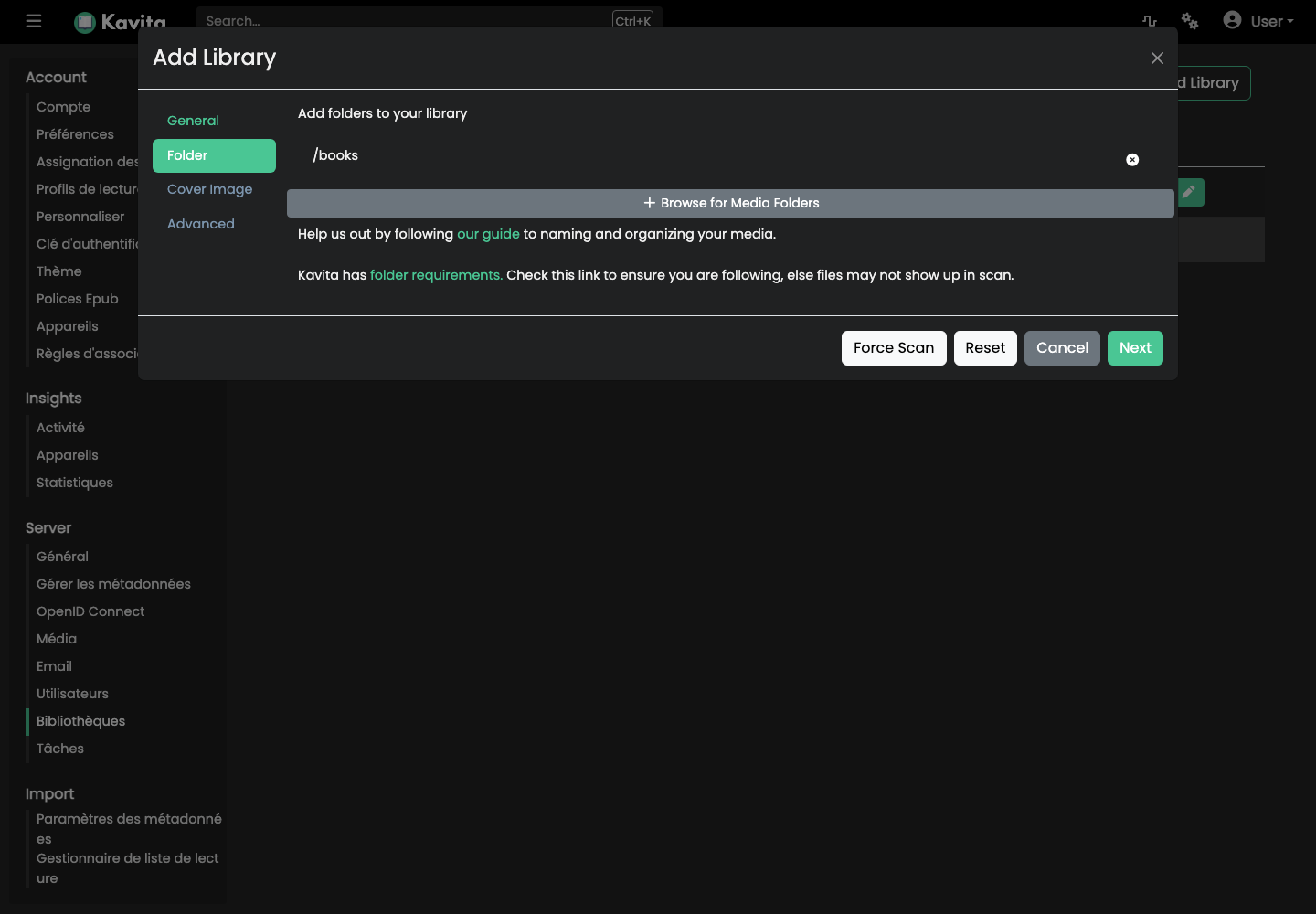
The library cover image is optional. In the Advanced step, keep Epub, Enable metadata and Include in search at least, then click Save.
Kavita automatically starts the initial scan.
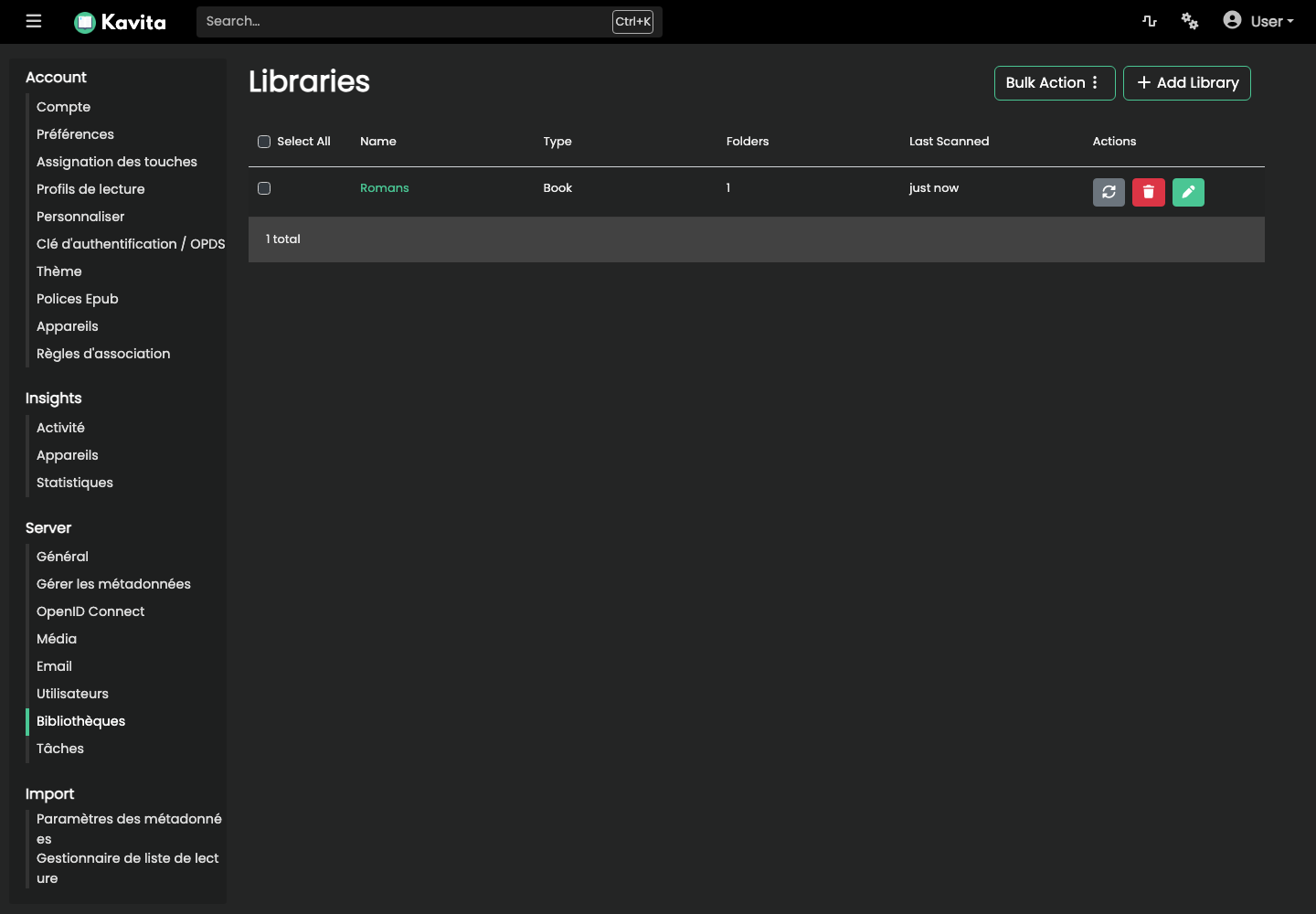
Once the scan is complete, the novel appears on the home page under recently added and updated series.
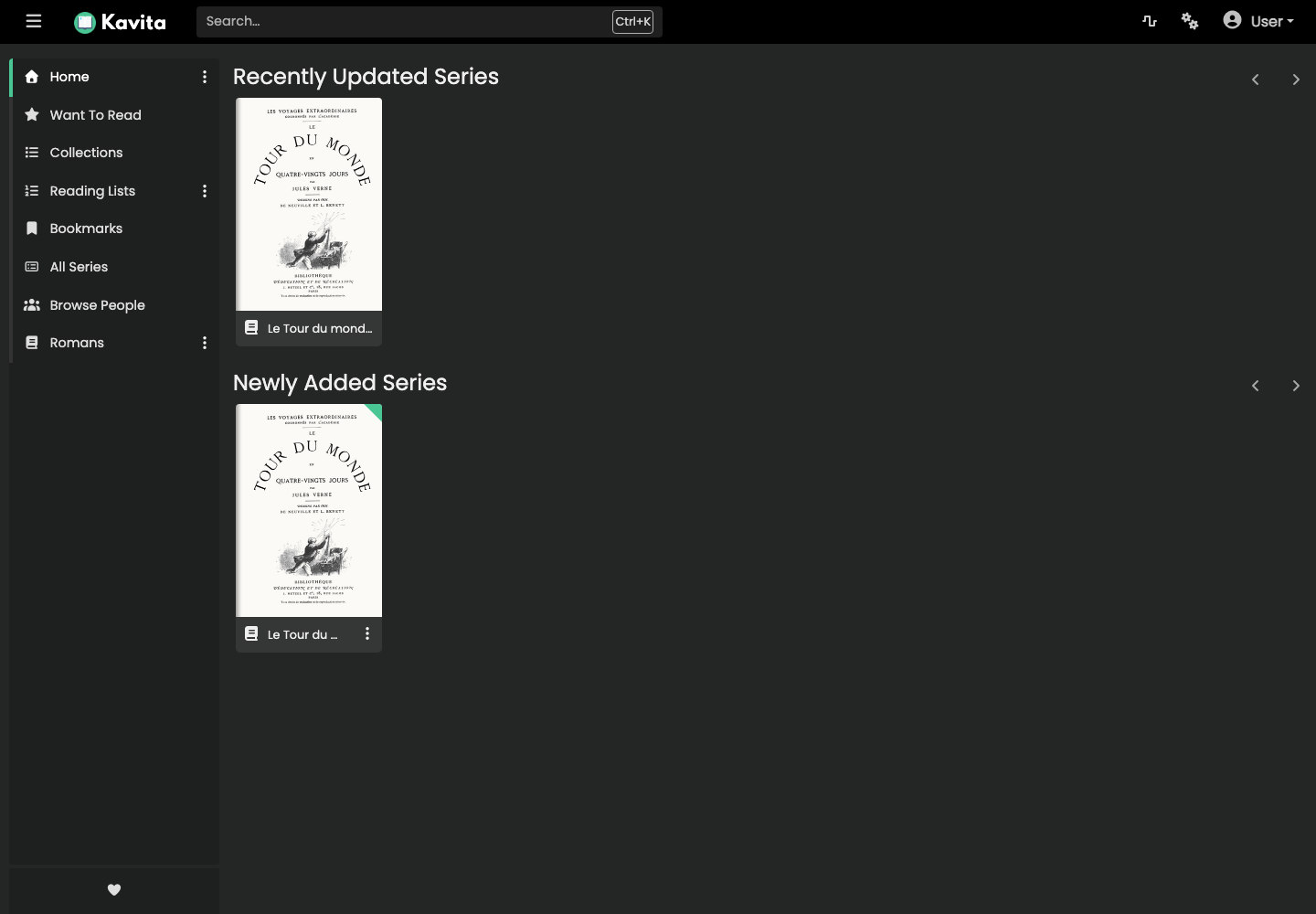
If a book doesn't appear, first check its location and metadata, then rescan from the library actions menu.
Change the language of Kavita
- Click on your profile, then on Settings.
- Open Account > Preferences.
- On the Locale line, click Edit.
- Select the desired language.
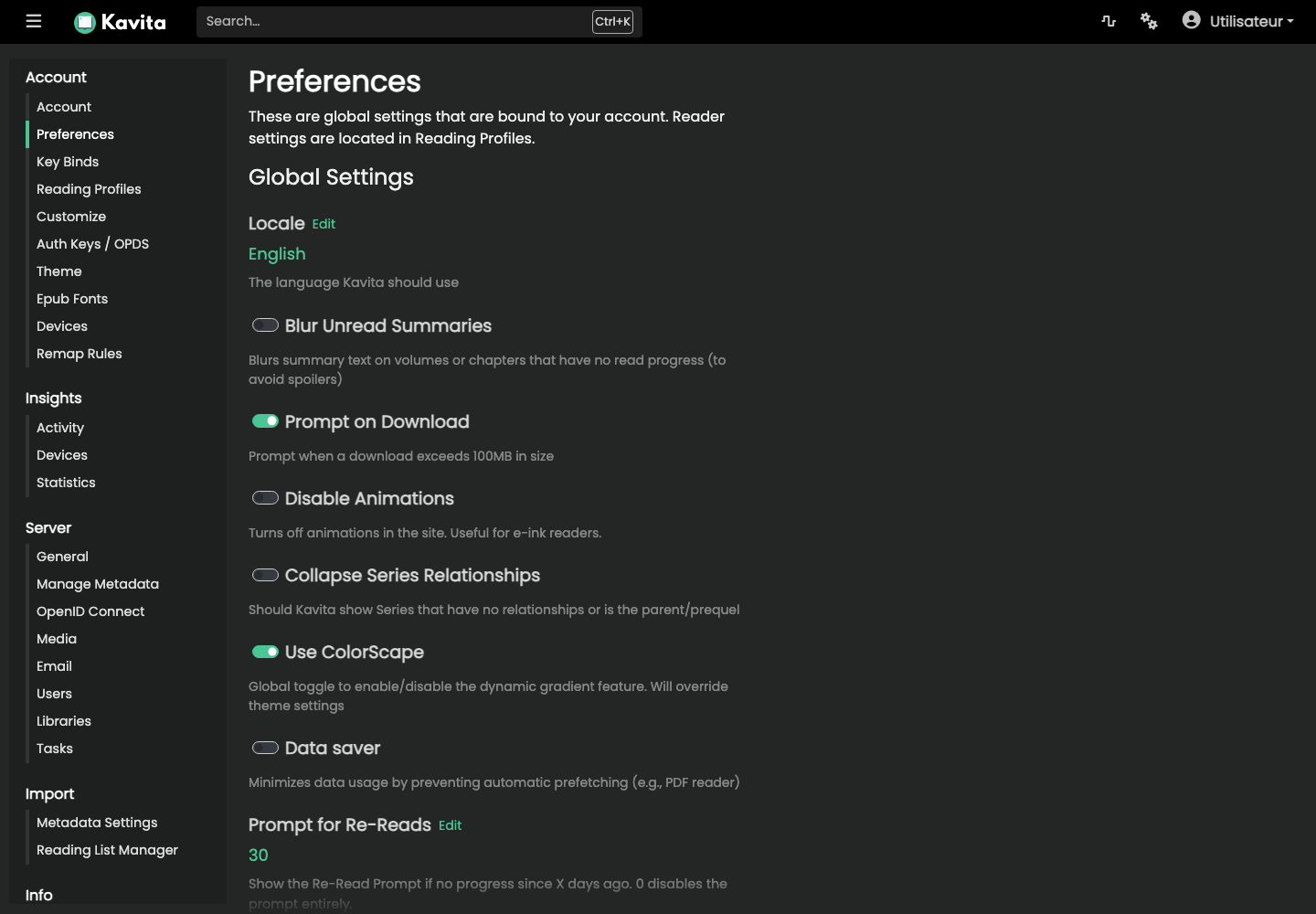
Preferences also allow you to adjust downloads, animations, summary display, reading profiles and theme.
Change your Kavita password
- Click on your profile, then on Settings.
- Open Account > Account.
- On the Password line, click Edit.
- Enter the current password, the new password and its confirmation.
- Click Save.
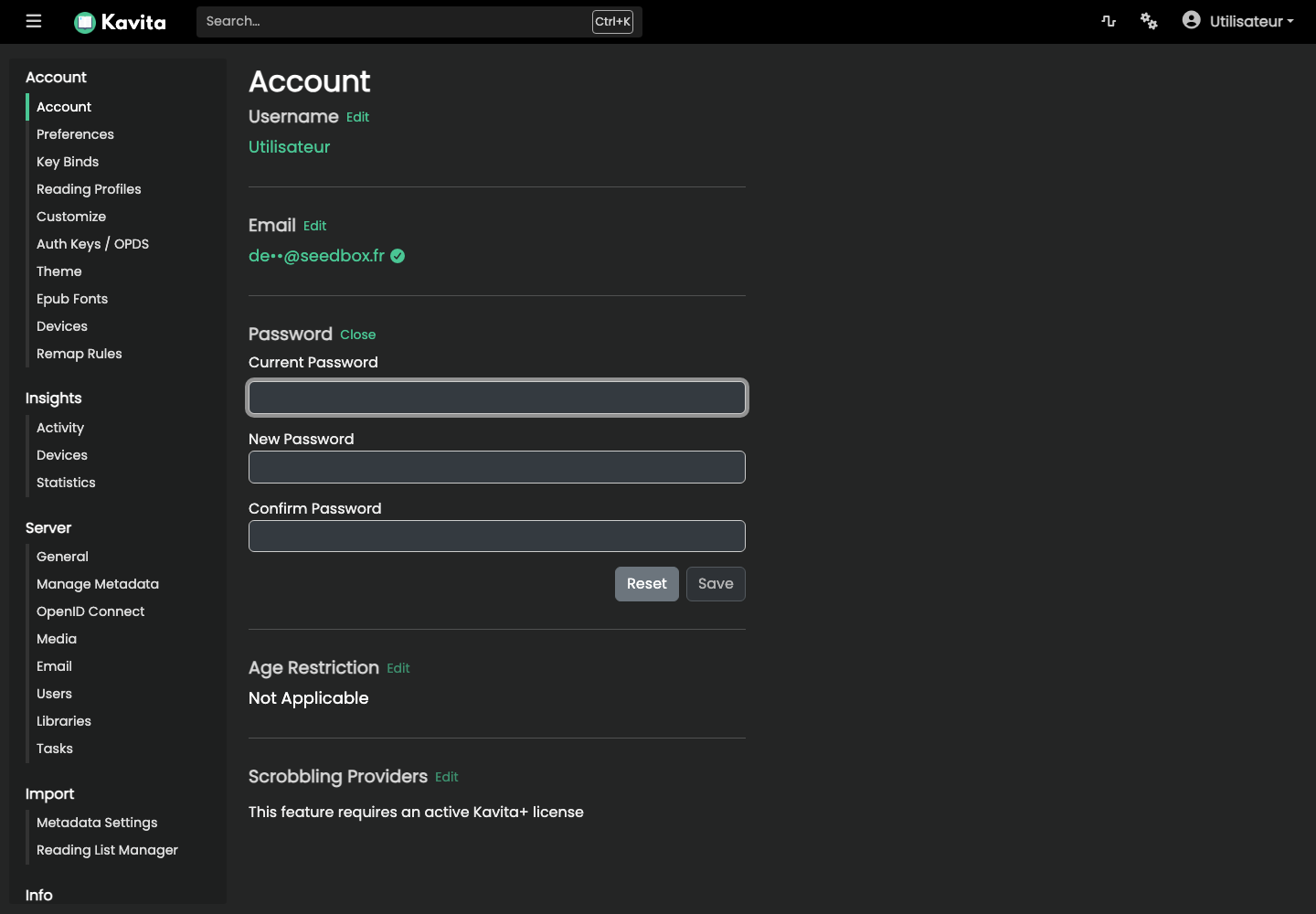
This change only affects Kavita. For future sign-ins, keep using your services username with the new Kavita password.