Discover My console
My console is the dashboard from which you view the status of your seedbox, access your applications and find the connection tools to your service.
Access My Console
- Connect to Seedbox.fr.
- Select My Console from the navigation bar.
- If you have several services, choose the seedbox you want to administer.
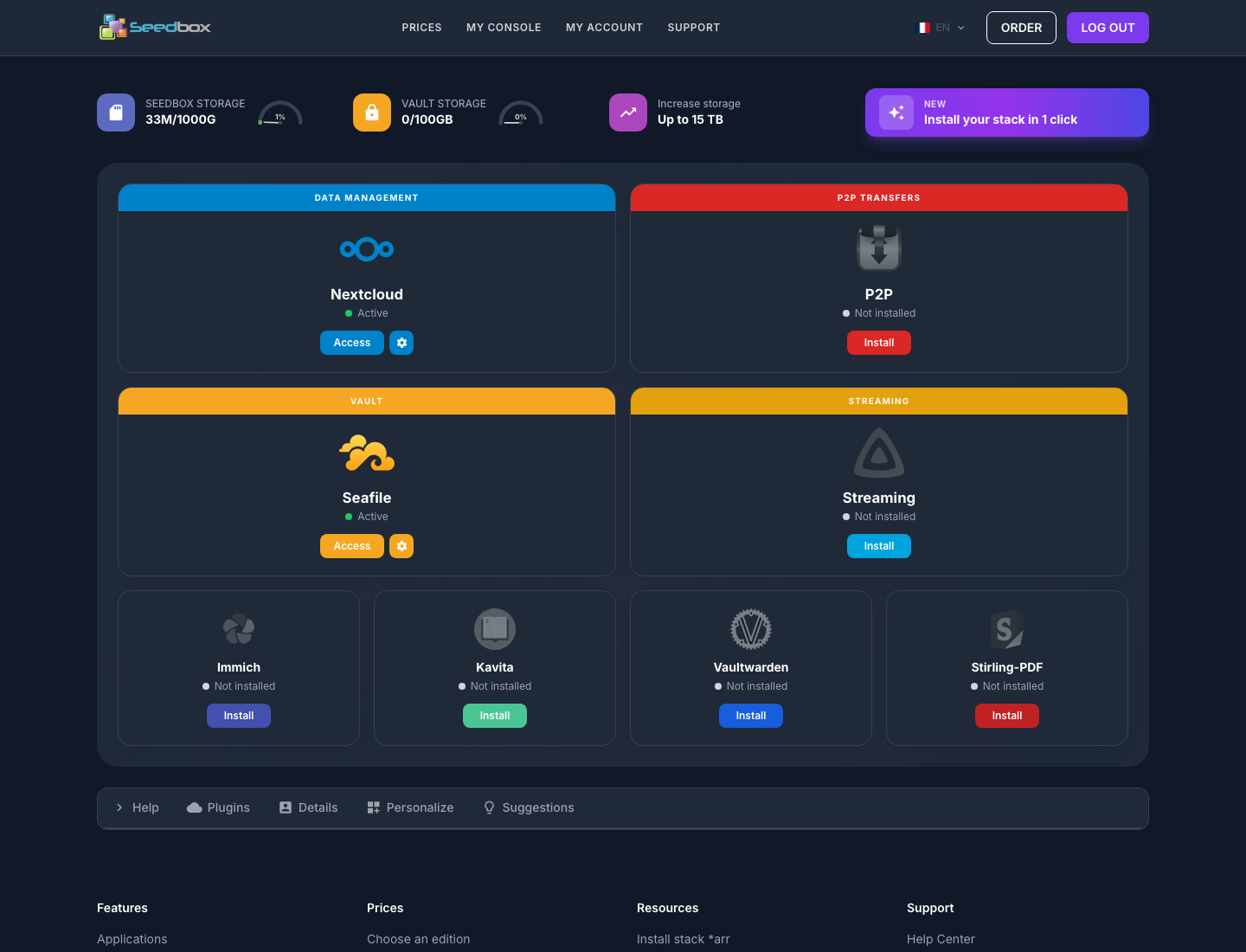
Understanding the dashboard
Storage spaces
The gauges placed at the top of the page show the use of your spaces:
- Seedbox: primary storage used by your downloads and applications;
- Safe: separate space intended for storing and synchronizing files.
The quantity used and total capacity are displayed for each space. The Increase Storage button allows you to view available capacity expansions.
Apps
Each card corresponds to an application or a family of applications. Its status is indicated directly in the dashboard:
- Active: the application is installed and can be opened;
- Not installed: The application is available, but must be installed first.
Depending on the application, the buttons provided allow you to open it, install it or display its settings. A confirmation window presents the choices available before an installation.
Important: installing an application can modify the configuration of your seedbox. Always read the information displayed before confirming.
Applications offered
The console brings together several categories of tools:
| Use | Application examples |
|---|---|
| Files and cloud | Nextcloud, Seafile, Resilio Sync |
| Downloads | Transmission, Deluge, qBittorrent, SABnzbd, PyLoad |
| Multimedia | Jellyfin, Plex, Jellyseerr, Kavita |
| Multimedia Automation | Radarr, Sonarr, Lidarr, Prowlarr, autobrr |
| Additional tools | Immich, Vaultwarden, Stirling-PDF |
The visible applications depend on the display mode chosen and the configuration of your service.
Install a stack in one click
The Install your stack in 1 click section allows you to prepare a complete multimedia environment. The proposed selection brings together Transmission, Jellyfin, Jellyseerr, Radarr, Sonarr and Prowlarr.
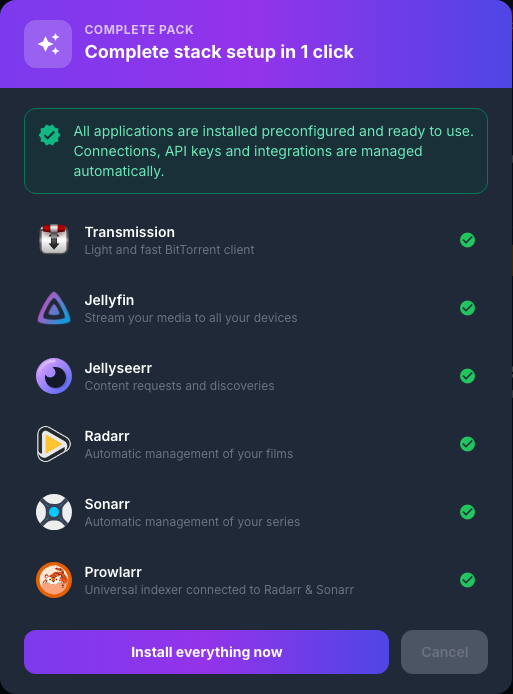
The console is responsible for connecting compatible applications and configuring their exchanges. The installation only begins after confirming the final button.
Console tools
The toolbar provides access to five additional spaces.
Help
You can find there the restart of the service, access to support and the import tool from another host.
MYMEMORY WARNING: YOU USED ALL AVAILABLE FREE TRANSLATIONS FOR TODAY. NEXT AVAILABLE IN 14 HOURS 41 MINUTES 03 SECONDS VISIT HTTPS://MYMEMORY.TRANSLATED.NET/DOC/USAGELIMITS.PHP TO TRANSLATE MORE
This space brings together the information necessary to use:
- FTP and WebDAV;
- OpenVPN and proxy servers; MYMEMORY WARNING: YOU USED ALL AVAILABLE FREE TRANSLATIONS FOR TODAY. NEXT AVAILABLE IN 14 HOURS 41 MINUTES 02 SECONDS VISIT HTTPS://MYMEMORY.TRANSLATED.NET/DOC/USAGELIMITS.PHP TO TRANSLATE MORE
- browser extension.

Privacy: Login windows may contain your username, server address, or other personal information. Do not post their captures without hiding them.
Details
The Details tab displays the service ID. It also allows you to change the seedbox password or access the termination request.
Attention: the service password is different from the password associated with your email address on Seedbox.fr.
Personalize
You can choose between two presentations:
- Essential displays the most common applications;
- Full also shows advanced applications.
The dashboard can be rearranged and unnecessary cards can be hidden. It is also possible to restore the original layout.
MYMEMORY WARNING: YOU USED ALL AVAILABLE FREE TRANSLATIONS FOR TODAY. NEXT AVAILABLE IN 14 HOURS 41 MINUTES 01 SECONDS VISIT HTTPS://MYMEMORY.TRANSLATED.NET/DOC/USAGELIMITS.PHP TO TRANSLATE MORE
This section allows you to offer an application that is not yet included in the console. Submitting the form forwards the suggestion to the Seedbox.fr team, but does not immediately install the app.
Actions requiring special attention
Some commands act directly on your service. Check their effect before validating them:
- install or replace an application;
- restart the seedbox;
- reset permissions or run a file scan;
- import data from another host;
- change the service password;
- request termination.
This page presents the general organization of My Console. Detailed procedures will be offered separately for each application and each type of access.