Install and use Resilio Sync
Resilio Sync synchronizes folders between multiple devices using peer-to-peer exchange. Files are not copied to an intermediate cloud: they remain on authorized devices and are transferred when online.
Install Resilio Sync from My Console
- Log in to Seedbox.fr, then open My Console.
- Locate the Resilio card, marked Not installed.
- Click Install, then confirm the installation.
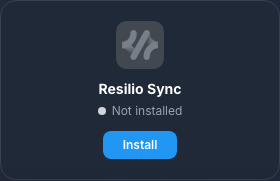
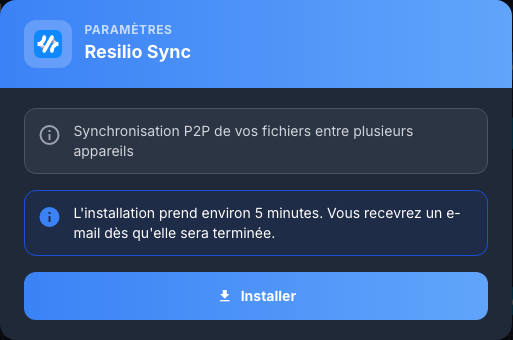
Deployment takes approximately five minutes. The card displays Active and the Go button when the application is ready.
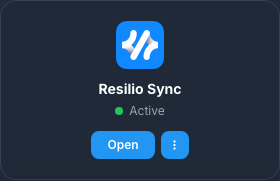
Log in
Click Access, then authenticate in the browser window with:
- the services username Seedbox;
- the services password Seedbox.
These are neither the email address nor the password to log in to the Seedbox.fr account. The authentication window depends on the browser and may appear before the Resilio interface.
Perform the first startup
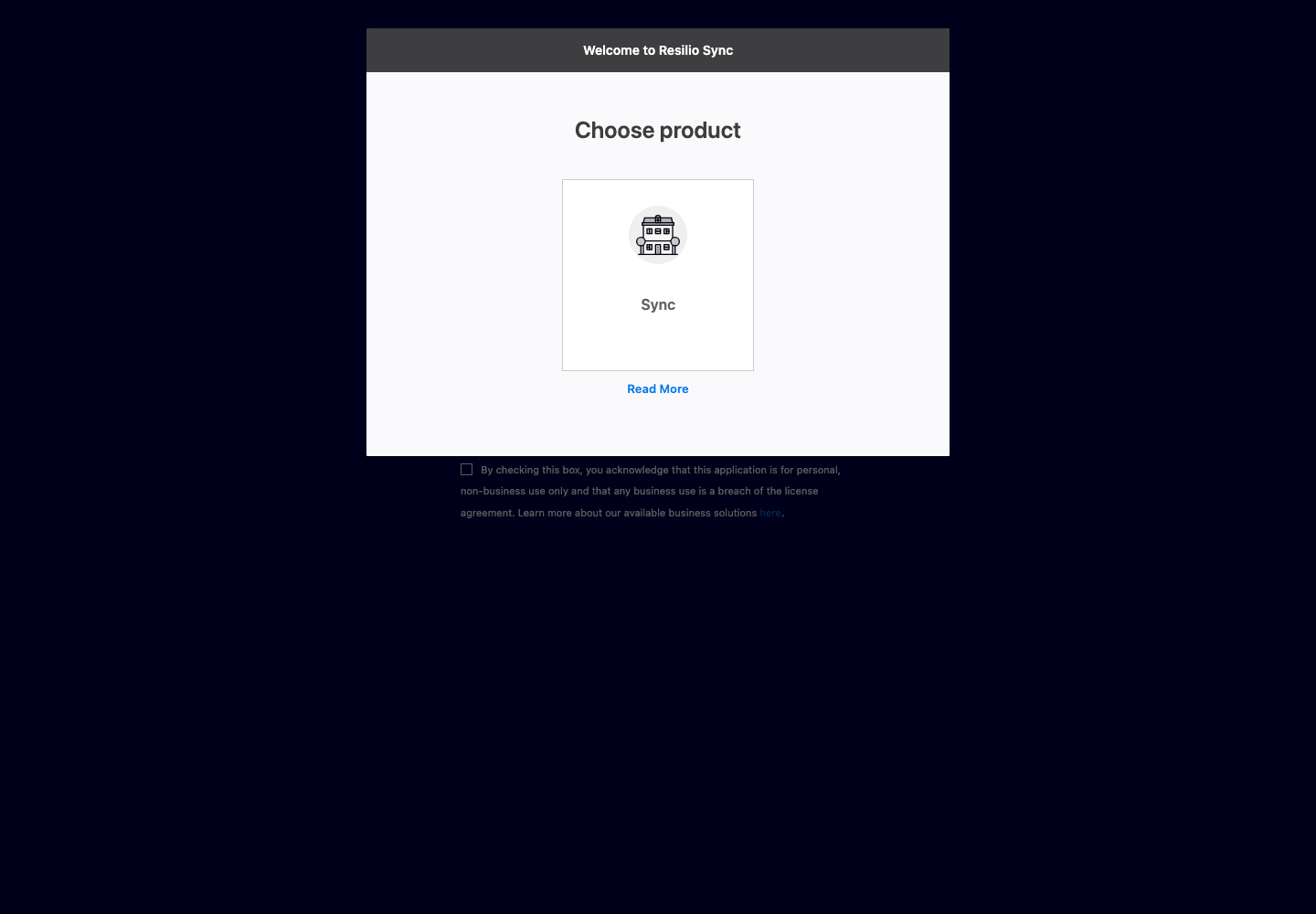
- Select Sync.
- Enter a name that will identify this instance, for example My Seedbox.
- Read and accept the terms of use and personal non-commercial use.
- Click Get started.
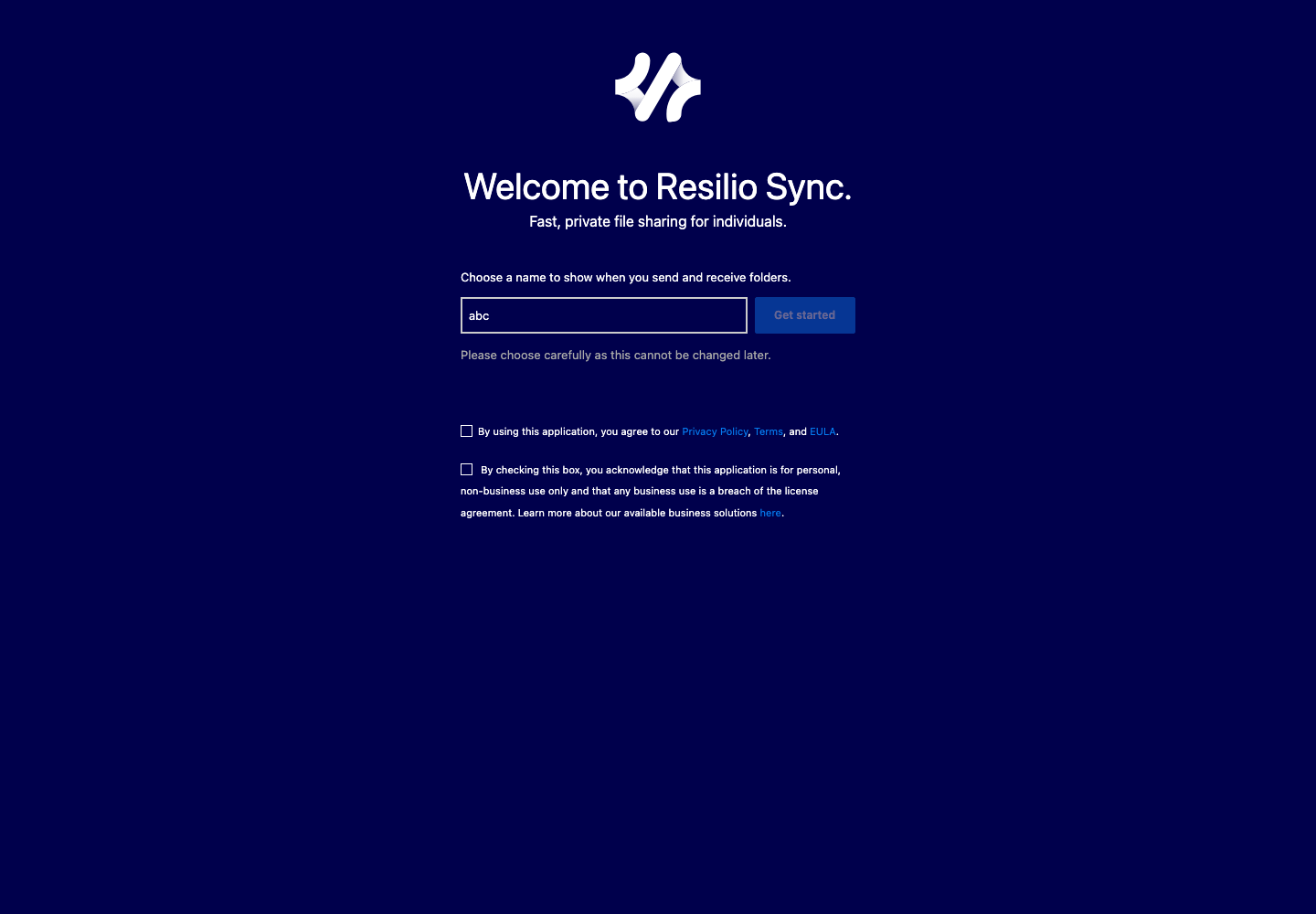
If Resilio requests a personal license, register from the proposed screen then retrieve the .btskey file received. Choose Manual connection, paste the contents of the file and validate. This file is personal: do not publish it, do not add it to a synchronized folder and keep a safe copy of it.
Discover the interface
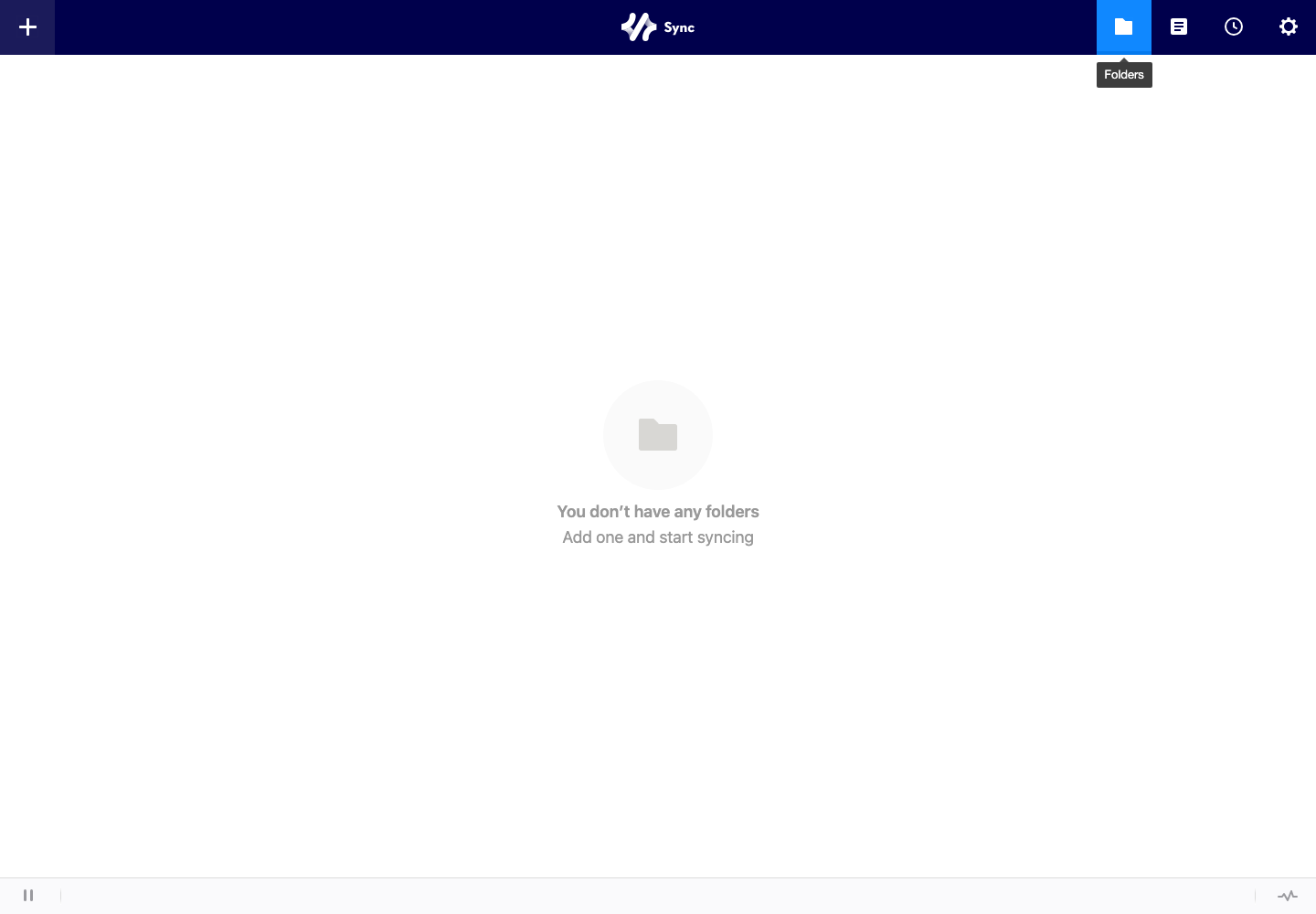
The top bar provides access:
- to the + button, to add or receive a folder;
- to synchronized folders;
- to connected devices;
- to the transfer history;
- to parameters.
Add a folder to sync
Click ***, then choose the appropriate type.
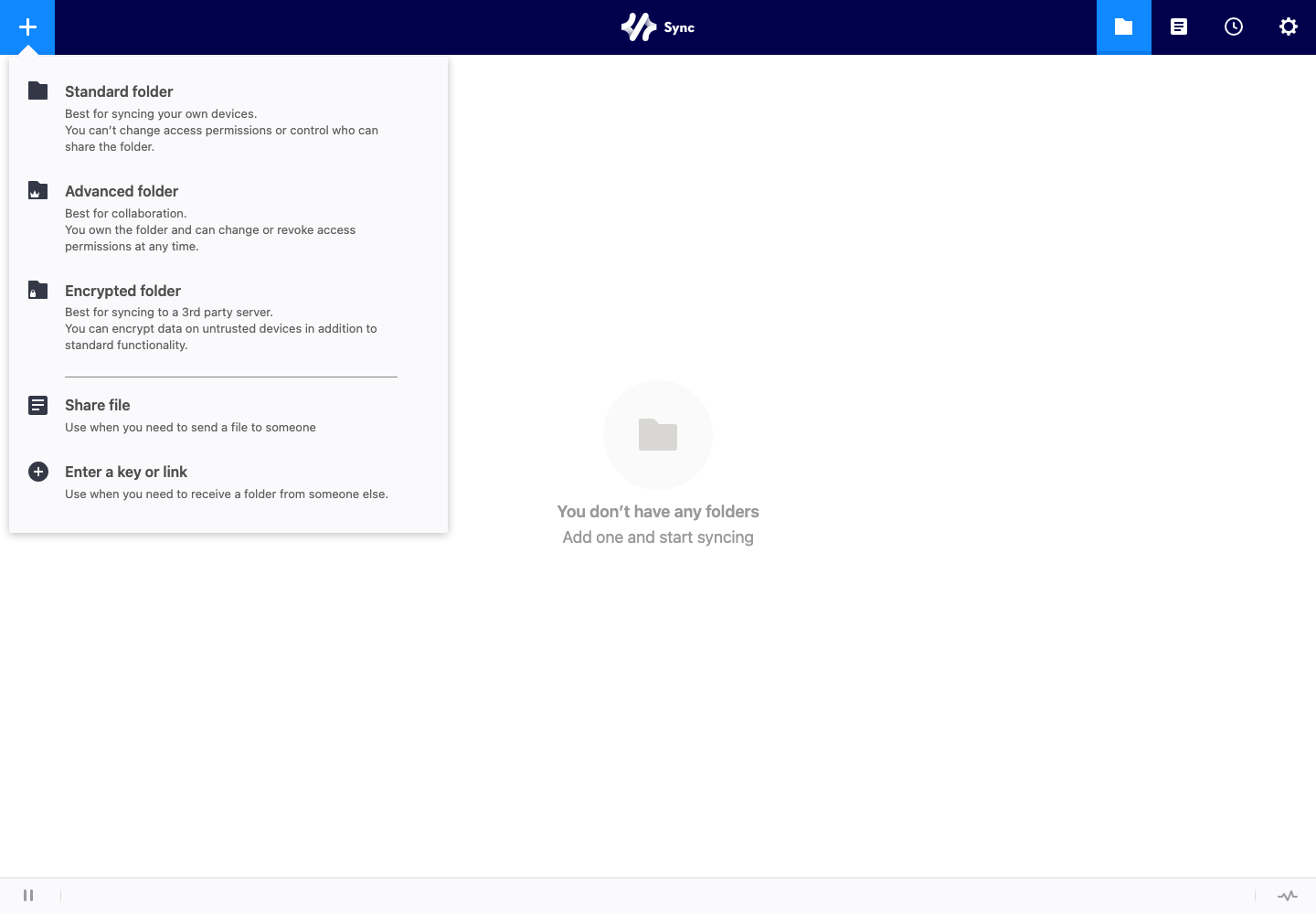
- Standard folder is suitable for synchronization between your own devices.
- Advanced folder allows you to manage authorizations more precisely and revoke them.
- Encrypted folder encrypts data stored on a device to which you do not want to give access to the content in the clear.
- Share file is used to transmit a file occasionally.
- Enter a key or link adds a folder that another Resilio instance has shared with you.
To synchronize a folder from Seedbox:
- click +, then Standard folder;
- select the folder present in your storage space;
- open the sharing options of the created folder;
- generate a link or key with the desired permission;
- add this link or key in Resilio Sync on the other device.
First install Resilio Sync on the recipient computer or mobile. Both devices must be able to connect for the transfer to begin.
Choose sharing rights
- Read & Write allows the other device to add, edit and delete files.
- Read only allows it to receive the files without modifying the source folder.
A key or link provides access to the corresponding content. Forward it only to the intended recipient, avoid public messaging, and revoke access when it is no longer needed. Never show a share key in a screenshot.
Receive a shared folder
- Click ***.
- Choose Enter a key or link.
- Paste the link or key provided by the owner.
- Choose the destination folder.
- Validate and leave the devices online until the first synchronization is complete.
Settings and security
The gear opens general settings, device identity, advanced options, web access and license.
- give each device an easily recognizable name;
- protect web access with a unique password;
- regularly check authorized devices and folders;
- remove shares that have become unnecessary;
- never distribute a
.btskeylicense, folder key or share link.
Changing identifiers in Web UI only concerns Resilio. It does not change the password of the Seedbox.fr account or that of other services.
In case of blocked synchronization
Verify that both devices are online, that Resilio is running on both of them, that there is sufficient disk space, and that the folder still exists. Then check the devices tab and history to identify a broken connection or file error.