Use Seafile
Seafile is the Seedbox.fr file vault. It organizes data into independent libraries that can be synchronized or shared separately.
Open Seafile
- Sign in to Seedbox.fr.
- Open My Console.
- Locate the card Seafile.
- Make sure it is marked Active, then click Open.
The vault login page opens in a new tab.
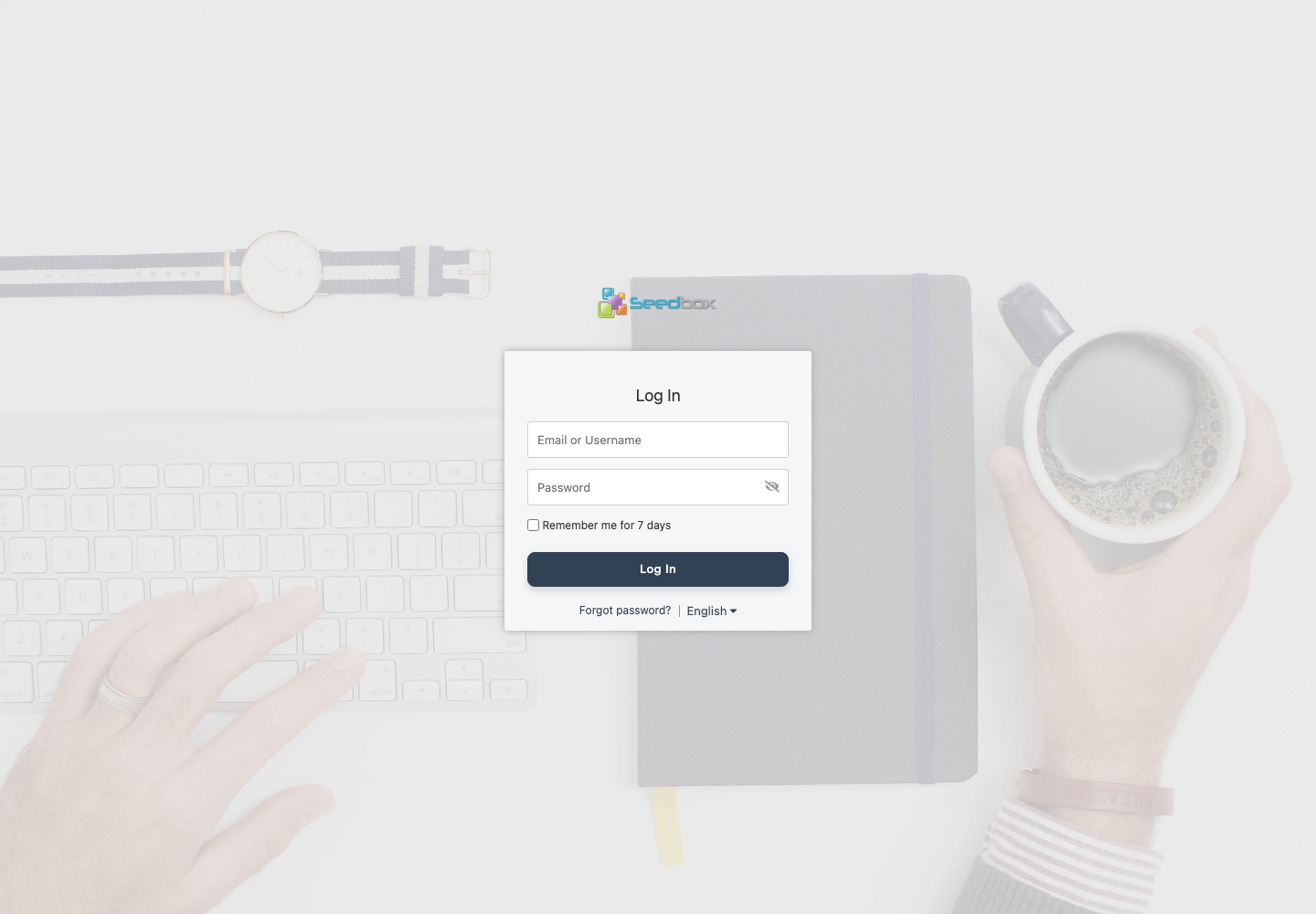
Which credentials should I use?
Seafile uses an unusual combination of credentials:
- In the Email or username field, enter the email address of your Seedbox.fr account;
- In the Password field, enter the password for your seedbox services.
Do not use the service username or your customer-account password.
Important: The email address comes from the customer account, while the initial password comes from the services. This combination is unique to Seafile.
You can check Remember me for 7 days on a personal computer. Avoid this option on a shared or public device.
Discover the interface
After logging in, Seafile displays the My Libraries list.
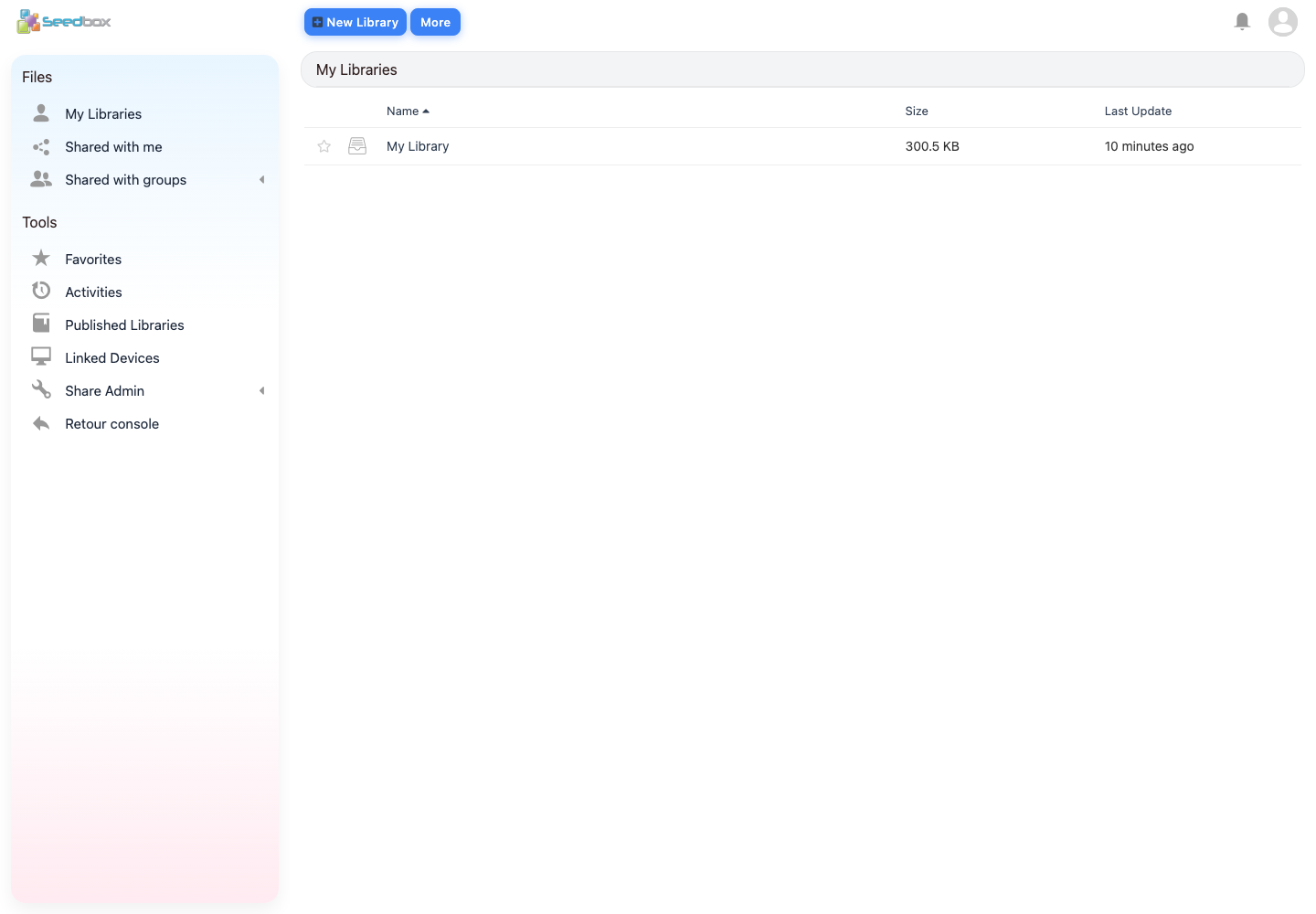
The main areas are:
- My Libraries: displays the libraries you own;
- Shared with me: contains libraries and files shared with you;
- Shared with groups: displays content accessible through a group;
- Favorites: collects marked items for quick access;
- Activities: presents recent changes;
- Published libraries: allows you to find libraries made public;
- Linked Devices: displays devices connected to the account;
- New Library: creates a separate file space.
The My Library library is created automatically. Click its name to view its contents. Use Back to console to return to My Console.
Open account settings
- Click on the avatar located at the top right.
- Select Settings or Paramètres, depending on the interface language.
The page includes profile, password, language, two-factor authentication and account options.
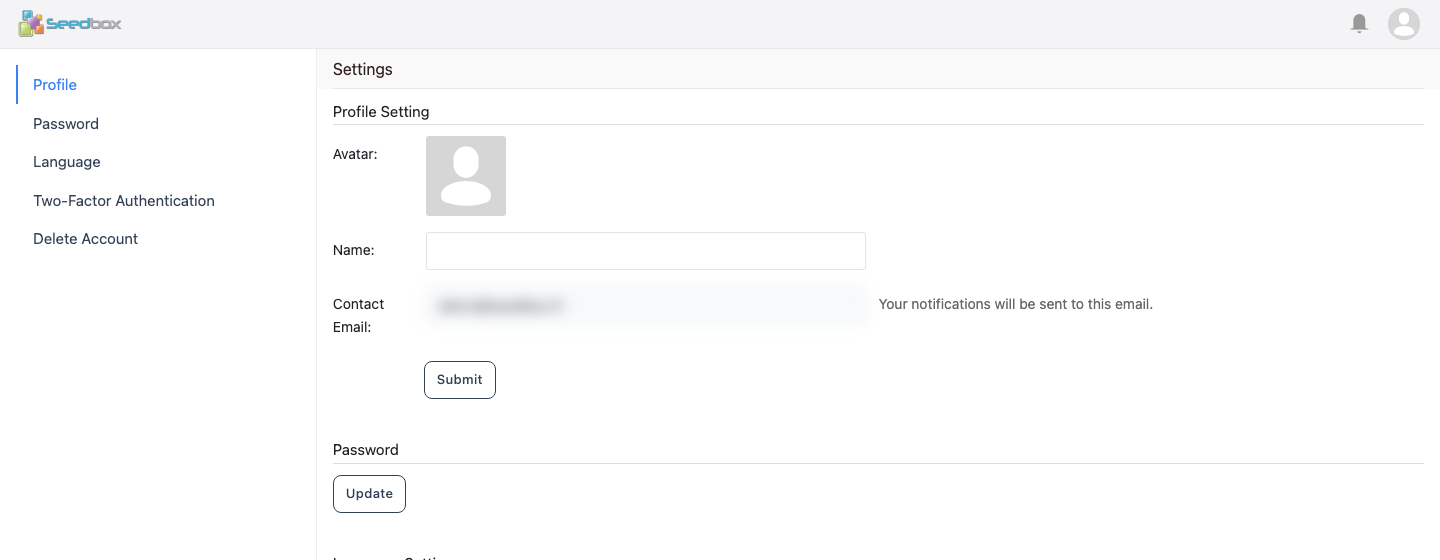
To view Seafile in French, open the Language section, choose French, then save the change.
Change the Seafile password
- In Settings, open Password or Mot de passe.
- Click Update or Modifier.
- Enter the current services password in Current Password.
- Enter the new password in New Password.
- Enter it a second time in Confirm Password.
- Click Save.
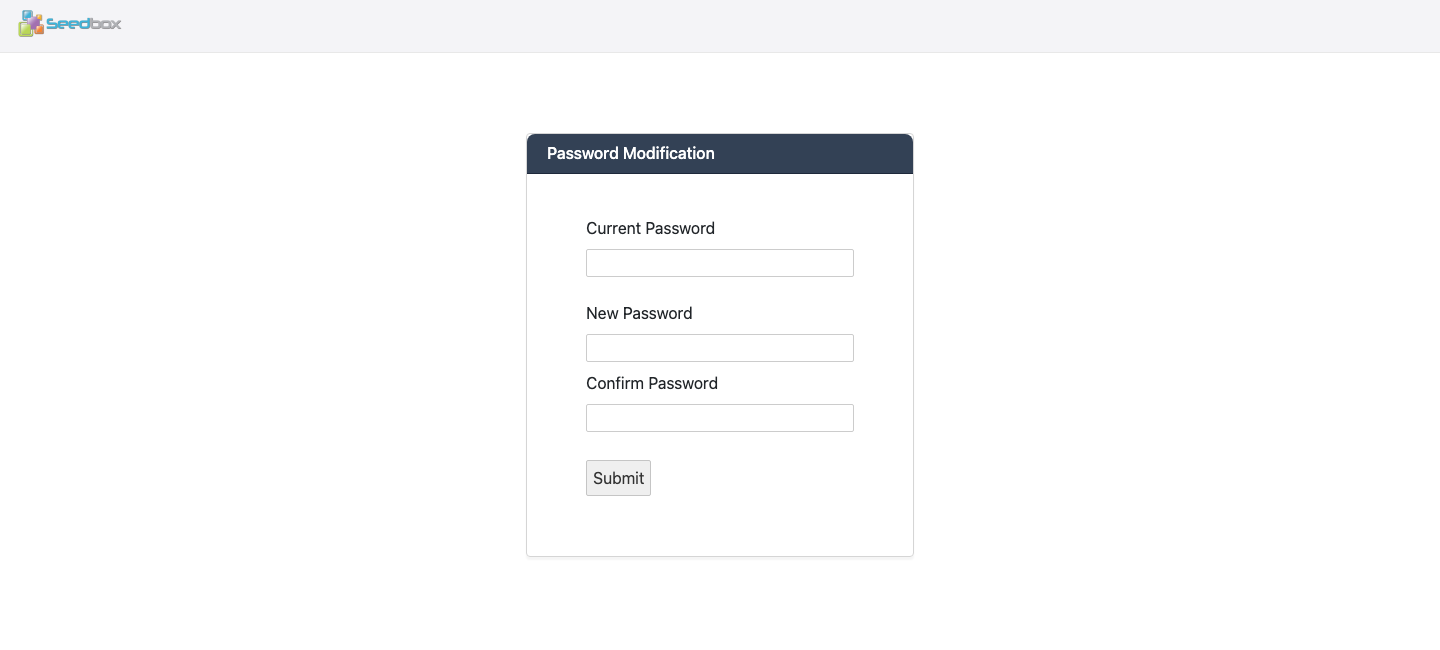
This operation changes the Seafile password only. Afterwards, use your Seedbox.fr account email address with this new password to sign in to the vault. Your customer-account and other service passwords are unchanged.
Tip: save this password in a password manager, as it may now be different from the services password.
Understanding the Settings Button in My Console
The Seafile card of My console has a settings button represented by a gear wheel.
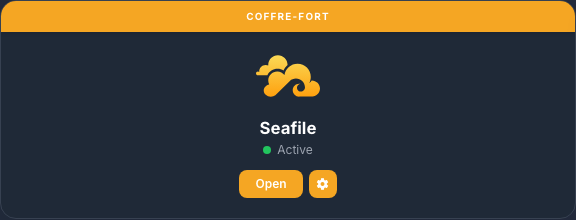
This button opens the option to add 100 GB of Vault storage for €5 per month.
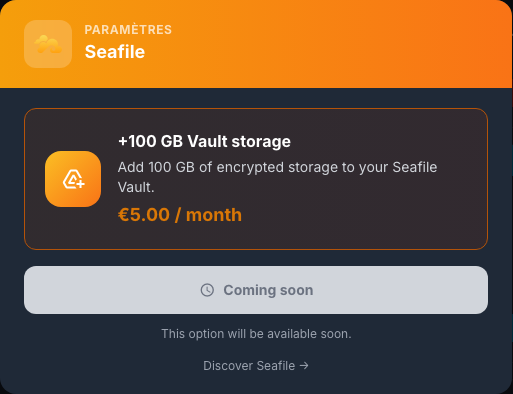
The interface currently shows Coming soon, so this extension is not yet available from My Console. Use Discover Seafile for more information.