Use Transmission
Transmission is the BitTorrent client installed by default with the media stack. Its interface allows you to add, track, pause and delete transfers.
Important: Only download and share content that you have the right to use.
Open Transmission
- Connect to Seedbox.fr.
- Open My Console.
- Locate the card Transmission.
- Make sure it is marked Active, then click Open.
Transmission opens in a new tab. If the browser requires authentication, use the Services ID and Services Password displayed in My Console > Details.
The password does not change in Transmission. To change it, use My Console > Details > Change Password; the modification then concerns the services using these identifiers.
Discover the interface
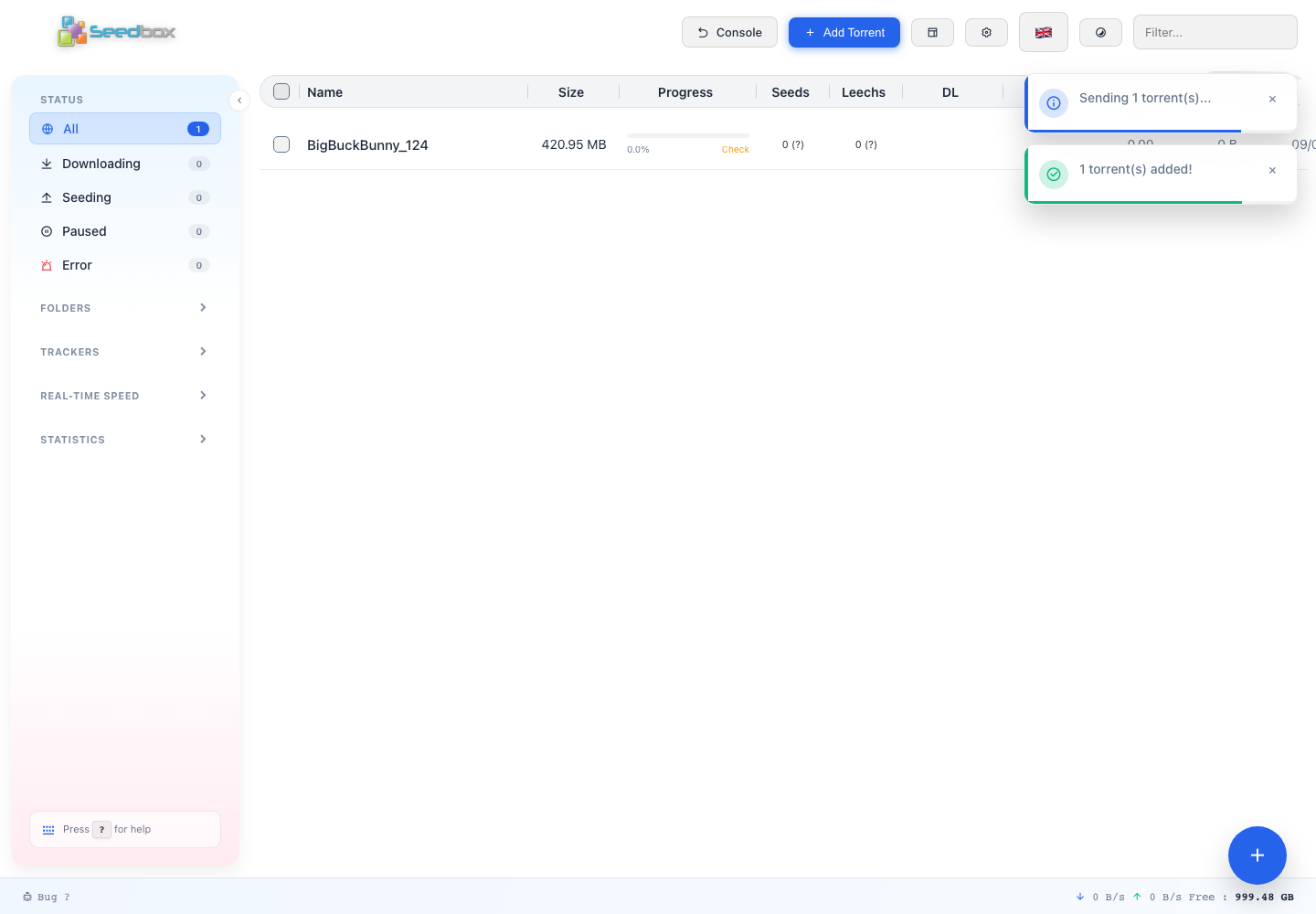
The interface mainly consists of:
- the Search bar, to filter the list;
- Add Torrent, to import a
.torrentfile, a magnet link or a URL; - the central list of transfers, with their progress and speeds;
- the All, Download, Sharing, Paused and Error filters;
- buttons to start, pause or delete a transfer.
The Connected light confirms that the interface is communicating with the server.
Add a transfer
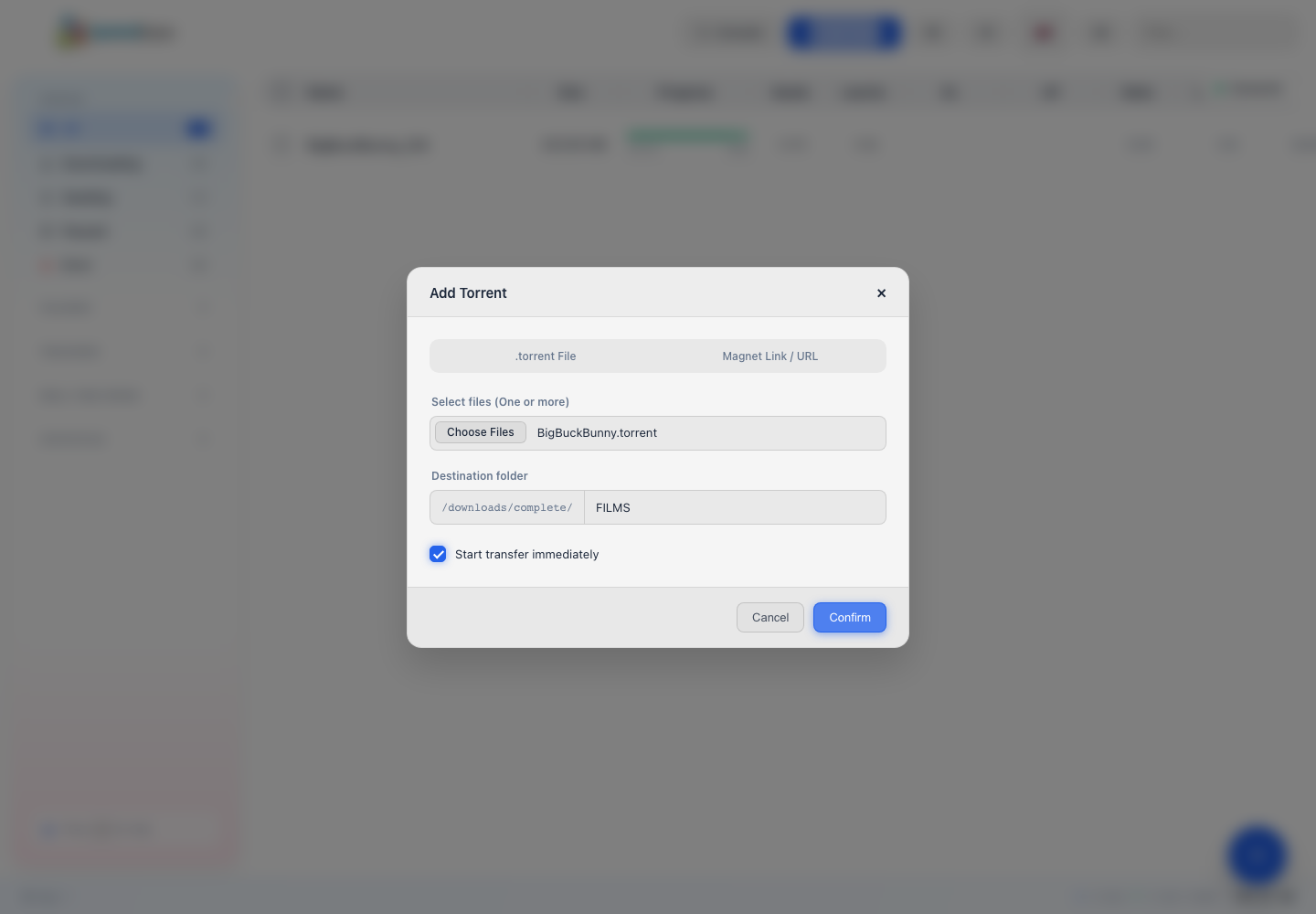
- Click Add Torrent.
- Choose a
.torrentfile, paste a magnet link or provide a URL. - Check the Destination Folder.
- Enable Start transfer immediately if necessary.
- Click Confirm.
The default folder is in /downloads/complete/. You can add a subfolder, for example /downloads/complete/FILMS, to organize the data.
Track and manage a transfer
Progress reaches 100% when the download is complete. The Seed status indicates that Transmission continues to share the file with other users on the BitTorrent network.
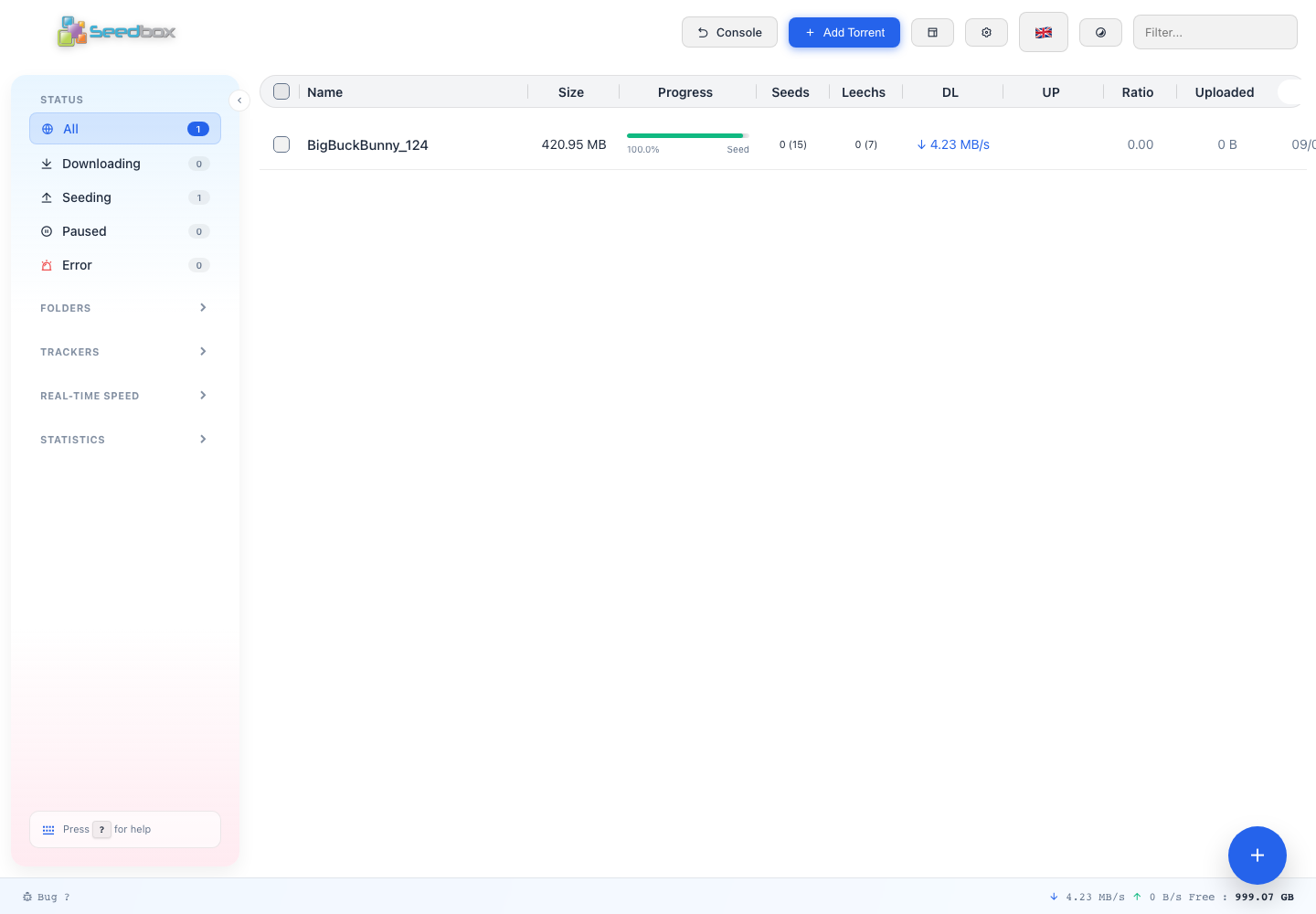
You can pause a transfer to temporarily stop receiving or sharing. Before deleting a task, check whether the proposed action only removes the torrent from the list or also deletes its files.
Completed files can then be recovered with Nextcloud, FTPES or WebDAV, or read by an application like Jellyfin.