Install and use Stirling PDF
Stirling PDF is a private PDF toolkit, hosted with your Seedbox services. In particular, it allows you to merge, split, compress, convert, sign, protect, redact or process by OCR documents without sending them to a third-party cloud service.
Install Stirling PDF from My Console
- Log in to Seedbox.fr, then open My Console.
- Locate the card Stirling-PDF, marked Not installed.
- Click Install, then confirm the installation.
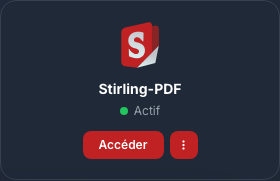
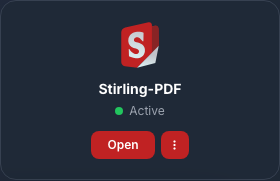
Deployment takes approximately five minutes. The card displays Active and the Open button when the application is ready.
Log in
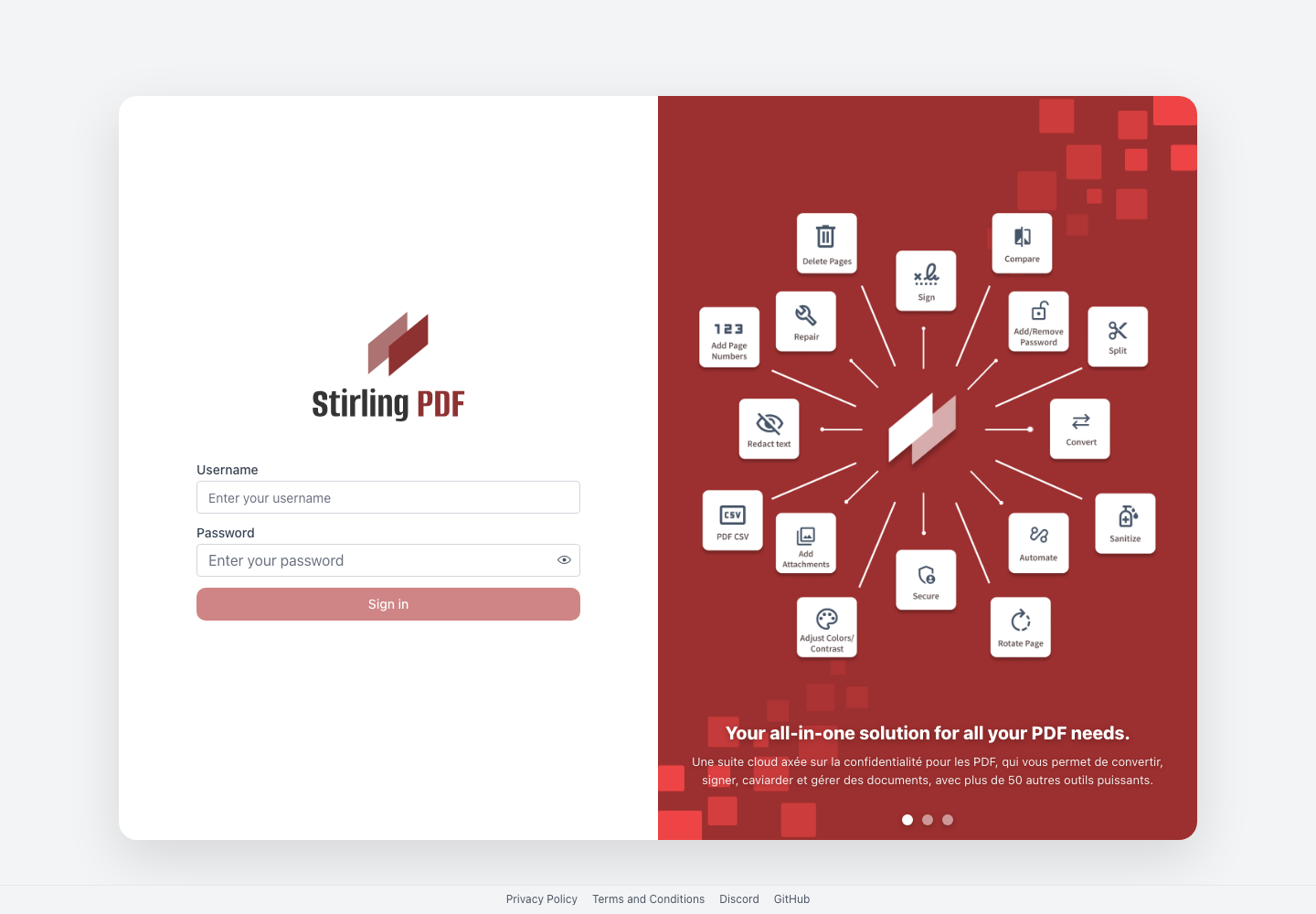
Click Access from the Stirling-PDF card, then use:
- your Seedbox services username;
- your Seedbox services password.
These are neither the email address nor the password to log in to the Seedbox.fr account.
Discover the interface
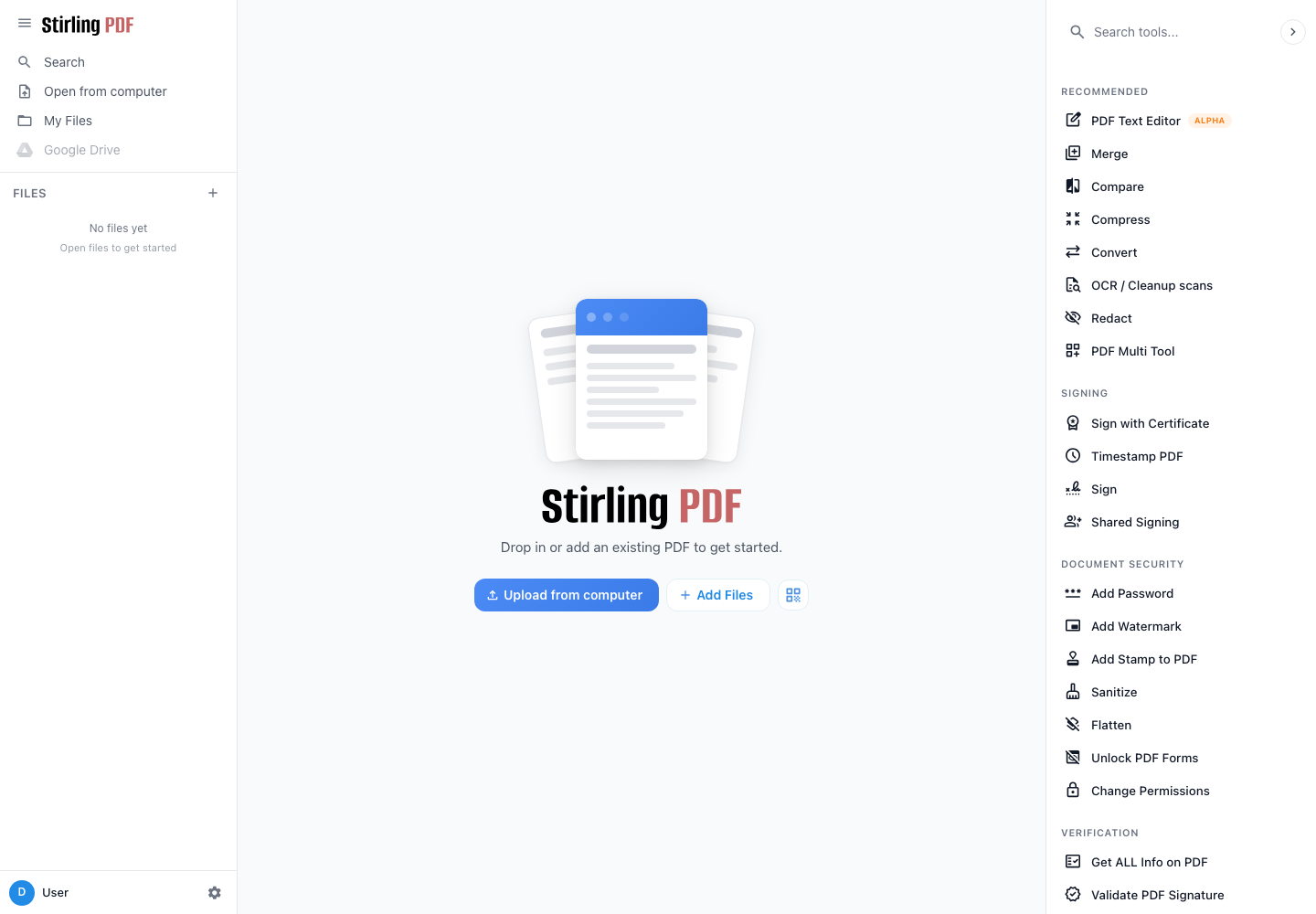
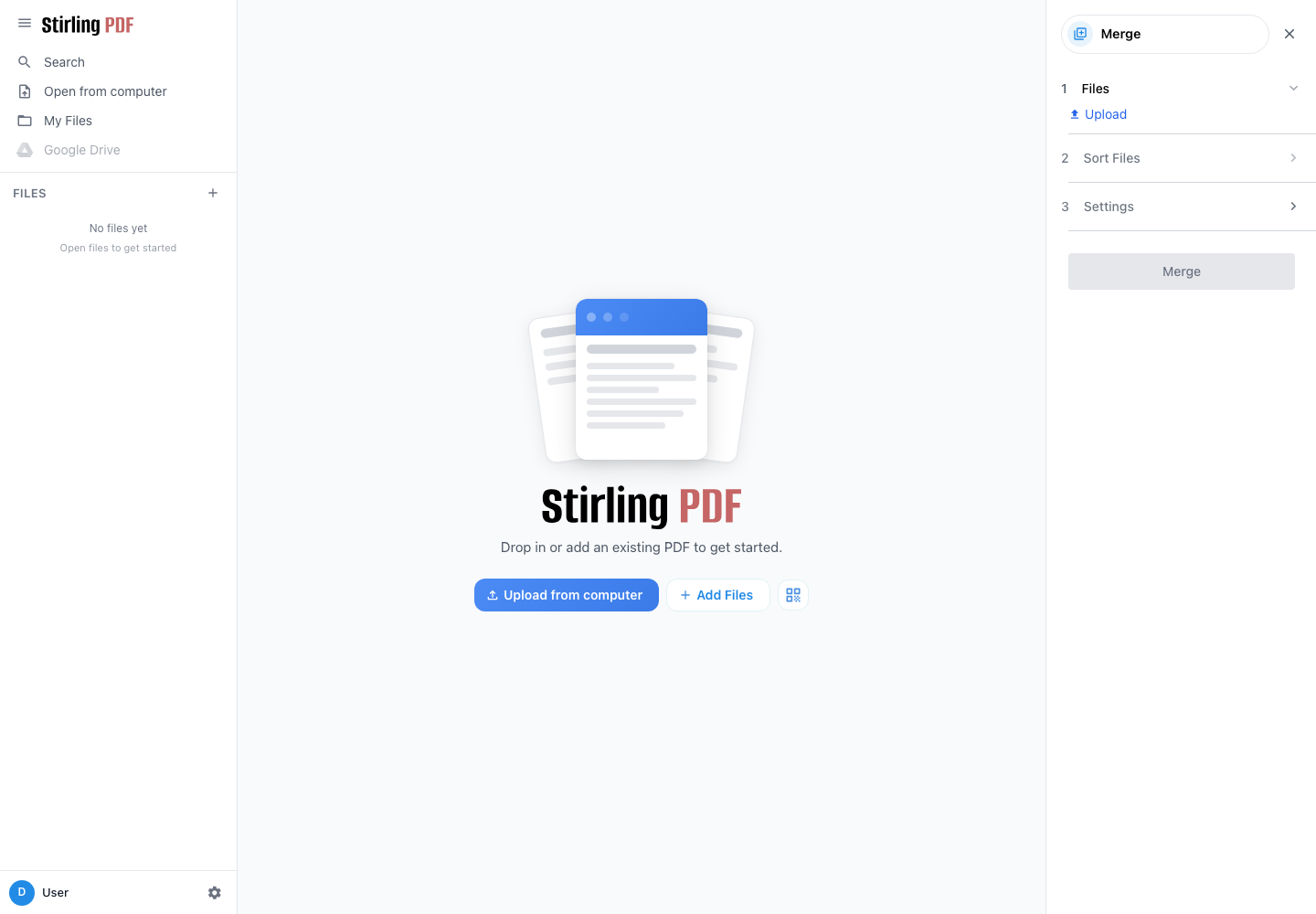
The left column provides access to open files and the local workspace. The right panel groups tools by category: conversion, signing, security, layout, extraction, deletion, automation and advanced functions.
To process a document:
- choose a tool from the right panel;
- add the files from the computer;
- adjust the options offered;
- start processing;
- download and check the result.
Always keep the original documents until the produced file has been verified.
Example: merge multiple PDFs
- Click Merge.
- In Files, import at least two PDF documents.
- Open Sort Files and place them in the order you want.
- Check the options in Settings.
- Click Merge, then download the resulting document.
Common tools
- Compress reduces the size of a PDF.
- Split or Reorder Pages extracts, deletes or moves pages.
- Convert transforms a PDF or creates a PDF from another format.
- OCR / Scan Cleaning makes the text in a scan searchable.
- Manual redaction permanently hides sensitive information.
- Add a password protects the opening of the document.
- Sanitize and Make Inert remove some active elements or flatten the file.
- Sign adds a signature to the document.
Account settings and security
Click your name at the bottom left, then open Account Settings.
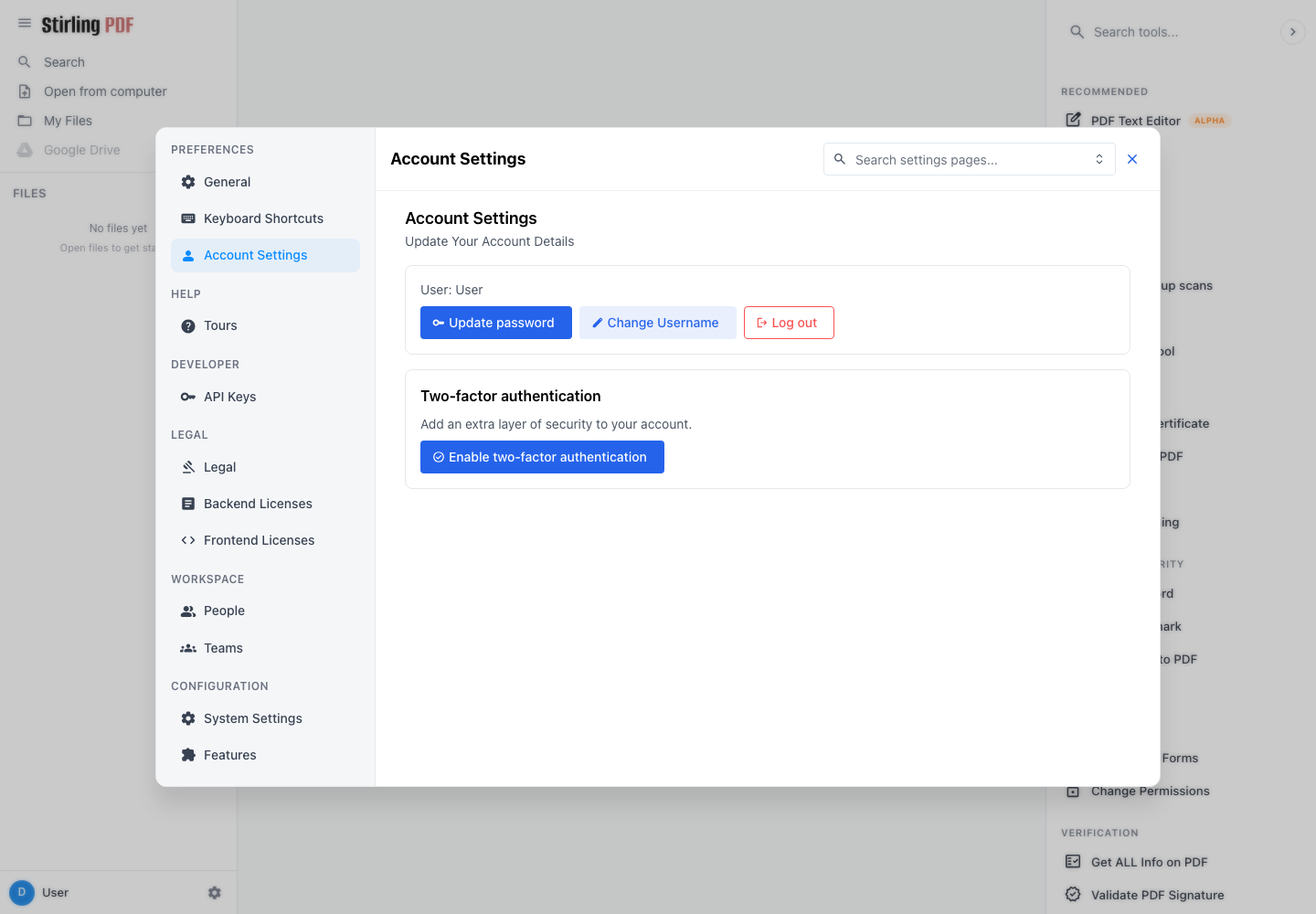
The Update Password button allows you to set a password specific to Stirling PDF. This change does not change the password for your other Seedbox services. After this operation, log in to Stirling PDF with your Seedbox services username and this new password.
You can also enable two-factor authentication. Then keep the recovery codes in a safe location.
Best practices
- check the final document before deleting the original;
- download the result as soon as the processing is finished;
- close sensitive documents after use;
- carefully check the result of an OCR or redaction before transmitting it.