Use the Help tab in My Console
The Help tab, located below the applications in My Console, provides three tools: restarting the seedbox, opening the help center, and importing data from another provider.
Open the Help tab
- Sign in to Seedbox.fr.
- Open My Console.
- Scroll down to the bar below apps.
- Click Help.

The three available actions are Reboot, Support and Import.
Restart the seedbox
The Reboot button restarts the seedbox. Use it when an application becomes unresponsive or after a change that requires services to be restarted.
Before clicking:
- wait for important operations to complete;
- avoid rebooting while transferring or copying files;
- save current changes in open applications.
The panel and applications may be temporarily unavailable during reboot. Wait a few minutes before refreshing My console and checking that the applications are active again.
Attention: do not click Reboot several times. A single reboot is enough; give the server time to complete the operation.
Open the help center
Click Support to open the Seedbox.fr help center. This page allows in particular:
- search for an answer in support articles;
- check ongoing maintenance or incidents;
- access sections about files, credentials, and billing;
- contact support by phone;
- open a technical or sales ticket;
- find previous support requests.
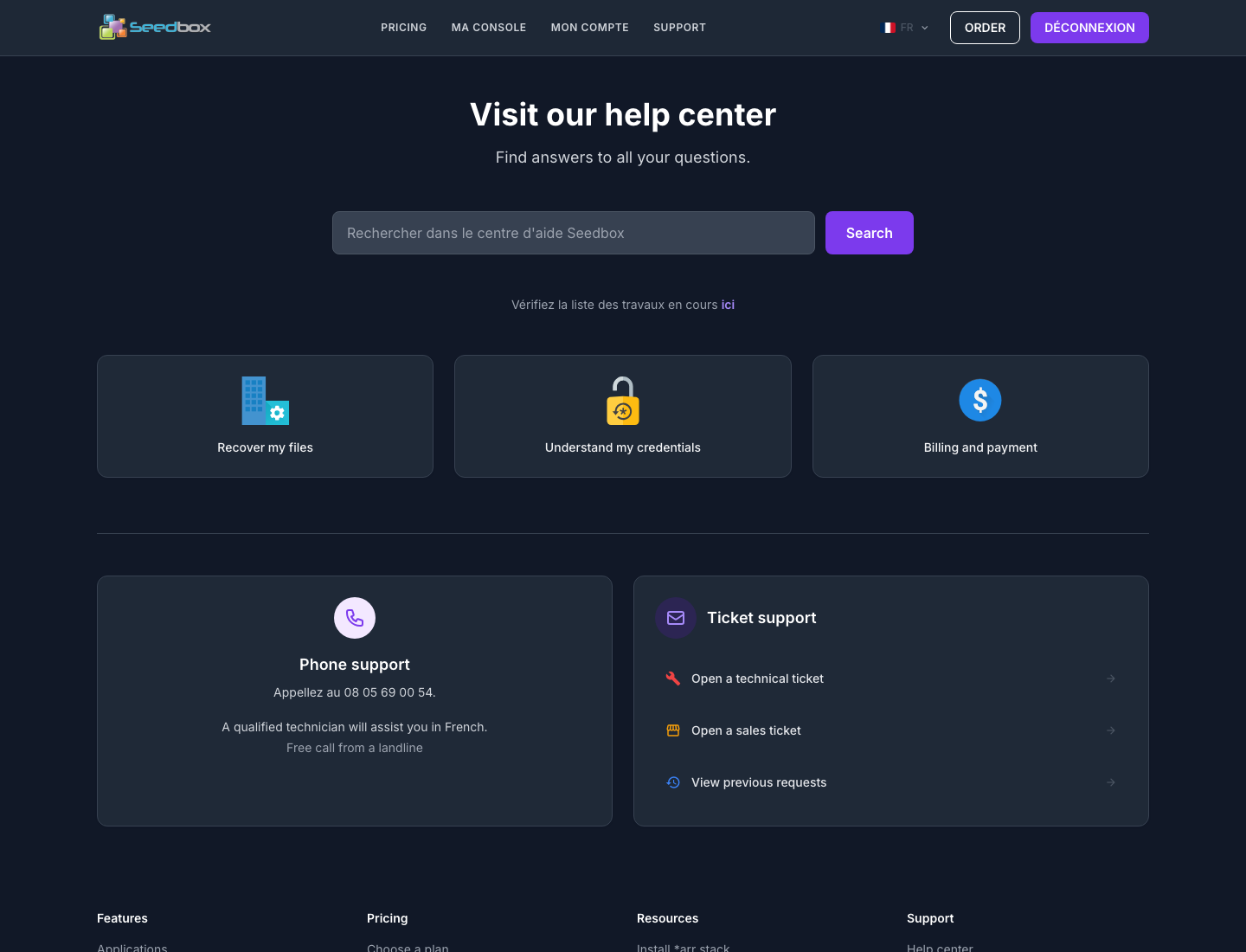
To make it easier to process a ticket, indicate the application affected, the exact error message, the approximate time of the problem, and the checks already performed. Never submit a password or API key in a ticket.
Import data from another host
The Import button opens the migration tool. It recovers data from your old host in the background, without interrupting downloads already in progress on your seedbox.
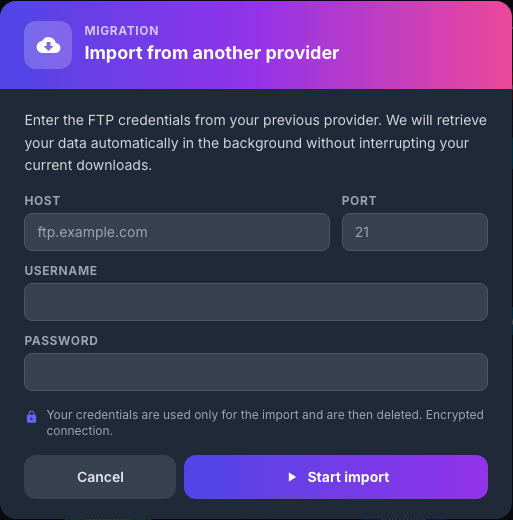
Fill in the information provided by the previous host:
- Host: the FTP server name, for example
ftp.example.com; - Port: the port provided by the host, often
21; - Username: the username of the remote account;
- Password: the associated password.
Check all four fields, then click Start Import. The import then runs in the background. Its duration mainly depends on the data volume and the speed of the remote server.
The interface states that the credentials are used only for the import and are then deleted. It also indicates that the connection is encrypted.
Security: never place the credentials of the old host in a screenshot. If possible, use a temporary password and change it after migration.
If the import fails, check the host, port and credentials with the old host. Also check that remote connections are allowed on this account.