Install and use FileZilla
FileZilla allows you to transfer files between your computer and your Seedbox.fr space. The connection uses FTPES: FTP with explicit TLS encryption.
FTPES, not SFTP
Select FTP — file transfer protocol with explicit FTP connection over TLS. The service does not use SFTP.
Retrieve your FTPES settings
- Connect to Seedbox.fr
- Open My Console.
- Select the Plugins tab, then FTP.

The window indicates the host, port, and credentials specific to your service.
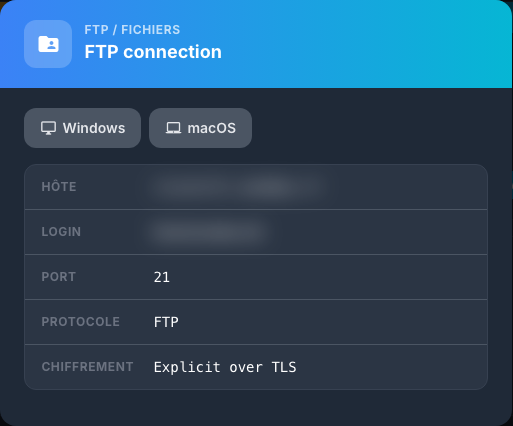
You will need the following information:
| Field | Value to use |
|---|---|
| Protocol | FTP |
| Encryption | Explicit FTP over TLS (FTPES) |
| Host | Value displayed in My Console |
| Port | 21 |
| Username | Seedbox service username — not your email address |
| Password | Seedbox service password |
Download and install FileZilla
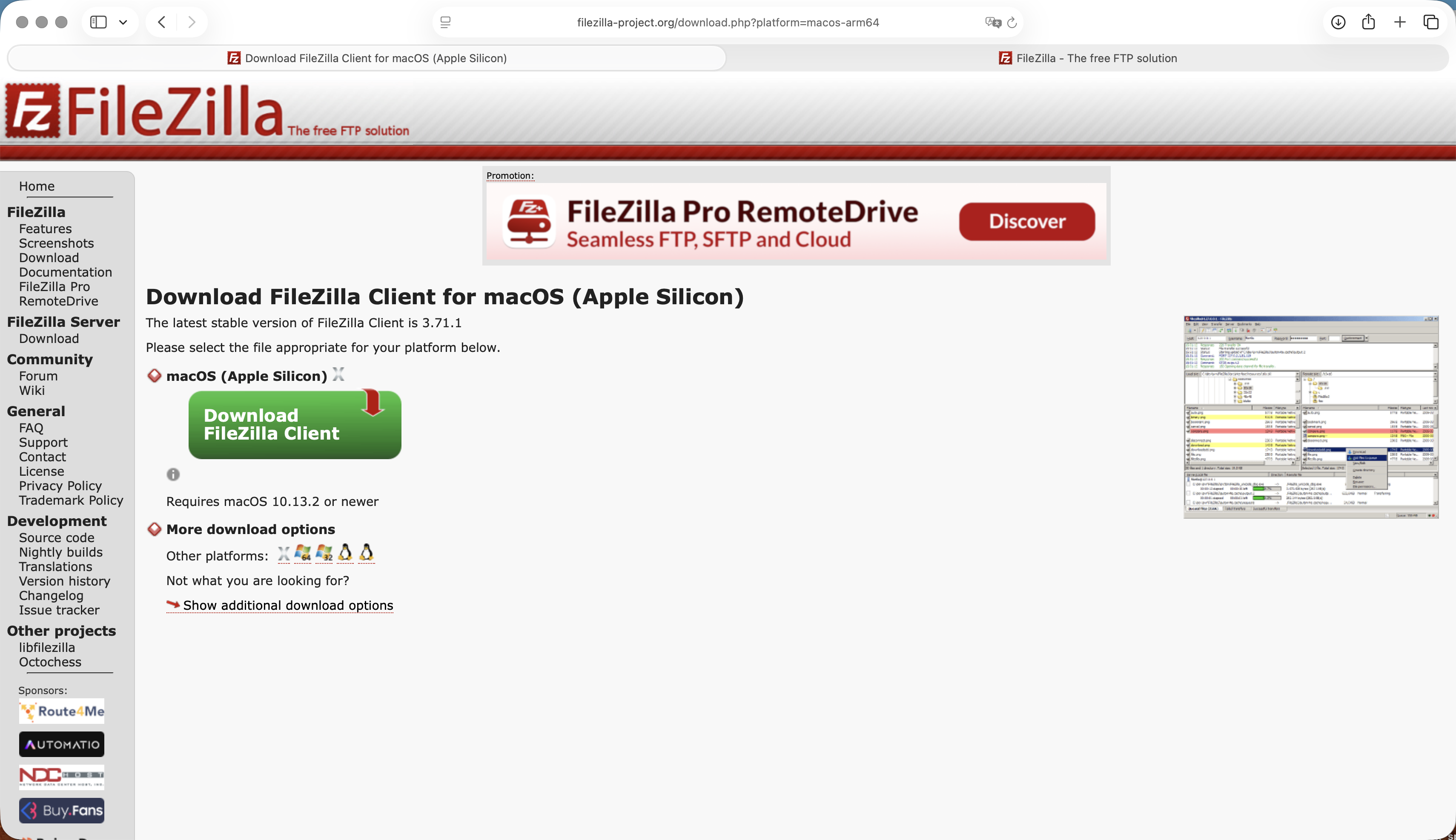
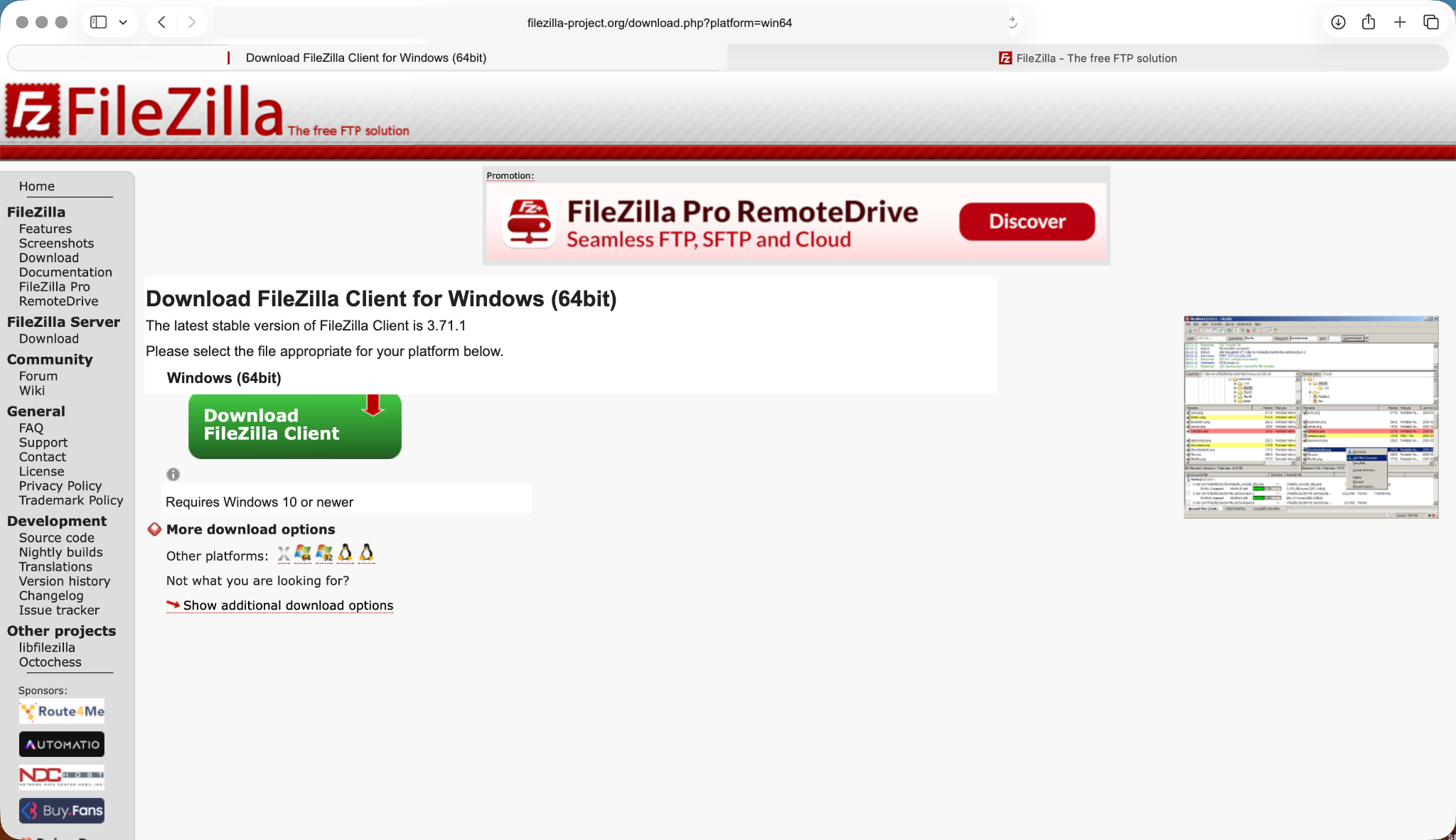
Download FileZilla Client from the official FileZilla site. Do not download FileZilla Server.
Choose the version corresponding to your Mac: Apple Silicon for M1 and later chips, or Intel for older models. Open the downloaded archive, then place FileZilla in the Applications folder.
Download the Windows installer, run it, accept the license, review the proposed components, and complete the installation. Read each screen before accepting any additional offer.
Configure the connection
- Launch FileZilla.
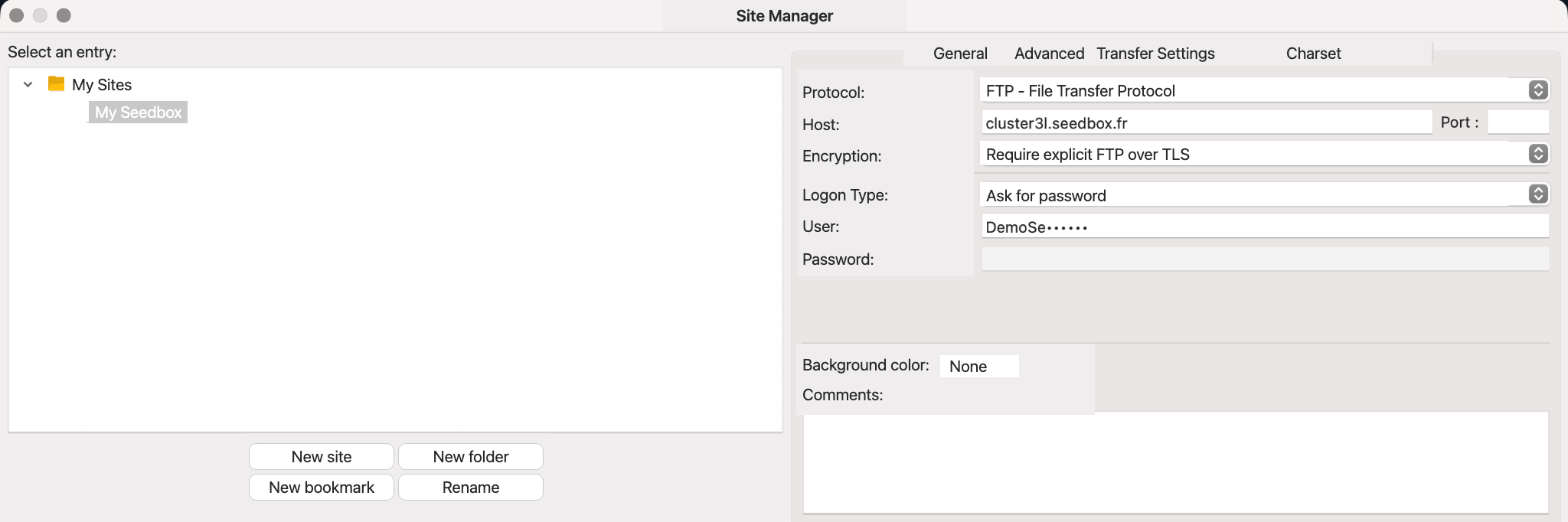
- Open File > Site Manager.
- Click on New Site and name it, for example
My Seedbox. - Enter the fields with the values displayed in My Console.
- Choose Ask for password to avoid saving it on a shared computer.
- Click on Connect and enter the Seedbox service password.
Verify the TLS certificate
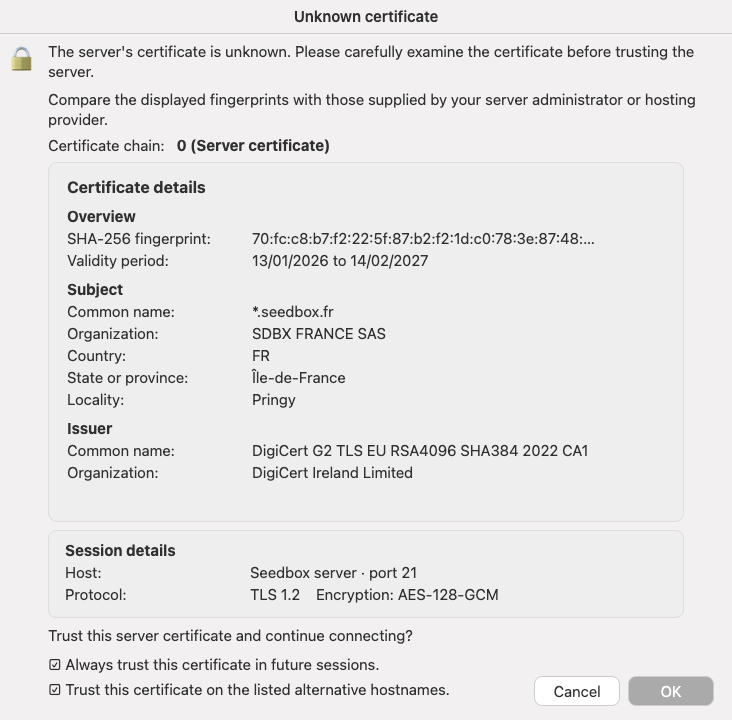
During the first connection, FileZilla may ask to validate the server's certificate. Verify, for example:
- that the host matches the one provided in My Console;
- that the certificate name covers
*.seedbox.fr; - that the certificate is valid and issued by a recognized authority.
Do not accept the certificate if these details do not match.
Understand the interface
After the connection:
- the left part displays the files on your computer;
- the right part displays the files on your Seedbox;
- the top zone shows connection messages;
- the bottom zone displays pending, successful, or failed transfers.
Open the remote data folder to access the folders used by your applications.
Send a file to the Seedbox
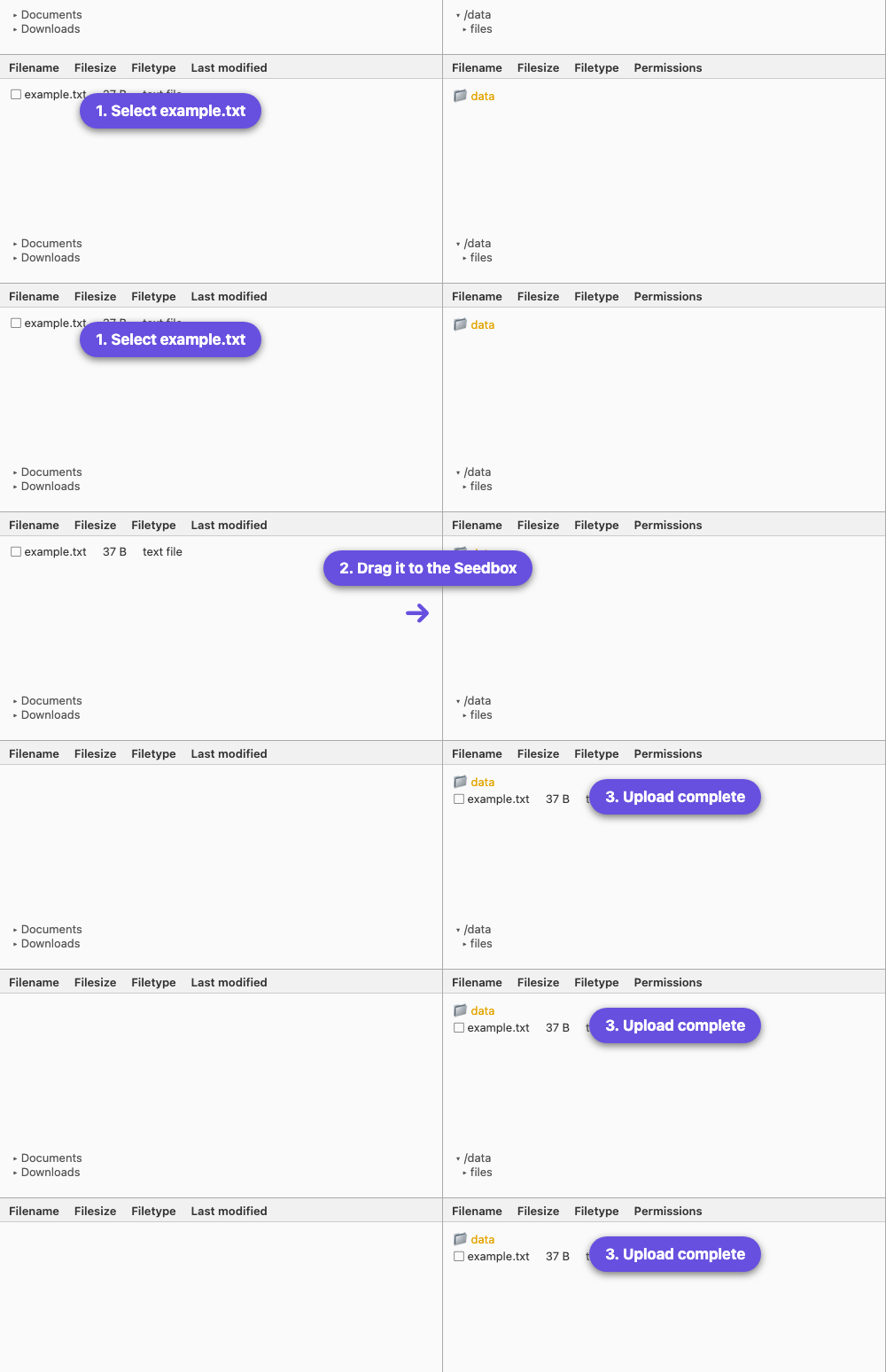
- In the left part, open the folder containing the file.
- In the right part, open the destination folder in
data. - Drag the file from left to right, or double-click it.
- Check the Successful Transfers tab before closing FileZilla.
Download a file on the computer
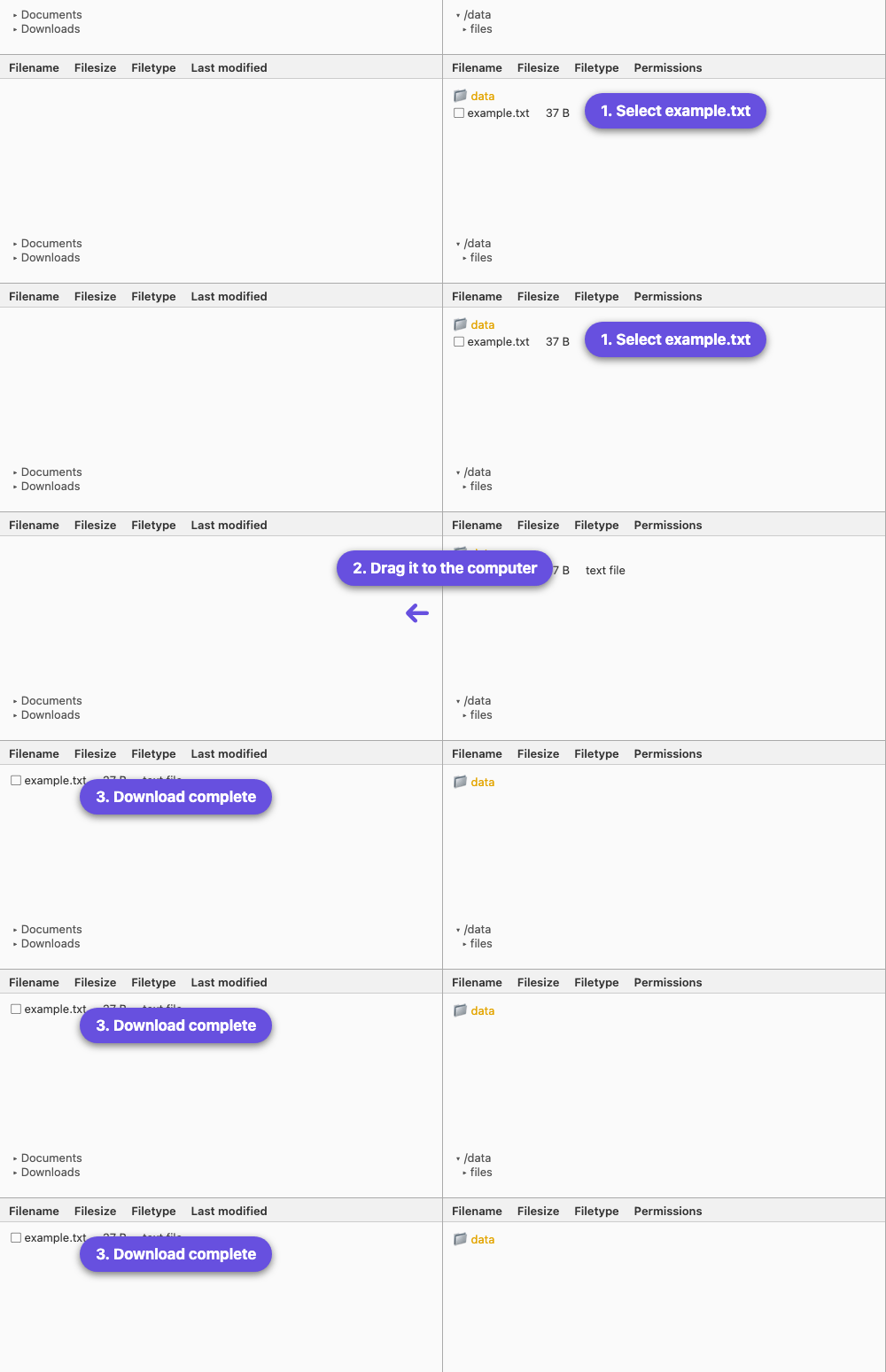
- Choose the destination folder in the left part.
- Find the remote file in the right part.
- Drag it from right to left, or double-click it.
- Verify that the file appears on the computer and in Successful Transfers.
In case of failure
- Use port
21, not SSH. - Verify that the encryption is Explicit FTP over TLS.
- Use the Seedbox service username and password, not necessarily those of the client account.
- Copy the host from My Console without adding
https://. - Check the transfer queue and the connection log at the top of FileZilla.
- In case of doubt about the credentials, regenerate the Seedbox service password from My Console.