Install the full stack in one click
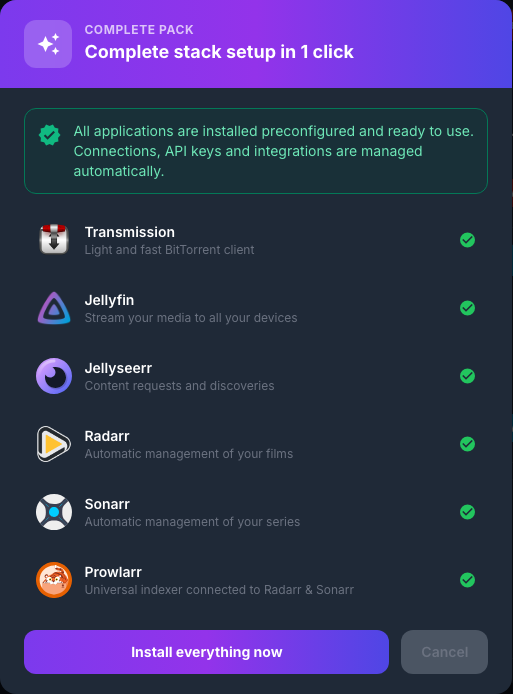
The complete stack automatically installs and links multiple download and media management applications. Connections, API keys and integrations between applications are prepared by the console.
Duration: allow a good ten minutes for the installation to be completely completed. An email is sent to you when the process is complete.
Applications included in the stack
The stack installs the following applications:
| Application | Use |
|---|---|
| Transmission | Download and share files with BitTorrent protocol |
| Jellyfin | Play your multimedia content on your devices |
| Jellyseerr | Search and request the addition of films or series |
| Radarr | Automate film management |
| Sonarr | Automate series management |
| Prowlarr | Centralize the indexers used by Radarr and Sonarr |
| Lidarr | Automate music management |
Note: Lidarr was added to the stack after the layout window was created. It may therefore not appear in the list displayed before installation, but it is installed with the other applications.
Open the installer
- Connect to Seedbox.fr.
- Open My Console.
- Click on the purple block Install your stack in 1 click.
- Check the featured apps.
- Click Install All Now.
Confirm reinstallation
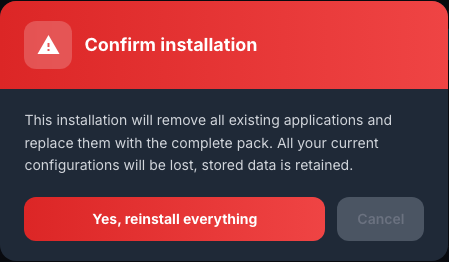
A second window summarizes the consequences of the operation.
Attention: the installation removes all existing applications and replaces them with the complete pack. Current application configurations are lost. The data stored on the seedbox is retained.
If you accept these consequences, click Yes, reinstall everything. Otherwise, click Cancel to return to the previous window without changing your service.
Wait for the installation to complete
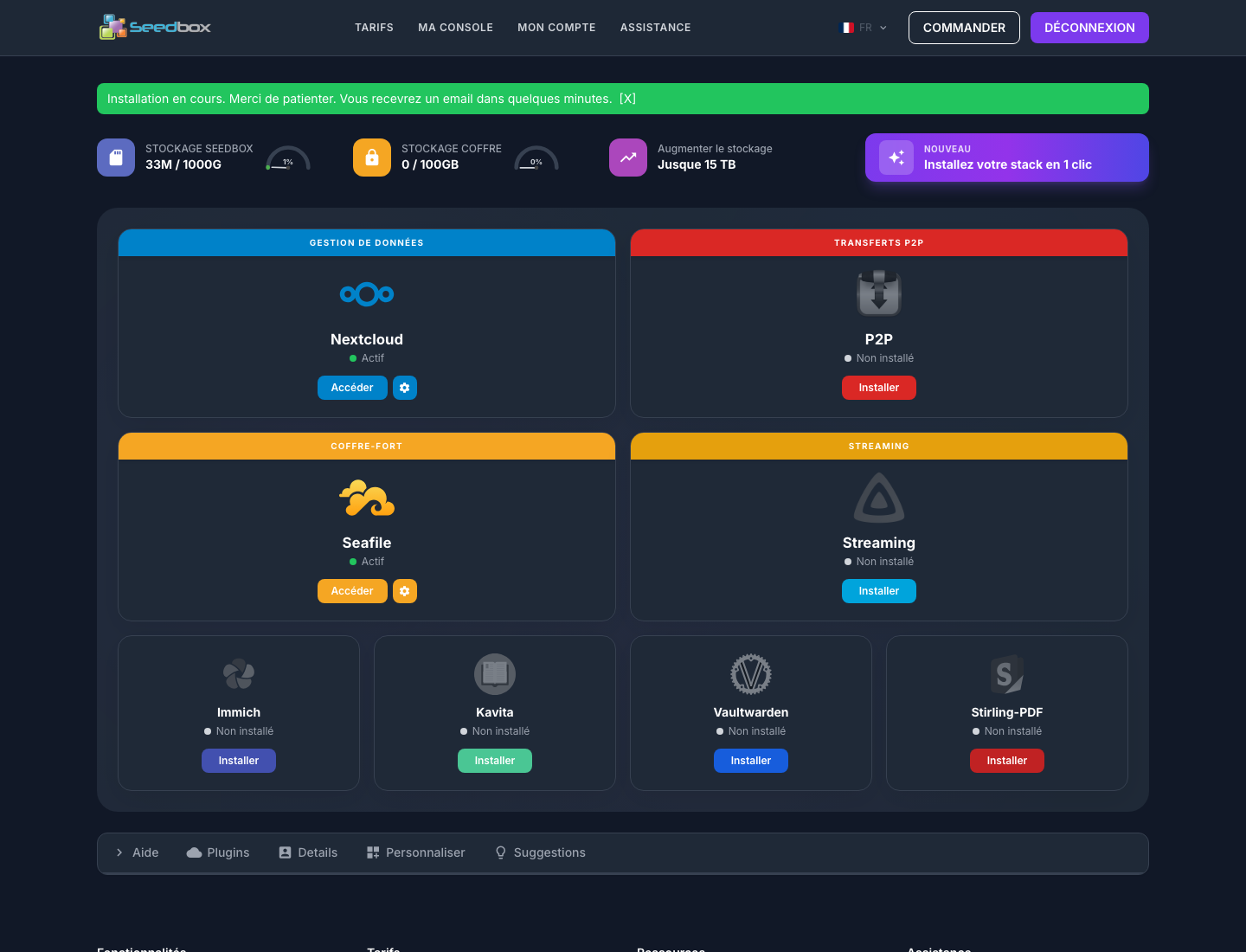
After confirmation, a green banner indicates: Installation in progress. Please wait. You will receive an email in a few minutes.
During this step:
- let the server complete the installation;
- do not restart a second installation;
- wait about ten minutes, even if some applications appear active sooner;
- Also monitor the email address associated with your account.
You can leave the page: the installation is carried out on the server and continues in the background.
Check installed apps
- Return to My Console after about ten minutes.
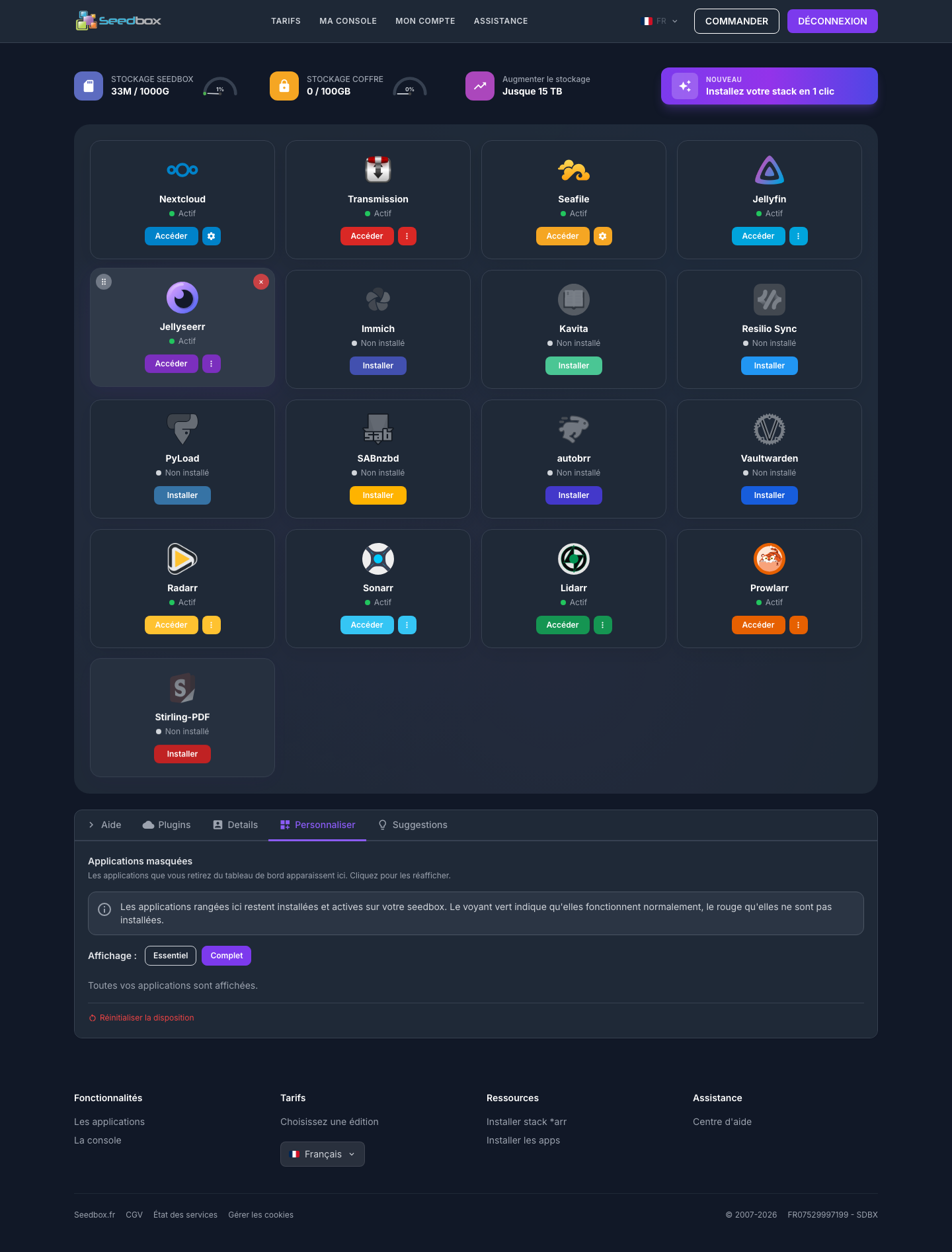
- Verify that Transmission and Jellyfin are marked Active.
- Open Customize.
- Select the Full view.
- Verify that Jellyseerr, Radarr, Sonarr, Lidarr, and Prowlarr are also marked Active.
The green light indicates that an application is functioning normally. The Access button then allows you to open it.
In case of incomplete installation
If one or more applications remain indicated Not installed after around ten minutes:
- refresh My console;
- check if the installation completion email was received;
- wait a few more minutes;
- contact Seedbox.fr support if the status does not change.