Customize My Console
The Customize tab allows you to choose the applications visible on the dashboard, to switch from a simplified display to a complete display and to restore the default layout.
Open the Customize tab
- Sign in to Seedbox.fr.
- Open My Console.
- Scroll down below Apps.
- Click Customize.
Use Essential mode
Essential mode only displays apps kept on the dashboard. Removed apps appear in the Hidden apps section.
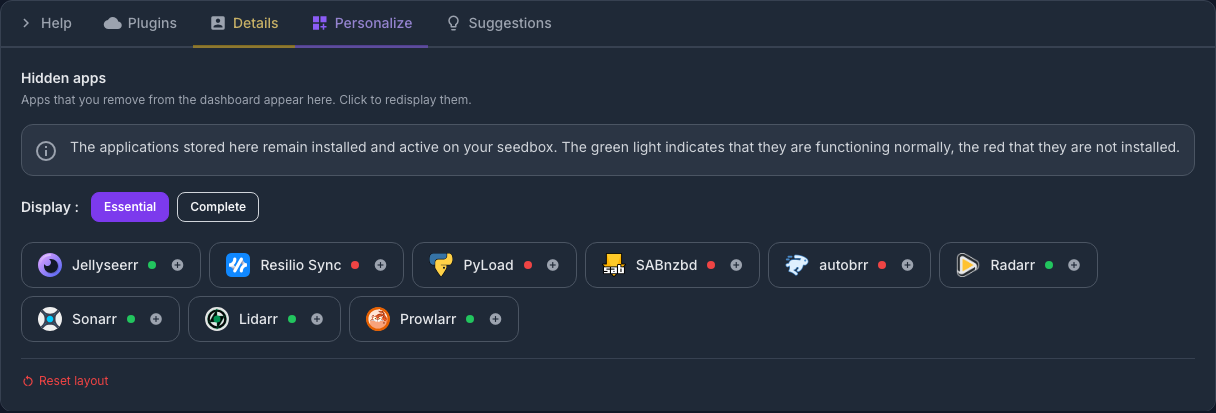
The indicator associated with each application indicates its status:
- green: the application is installed and active;
- red: the application is not installed.
Hiding an app doesn't uninstall or stop it. This only changes its display in My console.
To show a hidden application again, click its name or the + icon. It then returns to the main grid.
Use Complete mode
Click Complete to display all available apps in the main grid, regardless of their installation status.
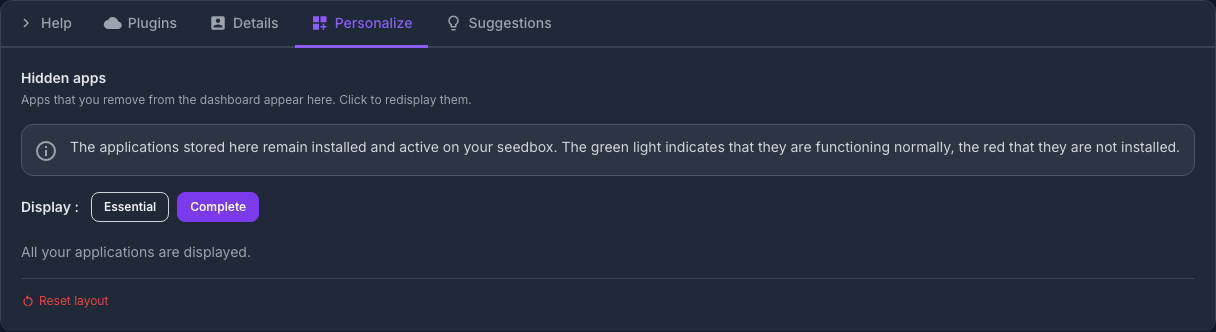
This mode does not install any applications. It simply makes all cards visible for easier browsing or installation.
Click Essential to return to the simplified view.
Hide and rearrange apps
In the main grid of My console:
- use the cross on a card to place it in Hidden applications;
- drag a card with its handle to change its location;
- return to Customize to redisplay a hidden card.
These settings only concern the presentation of the dashboard.
Reset layout
The Reset layout button restores the default grid and removes custom layout choices.
This reset does not delete files or uninstall any applications. Use it if cards have been hidden or moved by mistake.