Install and use Vaultwarden
Vaultwarden is a password vault compatible with Bitwarden apps. Data is end-to-end encrypted and can be synced between browser, extensions, mobile apps and desktop software.
Install Vaultwarden from My Console
- Log in to Seedbox.fr, then open My Console.
- Locate the card Vaultwarden, marked Not installed.
- Click Install, then confirm the installation.
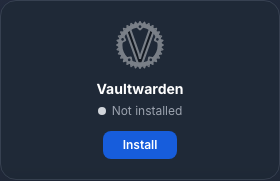
Deployment takes approximately five minutes. You will receive a first email when the instance is available, then an invitation sent by The Seedbox team.
The card displays Active and an Access button when the service is ready.
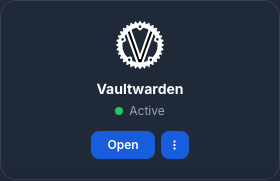
Activate the account with the invitation
- Open the email with the subject Join Vaultwarden.
- Click Join Organization Now or the invite link.
- Set a strong and unique master password.
- Confirm the password, then create the account.
The link is personal and temporary: never share it. The master password protects the encryption key and cannot be recovered if forgotten. Keep it in a safe location and do not reuse the Seedbox.fr account password or Services password.
Log in to the web vault
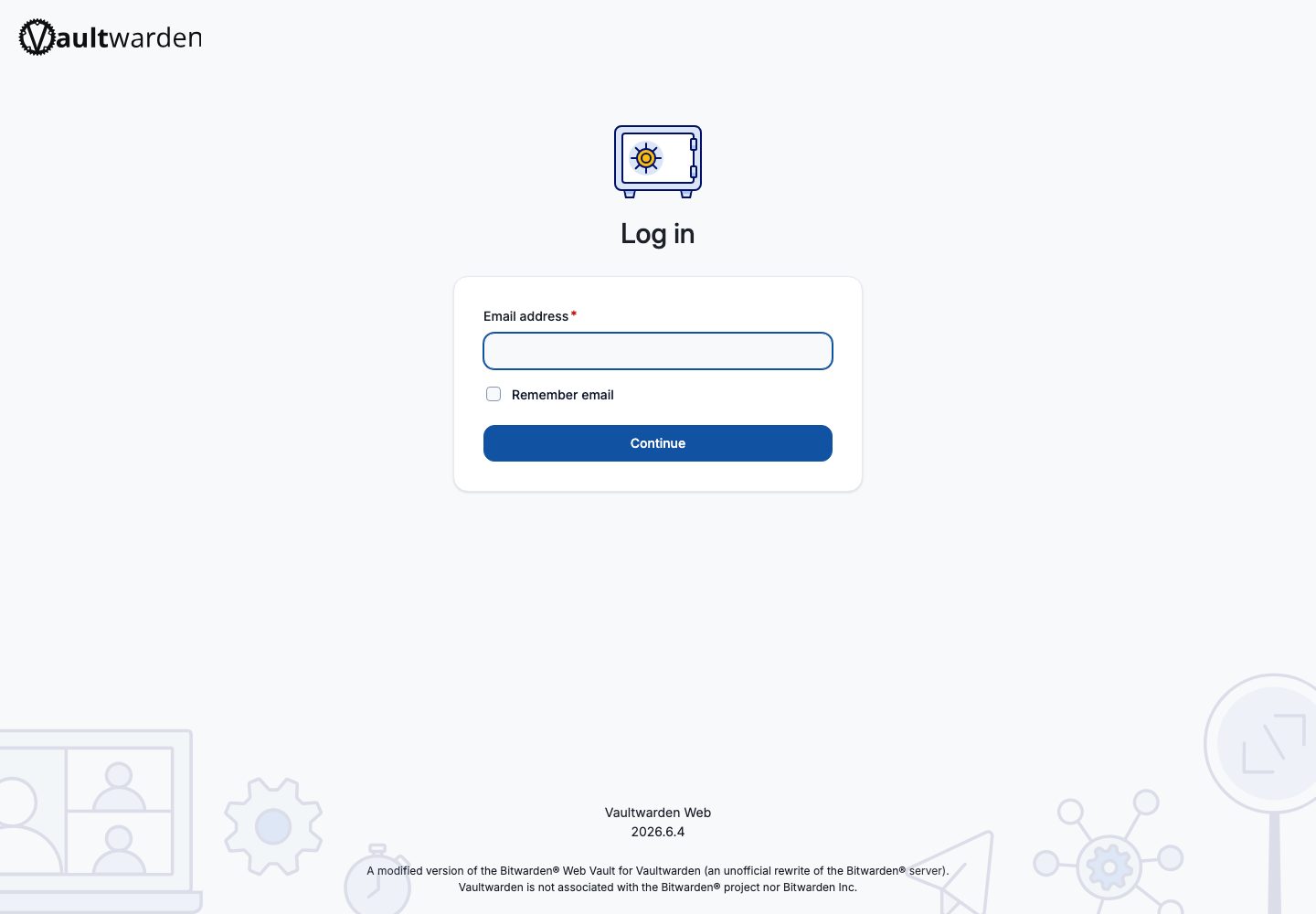
Click Access from My Console, then:
- enter your Seedbox.fr account email address;
- click Continue;
- enter the master password set during activation;
- click Log in.
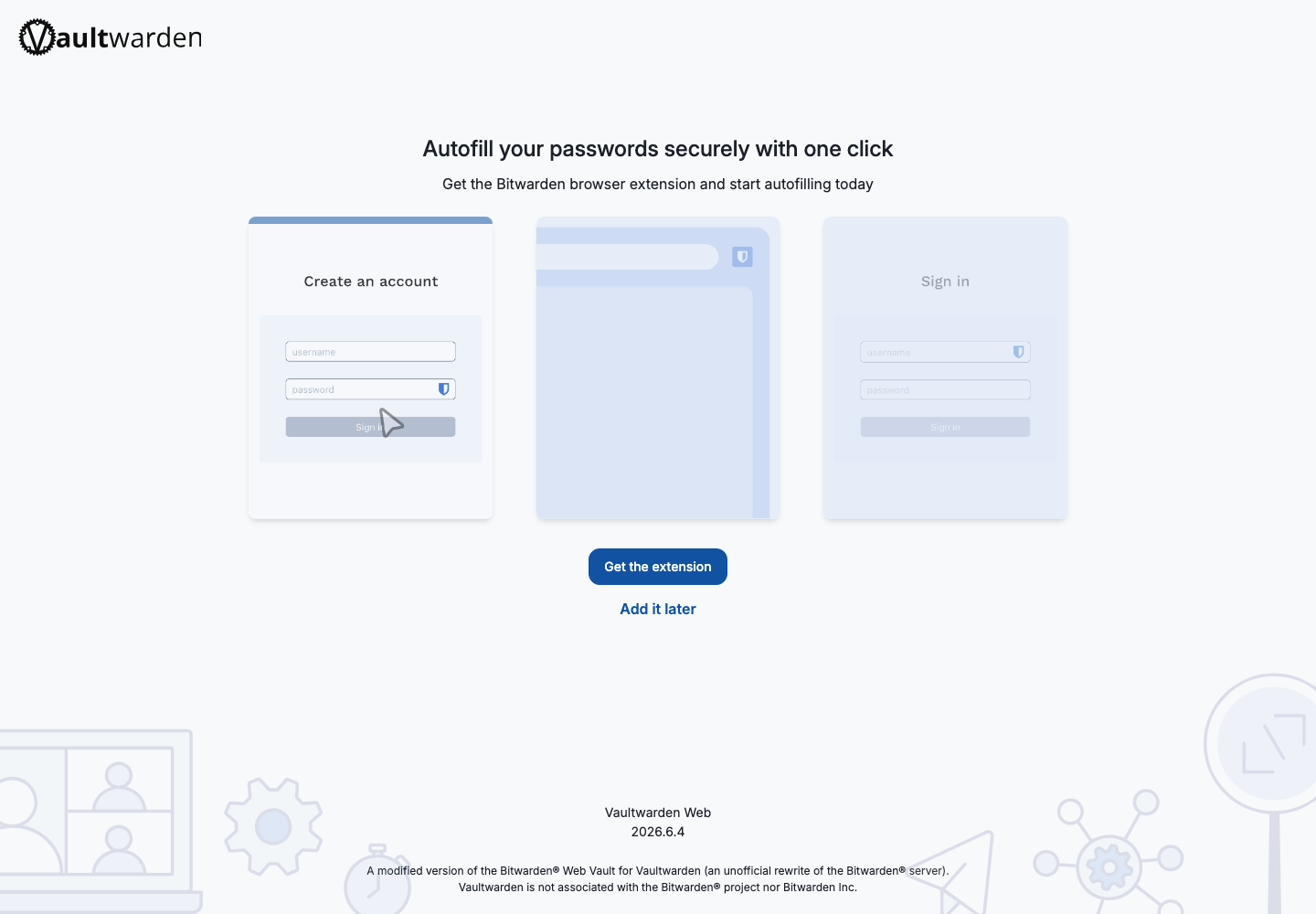
Vaultwarden may then offer to install the Bitwarden extension. You can install it immediately or choose Add it later, then Skip to web app.
Discover the interface
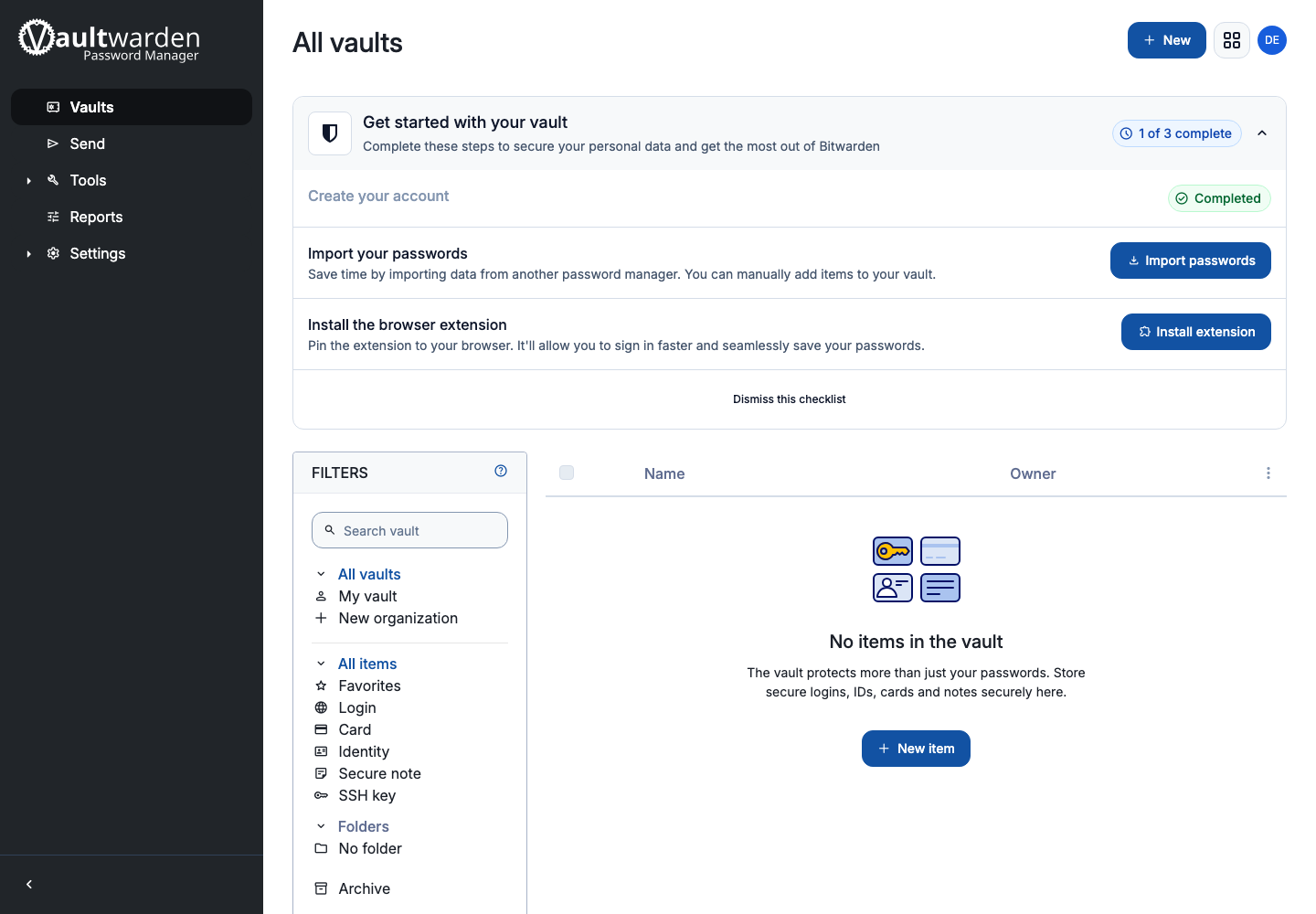
The main sections are:
- Vaults, for logins, cards, identities, secure notes and SSH keys;
- Send, to temporarily transmit text or a file in a protected manner;
- Tools, to import or export data;
- Reports, to identify certain security issues;
- Settings, to manage account, security, appearance and devices.
Click New item to save your first login. Enter the service name, username, password and website address, then save it.
Configure a Bitwarden app
Vaultwarden works with official Bitwarden apps for mobile, browser and desktop.
Before logging into a new application:
- open Bitwarden connection settings;
- select whether to use a self-hosted server or a custom server URL;
- enter the URL Vaultwarden received by email or opened with the Access button;
- confirm the setting, then log in with your Seedbox.fr email address and master password.
Make this setting before logging in: without the custom URL, the app will attempt to reach Bitwarden's public servers and will not find this account.
Strengthen security
Open Settings > Security to adjust the session timeout, enable two-factor authentication, and view the devices or keys associated with the account.
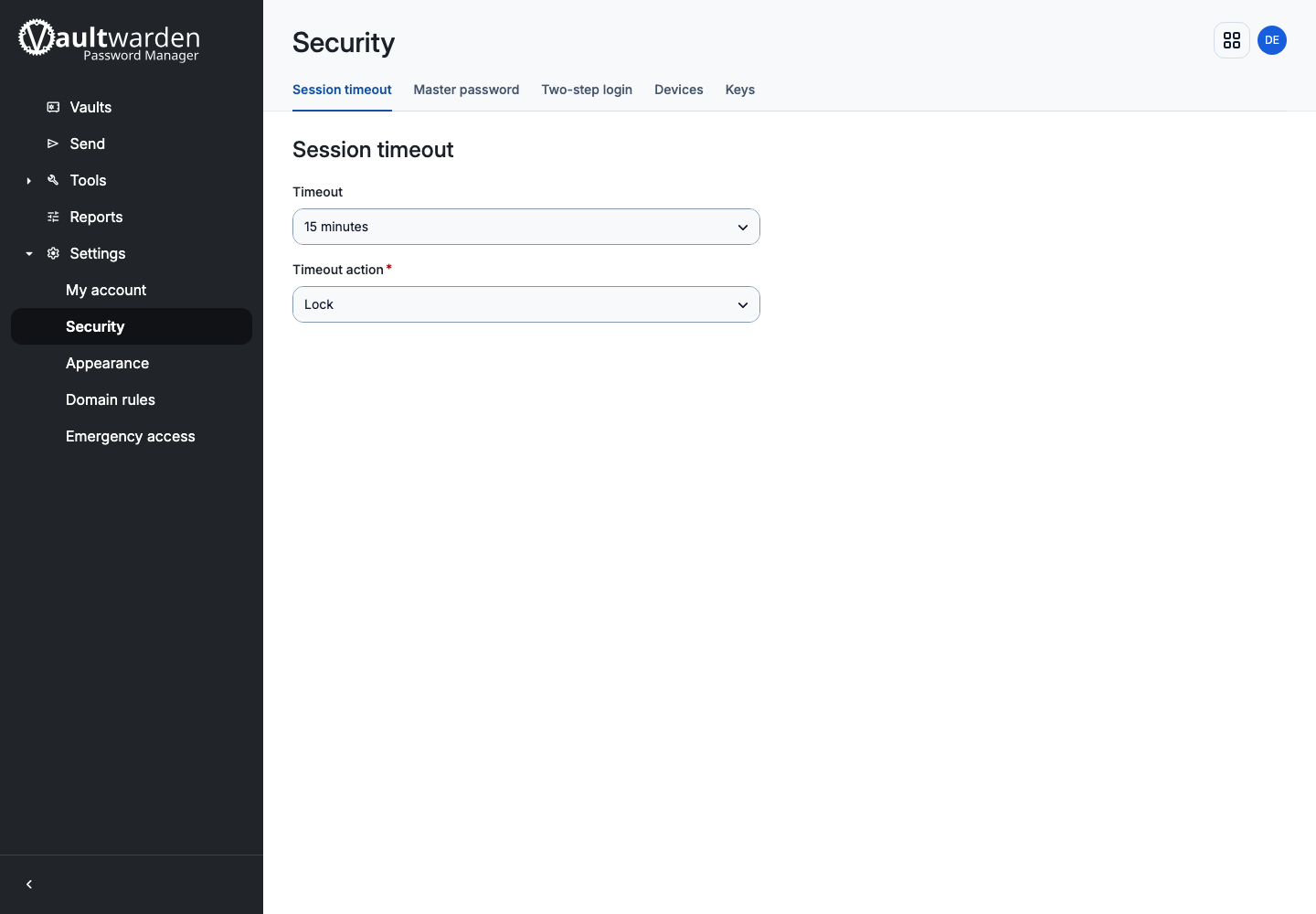
Enable two-factor authentication when possible and keep the recovery code outside the vault.
Change the master password
- Open Settings > Security.
- Select Master Password.
- Enter the current master password.
- Enter and confirm the new password.
- Click Change Master Password.
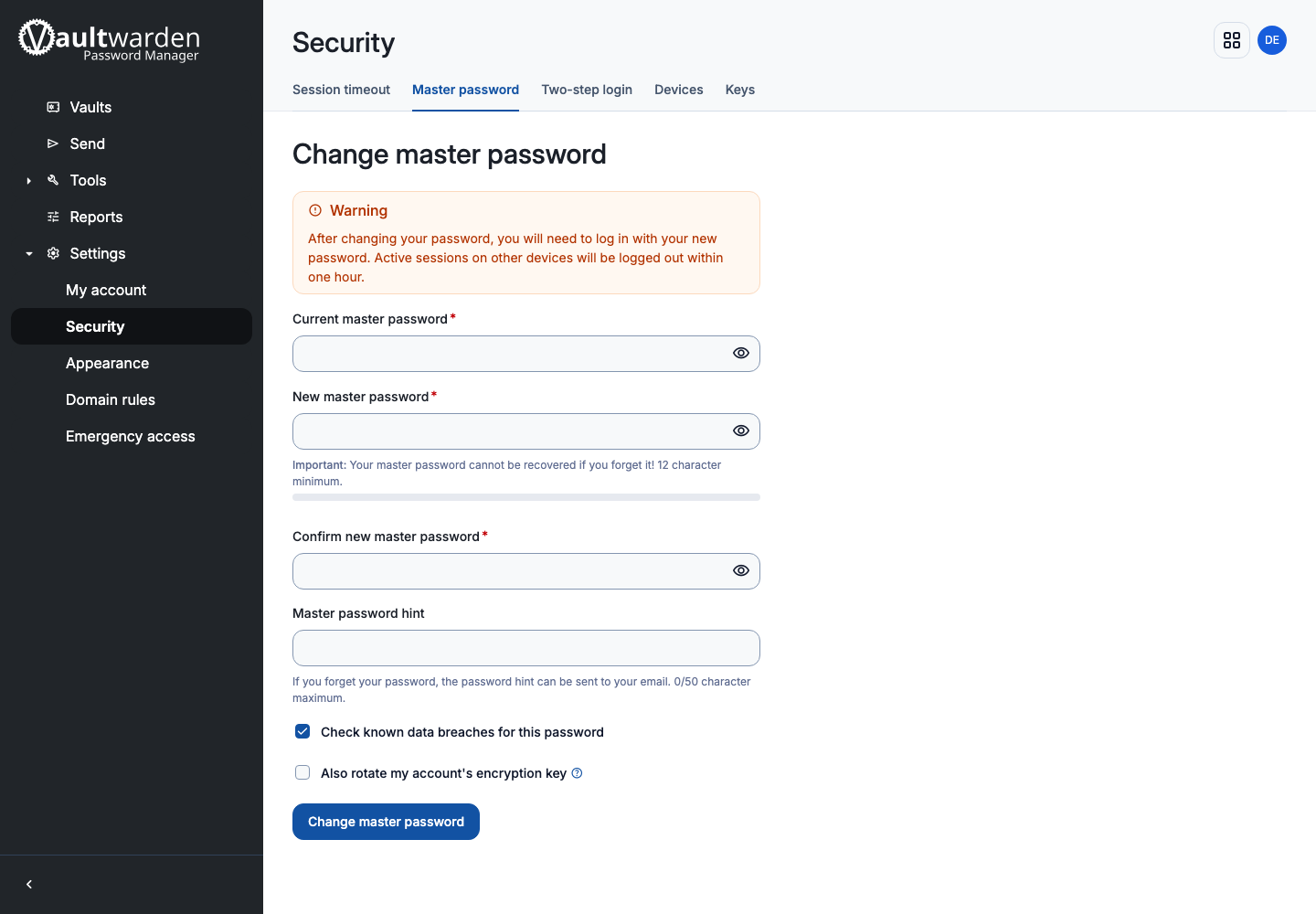
Other sessions will be disconnected. Immediately update the password stored in your backup location.