Use the Plugins tab in My Console
The Plugins tab, located below the applications in My Console, provides the settings required to connect external software to your seedbox. It does not install the applications displayed in the upper part of the panel.
Open the Plugins tab
- Connect to Seedbox.fr.
- Open My Console.
- Scroll down to the bar below apps.
- Click Plugins.
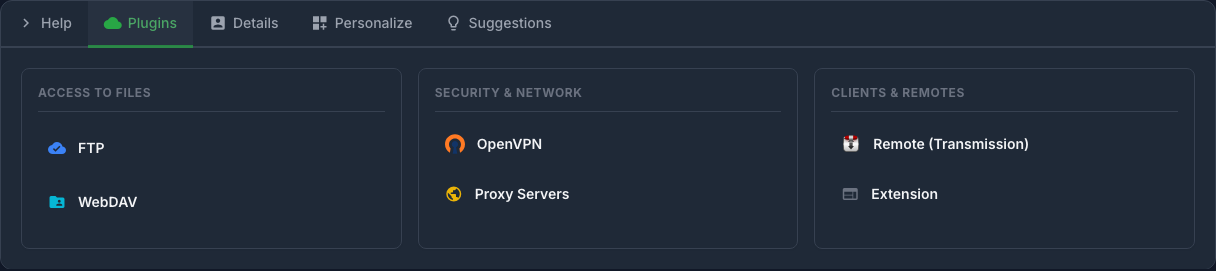
The tools are divided into three categories:
- File access: FTPES and WebDAV;
- Security and network: OpenVPN and proxy servers;
- Clients and remotes: Transmission Remote and browser extension.
Privacy: Account-specific hosts, usernames, IP addresses, ports, and URLs are blurred in the screenshots. Never publish this information.
Access files with FTPES
Click FTP to display the host, username, and port to enter in your FTP client.
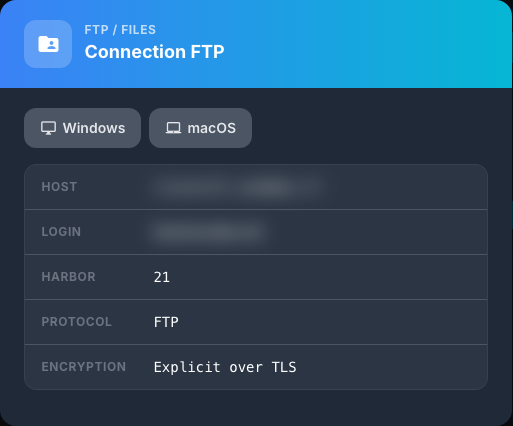
Although the form has the name FTP, it indicates Explicit over TLS encryption: the connection to use is therefore FTPES, generally on port 21.
In FileZilla or compatible software, enter:
- the host displayed by the panel;
- the port indicated;
- the service username;
- the associated password;
- the FTP protocol with explicit FTP encryption over TLS.
The Windows and macOS buttons provide access to indications adapted to the system used.
Access files with WebDAV
Click on WebDAV to obtain the addresses of the two available spaces:
- WebDAV Seedbox for primary storage;
- WebDAV Vault for backup storage.
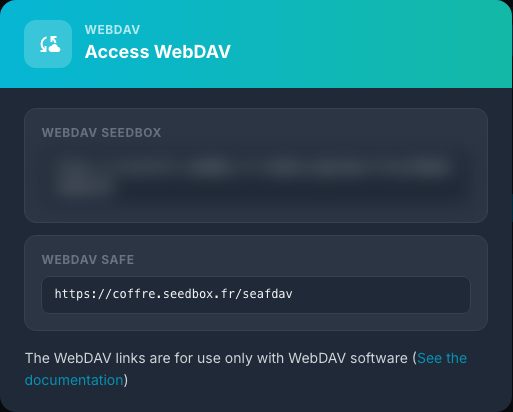
Copy the address for the required storage space into a WebDAV-compatible client. When prompted, use your Seedbox service credentials.
Please note: these addresses are intended for WebDAV software. They should not be opened like a regular web page in the browser.
Generate the OpenVPN configuration
Click OpenVPN, choose Windows or macOS, then use Generate .ovpn file.
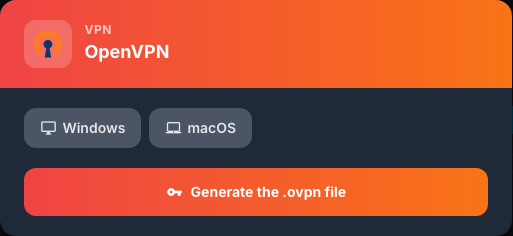
Then import the downloaded file into the OpenVPN application on your device. The .ovpn file contains the parameters necessary for the connection: keep it in a private location and do not transmit it to a third party.
Use proxy servers
The Proxy Servers panel lists the HTTP/HTTPS relays available in several countries. They use port 3128. The French server also includes ad blocking.
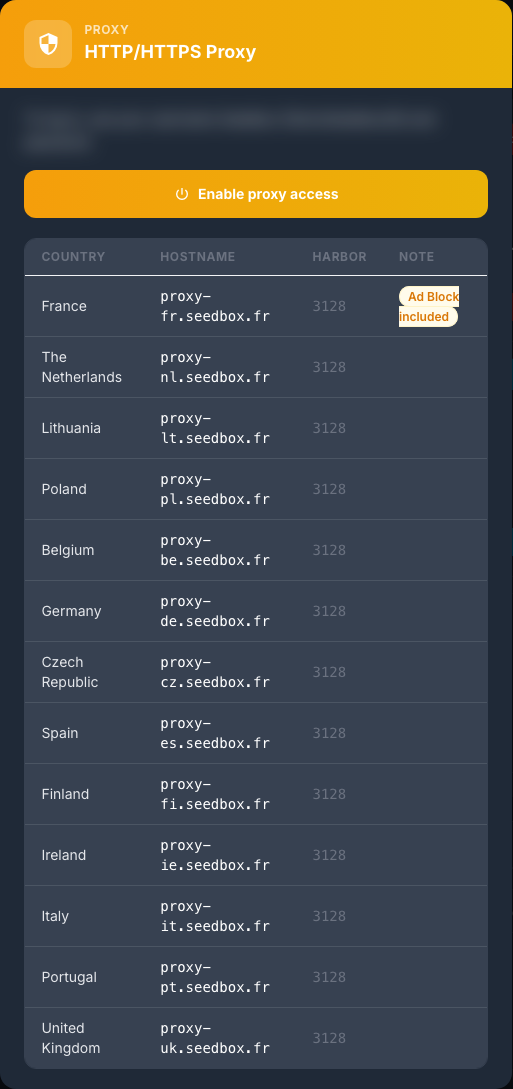
- Click Enable proxy access if this access is not yet enabled.
- Choose the desired country.
- Enter the host name and port
3128in the proxy settings of your software. - Use the Seedbox username shown in the panel and its password.
The proxy only concerns applications configured to use it. It does not automatically replace the Internet connection of the entire device.
Configure Transmission Remote
Click Remote (Transmission) to view connection settings for a Transmission Remote application on Windows or macOS.
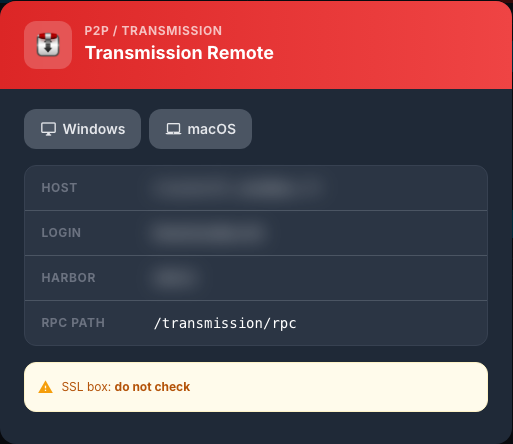
Copy the displayed host, username, and port. Use /transmission/rpc as the RPC path.
The panel specifies that the SSL box must remain unchecked in the remote client. Keep this setting even if web access to Transmission uses an HTTPS address.
Install the browser extension
The Extension panel provides the settings required by the Google Chrome extension.
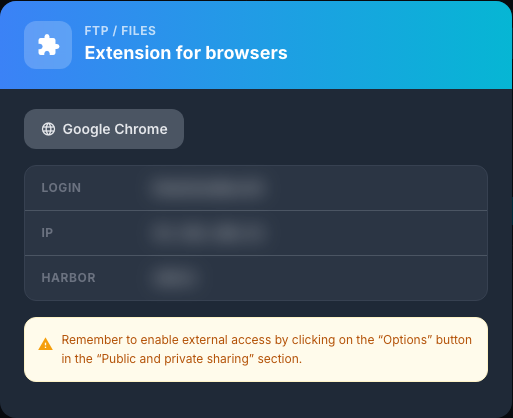
- Open the Extension panel.
- Click Google Chrome to access the extension.
- Enter the login, IP address and port displayed in the extension.
- Activate external access beforehand from the Options button in the Public and private sharing section, as indicated in the sheet.
If the connection fails, check that external access is active and copy the values without extra spaces.
Good security practices
- do not share screenshots containing a host, username, or personal address;
- do not reuse the password for the services on other sites;
- delete old
.ovpnfiles from devices you no longer use; - disable external or proxy access that has become unnecessary;
- immediately change the services password if these settings have been exposed.