Install and use Immich
Immich lets you back up, organize and view your photos and videos from a browser or mobile app. It generates thumbnails, extracts metadata and indexes your media to make searching easier.
Install Immich from My Console
- Log in to Seedbox.fr, then open My Console.
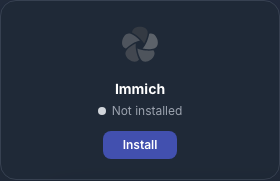
- Locate the card Immich, marked Not installed.
- Click Install.
The confirmation window states that installation takes approximately five minutes. Click Install again.
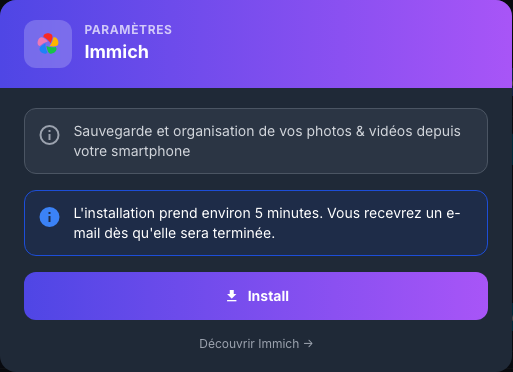
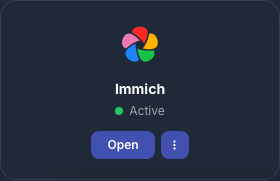
You will receive an email when the instance is available. The card then displays Active and an Access button.
Log in to Immich
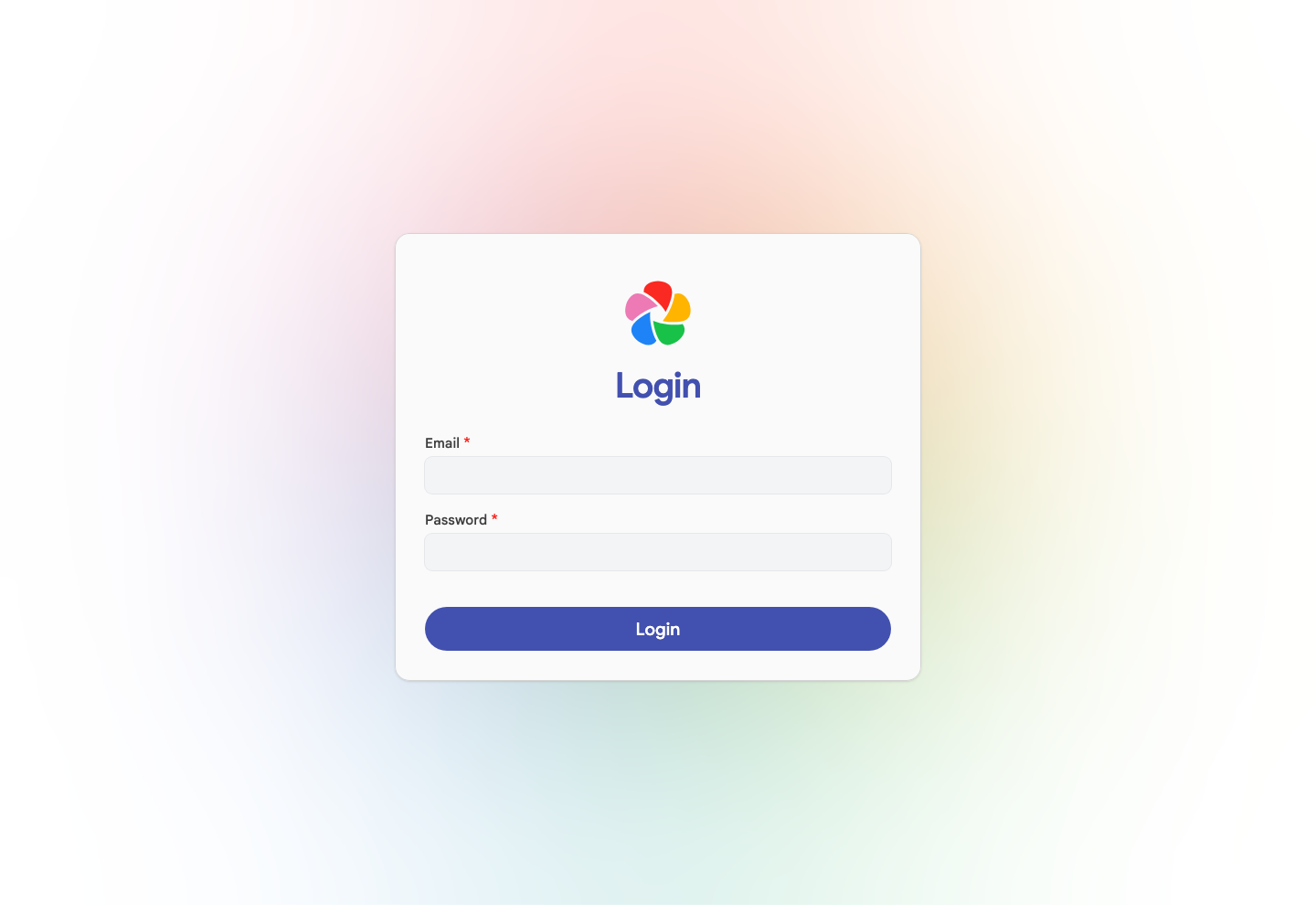
Click Access, then use:
- the email address of your Seedbox.fr account;
- your Seedbox services password.
Do not use your services username or customer-area password on this screen.
Complete the initial setup
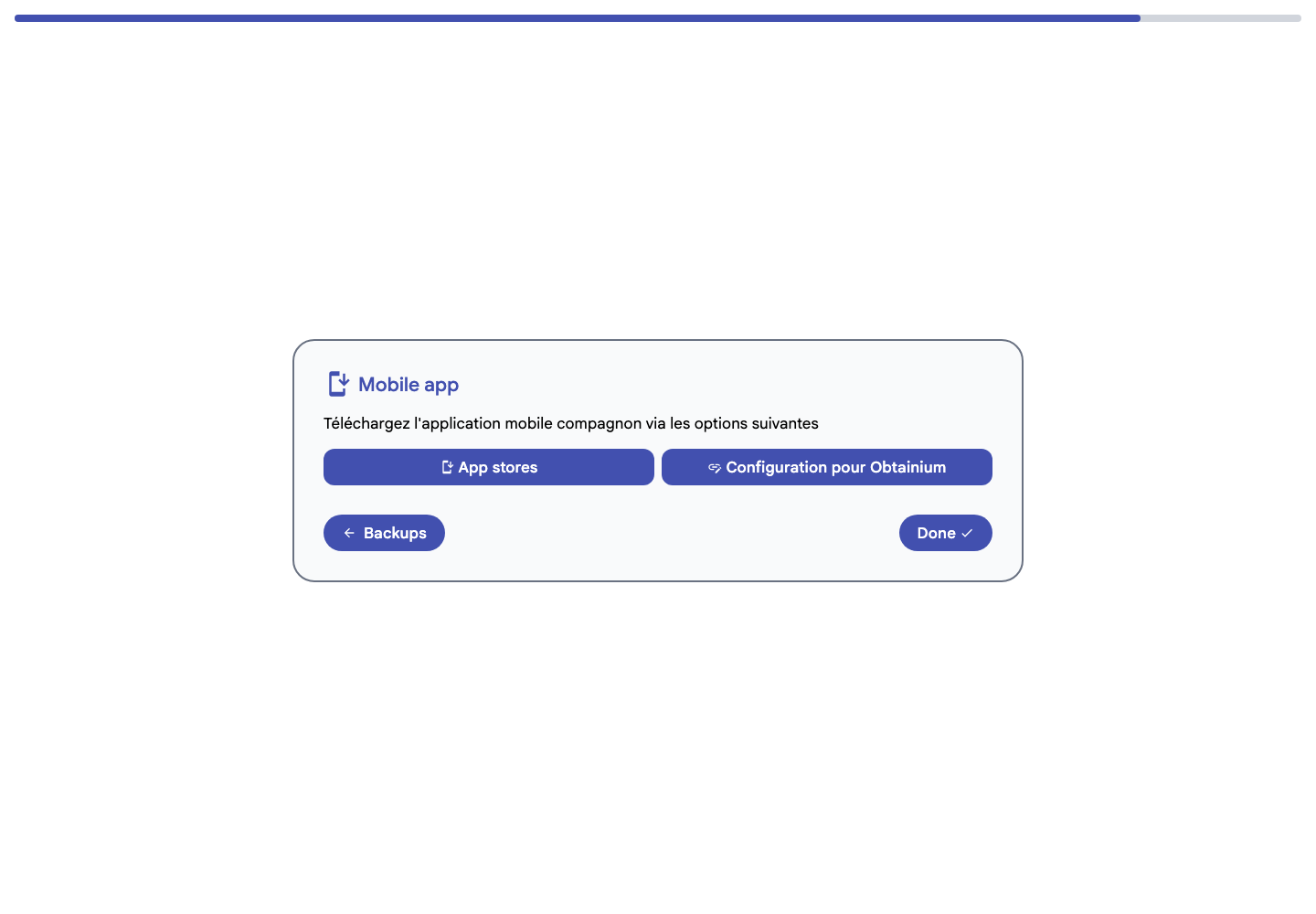
When you first sign in, a wizard guides you through the theme, language, privacy options, storage template, backups and mobile app.
Carefully review the options that allow Immich to contact external services. You can change them later in the settings.
Immich recommends a 3-2-1 backup strategy. Do not use your instance as the only copy of your photos and videos.
Discover the interface
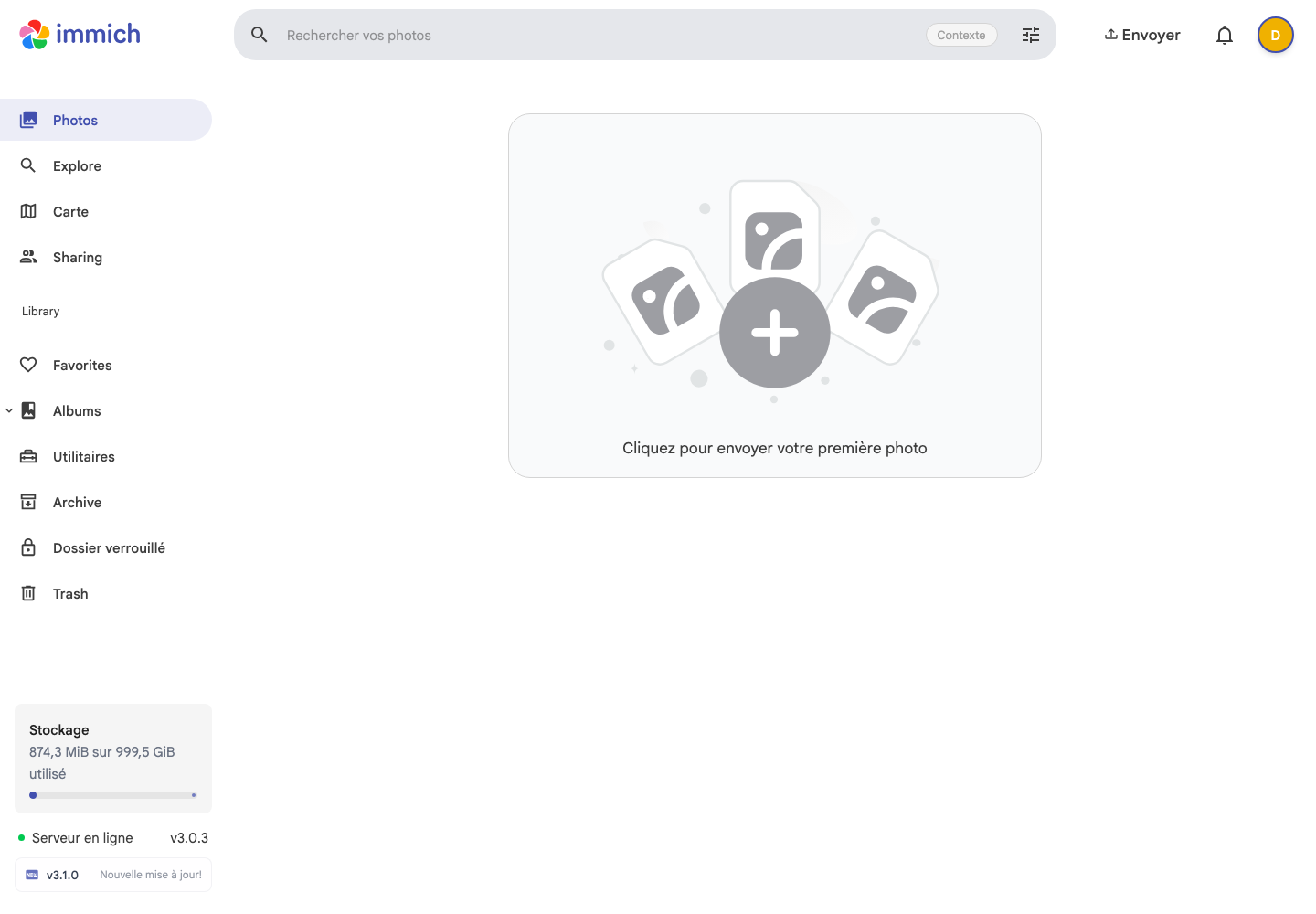
The menu provides access to the main functions:
- Photos displays the timeline of your media;
- Explore allows you to search and browse the photo library;
- Map groups media that contains geographic coordinates;
- Sharing, Albums and Favorites help organize and share content;
- Archive, Locked Folder and Trash provide additional ways to manage it.
Click Upload or the central area to import photos and videos from your computer.
Use the mobile app
Install the Immich app from the App Store or Google Play. During setup, enter the instance address provided in your email and available through the Access button in My Console.
You can then select the phone albums to back up. Verify that synchronization is complete before deleting an original from the device.
Change your Immich password
- Click on the avatar at the top right.
- Open Account Settings.
- Expand the Password section.
- Enter the current password, the new password and its confirmation.
- If needed, enable Log out all devices, then click Save.
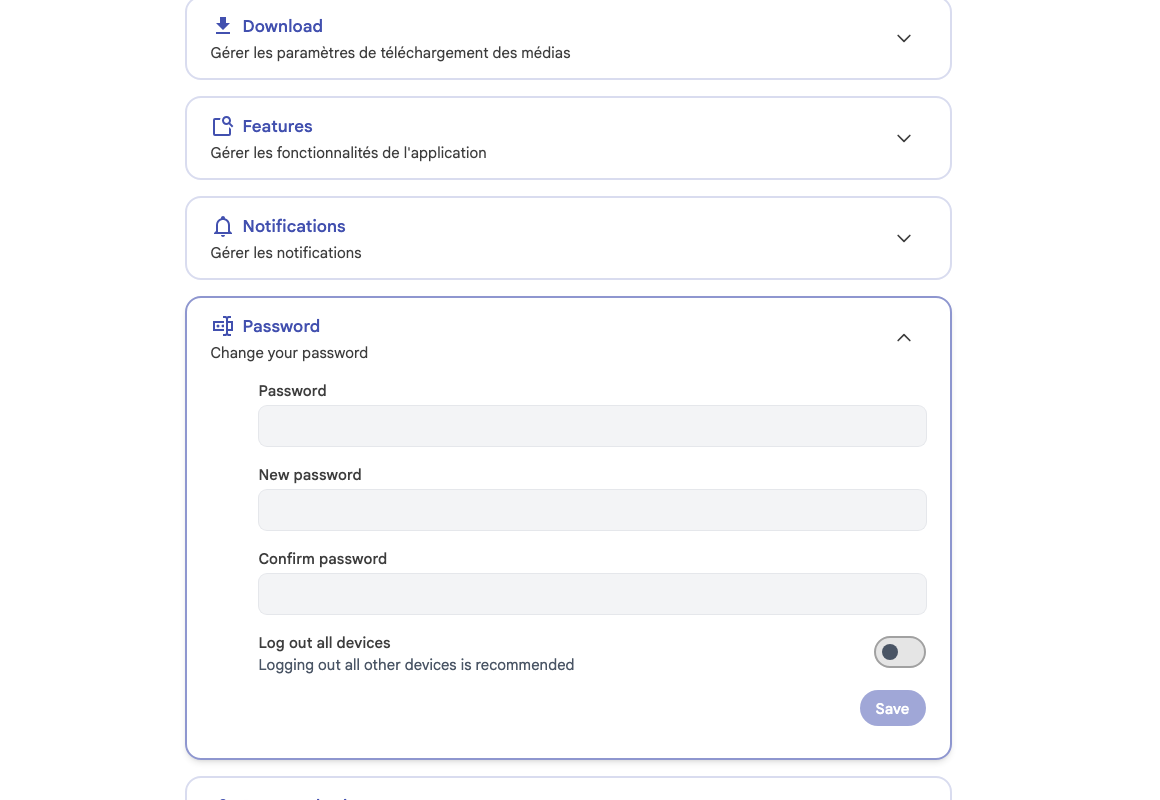
This change only affects Immich. The next time you sign in, use your Seedbox.fr account email address with this new Immich password.