Use the Details tab in My Console
The Details tab shows the username shared by the seedbox services, lets you change their password, and provides access to the cancellation request process.
Open Details tab
- Sign in to Seedbox.fr.
- Open My Console.
- Scroll down below Apps.
- Click Details.
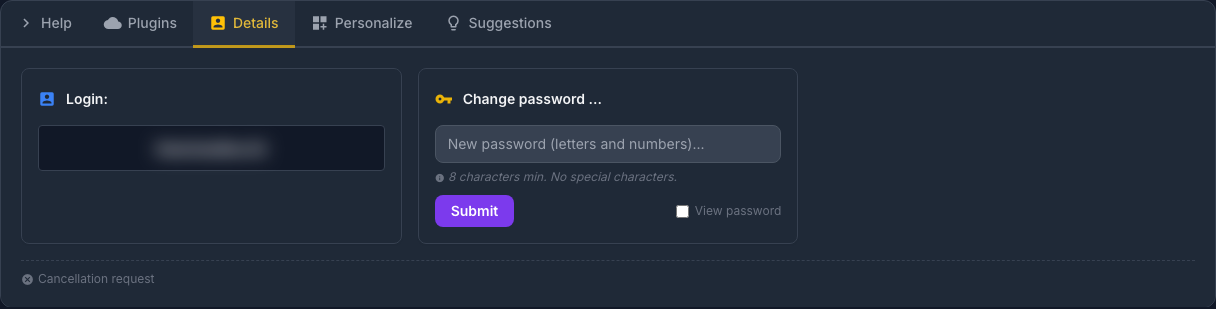
Confidentiality: the identifier of the services is deliberately blurred. Never publish a screenshot displaying this username with its password.
Understanding the ID displayed
The Login field is the username used by the seedbox services. It is different from the email address used to access the Seedbox.fr customer account.
You can also find it in the FTPES, proxy, Transmission Remote, and browser extension panels. Use it with the services password, not the customer account password.
Change services password
The Change Password form modifies the password associated with the displayed identifier.
The new password must respect the constraints indicated by the panel:
- at least 8 characters;
- only letters and numbers;
-
no special character.
-
Enter the new password in the field provided.
- Temporarily select View password if you want to check your entry.
- Click Submit.
- Wait for the change to take effect before reconnecting to the services.
Important: This change may affect all software using service identifiers. Update the password saved in your FTPES, WebDAV clients, proxy or remote applications.
The customer account password, used with your email address on Seedbox.fr, is not changed by this operation.
Access the cancellation request
The Cancellation request link, located at the bottom of the tab, opens the procedure concerning the selected Seedbox service.
Only use this link if you really want to request that the service be stopped. Carefully read the conditions, effective date and consequences displayed in the next step before any confirmation.
Attention: a cancellation may result in the subsequent deletion of hosted data. Download the files to keep and check your backups before validating a request.