Use Nextcloud
Nextcloud lets you browse, organize, and download your seedbox files from a web browser. This page explains how to sign in, use the interface, change the password, and run the diagnostic tool available in My Console.
Open Nextcloud
- Sign in to Seedbox.fr.
- Open My Console.
- Locate the card Nextcloud.
- Make sure the application is marked Active, then click Open.
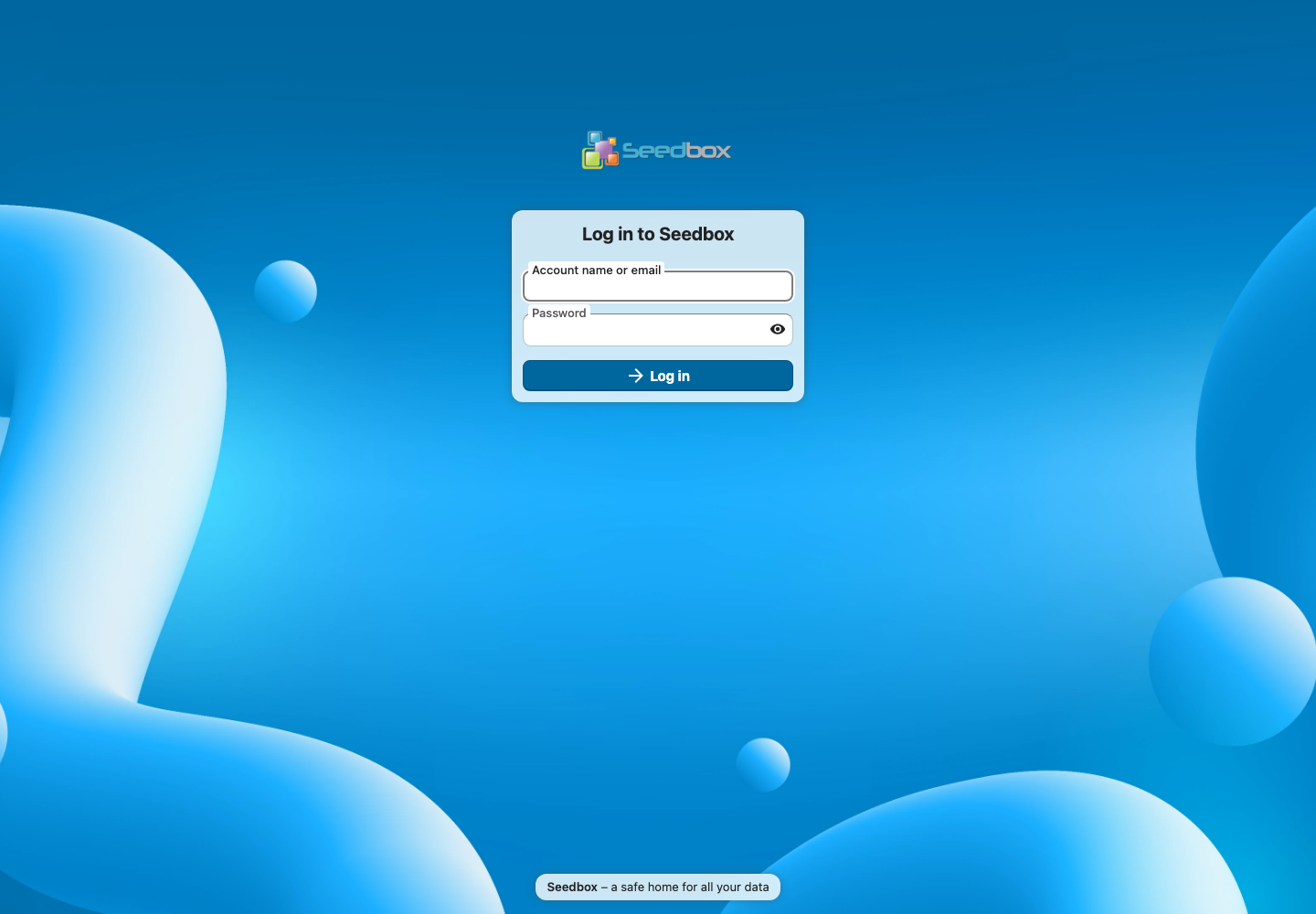
The Nextcloud login page opens in a new tab.
Which credentials should I use?
Use your seedbox service username and service password. The username is shown under My Console > Details.
Do not use your Seedbox.fr account email address and password: those credentials are only used to access the customer area.
Privacy: never share your credentials or publish a screenshot that displays them.
Discover the interface
After login, Nextcloud displays the Files application.
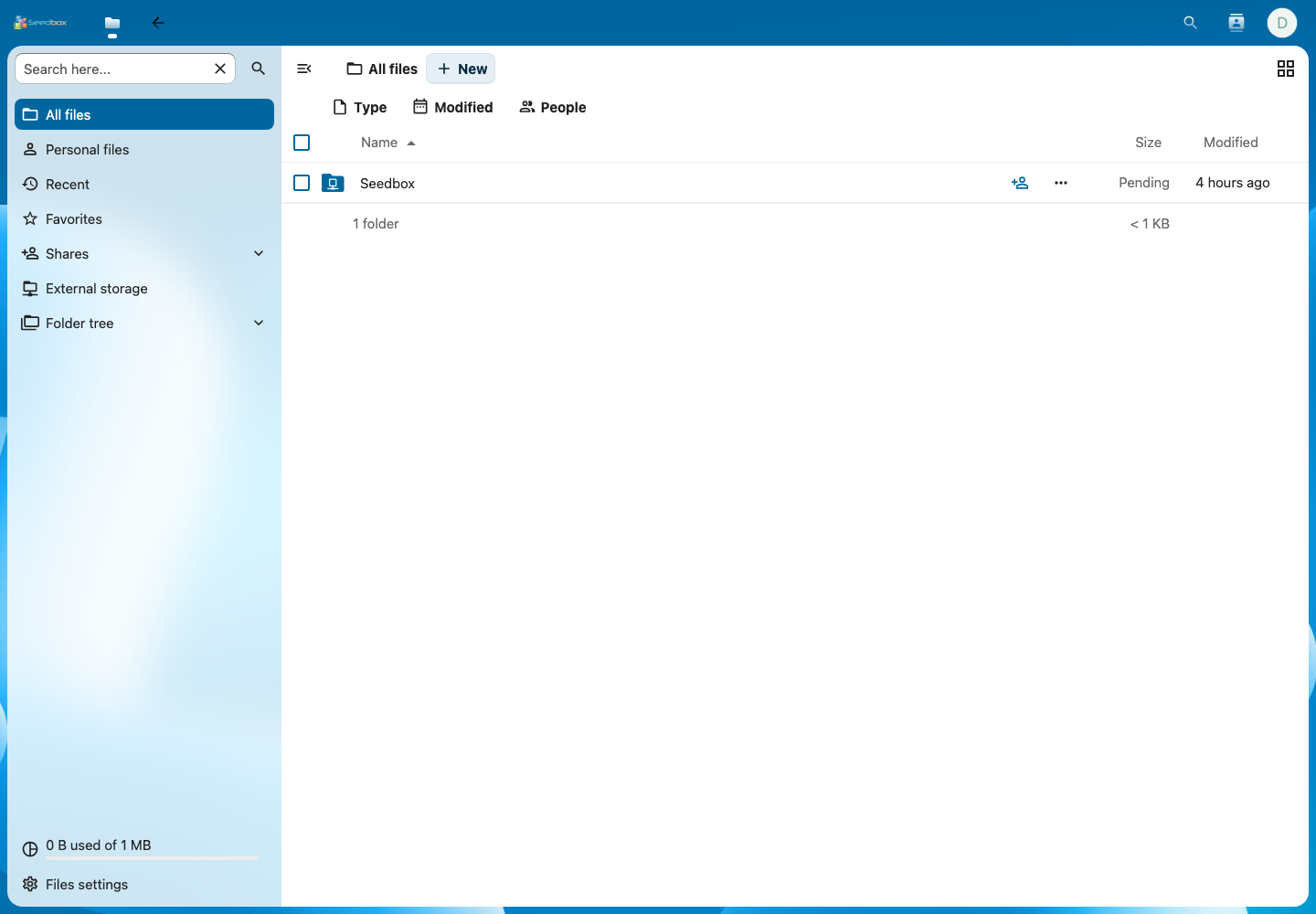
The main areas are:
- All files: displays accessible folders and files;
- Personal files: contains data belonging to the Nextcloud account;
- Recent and Favorites: provide quick access to frequently used items;
- Shares: displays items shared with or by the account;
- External storage: provides access to the storage connected to the seedbox;
- New: allows you to create a folder or add a file;
- the Seedbox folder: opens the data present in your storage space.
The Back to console button in the top bar returns you to My Console.
Change the Nextcloud password
- Click the avatar in the upper-right corner.
- Select Settings.
- In the left menu, open Security.
- In the Password section, enter the current password.
- Enter the new password.
- Click Change password.

This form changes the Nextcloud account password only. It does not change your Seedbox.fr customer-account password or the passwords of other applications. Save the new password in a password manager.
To change the shared service password from the panel, use My Console > Details > Change password instead.
Fix permissions or name encoding
The Nextcloud card in My Console has a gear-shaped settings button.
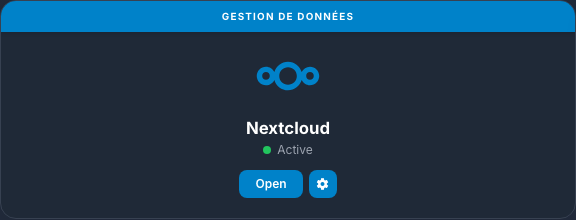
Click this button to open the Nextcloud scan & permissions tool.
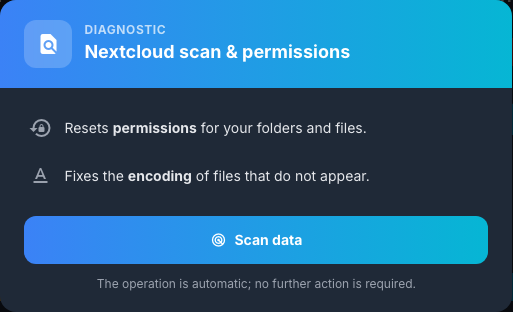
This tool allows you to:
- reset permissions for folders and files;
- fix encoding of filenames that do not appear in Nextcloud.
Click Scan data. The operation is automatic and requires no further action. Wait for it to finish, then refresh Nextcloud and check that the affected files or folders are visible again.
Use this diagnostic when an item in storage does not appear in Nextcloud, or when a name containing accented or special characters is incorrectly displayed.