 Français
 English
 Deutsch
 Español
 Italiano
 Português
 Português (BR)
 Nederlands
 Русский
 العربية
 Türkçe
 Svenska
 Norsk
Norsk Dansk
Dansk Magyar
 Čeština
 Română
 Hrvatski
 中文
中文 Eesti
Eesti فارسی
فارسی עברית
עברית Azərbaycan
 Македонски
 Українська
Automatic backup
With the dedicated application, your files are synchronized automatically and in real time. If you are not connected, synchronization takes place as soon as a network is available.
Installation and configuration
Download the software
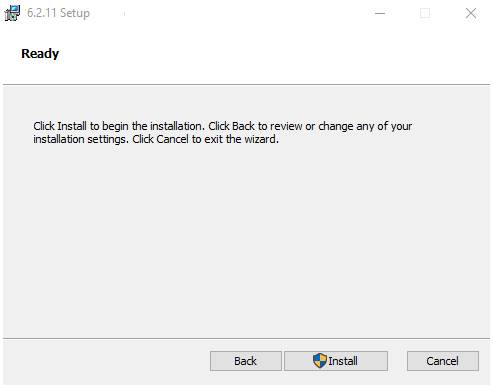
Install and configure
The following procedure is for Windows (7/8/10) but it is identical for all the other operating systems.
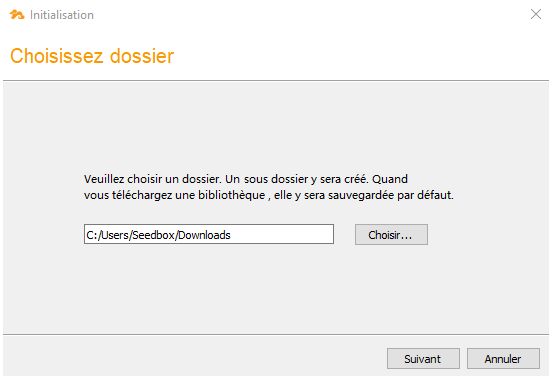
Download folder
Choose a default download folder, for example your "Downloads" folder
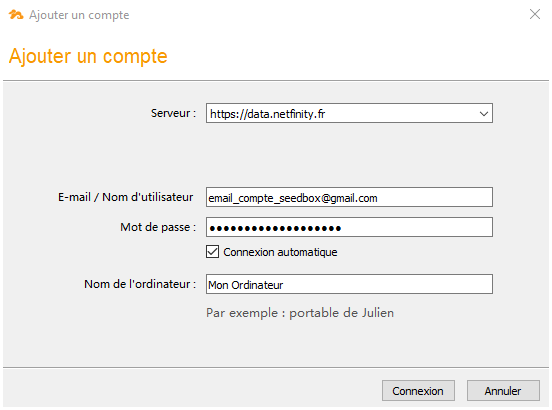
Settings
Specify your connection parameters. Click on the photo for more details:
- Server : https://data.netfinity.fr
- Email: your Seedbox account email
- Password: Your Seedbox password
Select the content to save
A vertical window opens, indicating that you are well connected. Now click on"Select" to choose the first folder you want to save.
You can add others later.
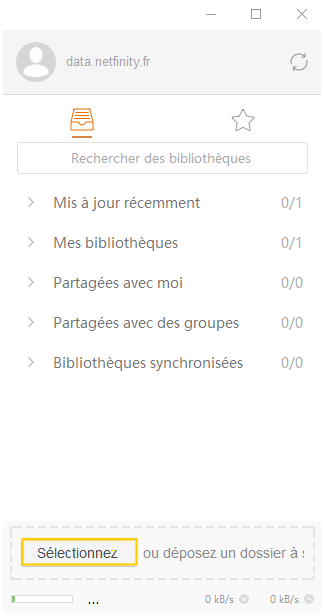
Download folder
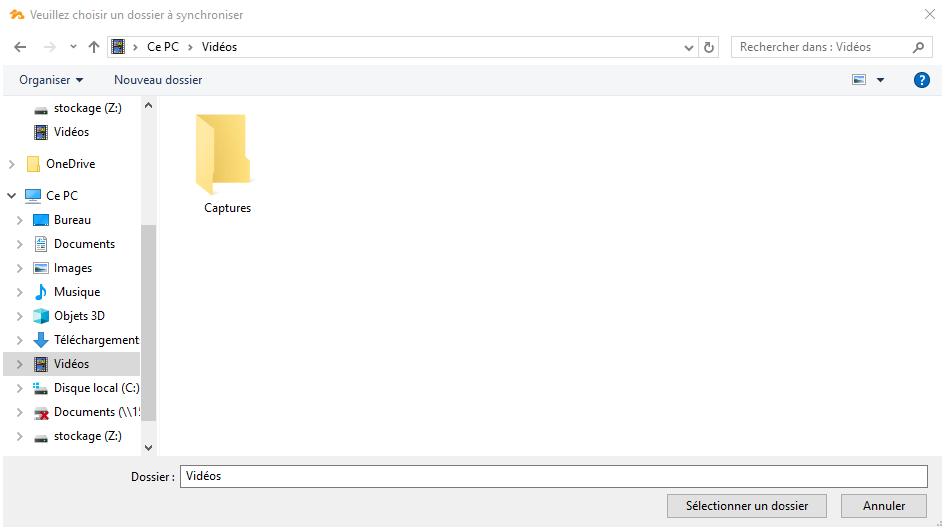
Choose a default download folder, for example your folder "Videos".
This will save the entire contents of the Videos folder automatically. Please note, do not choose the entire "C: \" drive.
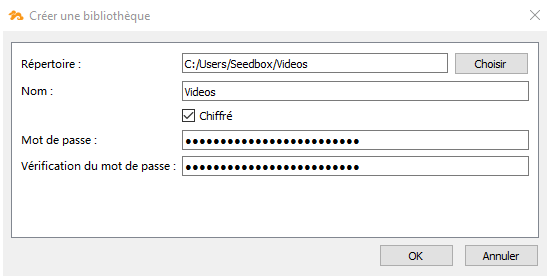
Summary & protections
You can encrypt the backup with a passphrase. Be careful, if you lose this secret key it will be impossible to recover the content !
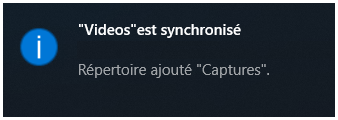
The backup is done !
After a more or less long period (depending on the volume of data to be saved), a notification appears and tells you that the file is well synchronized. Go to the next section to find out how to recover data if an issue appear.
Recover deleted or lost files ...
And here is the drama...
In the previous chapter we decided to save the file Videos from our computer.
Unfortunately, I deleted its content ...
Fortunately, in a few clicks I can recover everything.
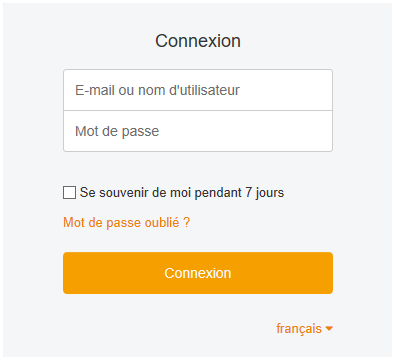
Log in
To recover one or more lost files, nothing could be simpler:
Go tosafe management interface from your Seedbox manager.
Log in with your email and password.
Select the saved library
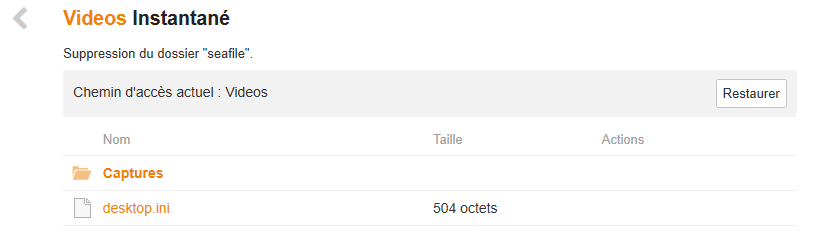
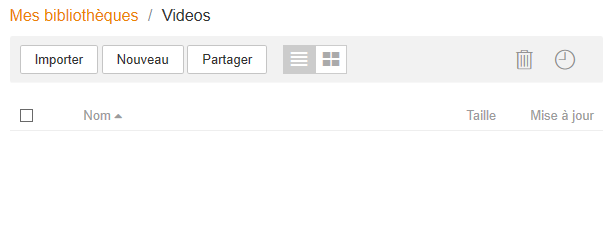
I go with a click in the "Videos" folder then I click on the clock icon in the top right.
Access to history
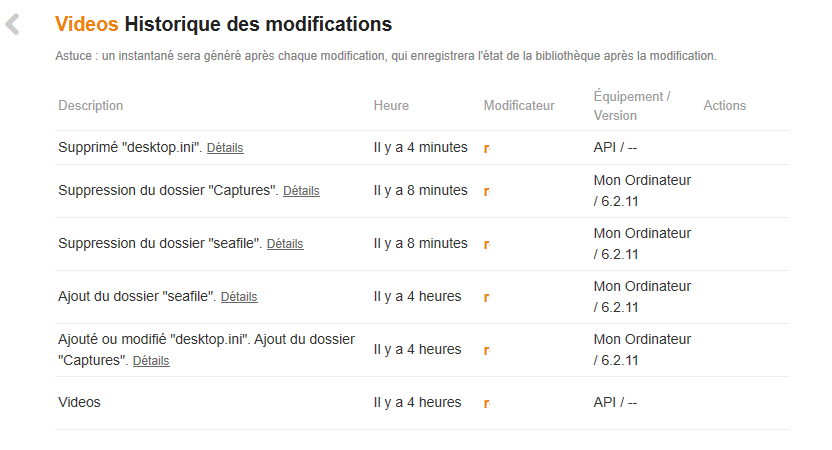
Now I have access to all the history.
On the right, in the "Action" column, move the mouse and click on "View snapshot".
Start recovery
Now just click on "Restore" to start the recovery process.
Depending on the volume of data, the operation may take more or less time.
All deleted files are automatically restored into the "videos" folder on my computer.